All blogs

Implementing Iterators and Generators in JavaScript
JavaScript provides several ways of iterating over a collection, from simple for loops to map() and filter(). Iterators and generators bring the concept of iteration directly into the core language and provide a mechanism for customizing the behaviour of ‘for...of loops’. Iterators and generators usually come as a secondary thought when writing code, but if you can take a few minutes to think about how to use them to simplify your code, they'll save you from a lot of debugging and complexities.
Iterators
When we have an array, we typically use the ‘for loop’ to iterate over its element.
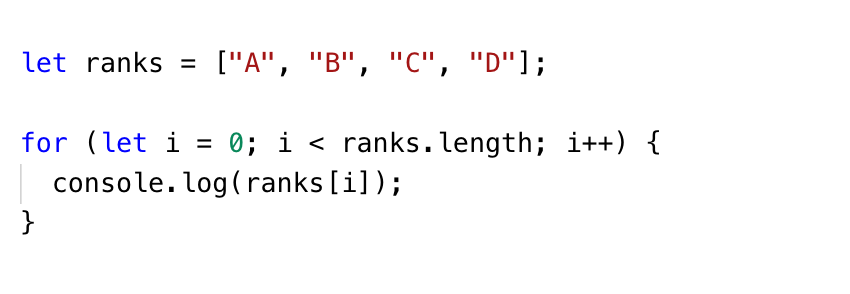
- The ‘for loop’ uses the variable 'i' to track the index of the ranks array
- The value of 'i' increments each time the loop executes as long as the value of 'i' is less than the number of elements in the ranks array. But its complexity grows when you nest a loop inside another loop.
ES6 introduced a new loop construct called ‘for...of’ to eliminate the standard loop’s complexity
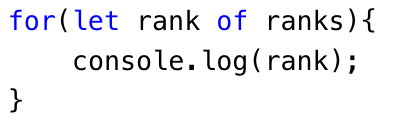
The ‘for...of the loop’ can create a loop over any iterable object, not just an array.
Iterable values in JavaScript
The following values are iterable –
- Arrays
- Strings
- Maps
- Sets
Plain objects are not iterable and hence the 'for...of' uses the Symbol.iterator.
Symbol.iterator
The Symbol.iterator is a special-purpose symbol made especially for accessing an object's internal iterator. So, you could use it to retrieve a function that iterates over an array object, like so –
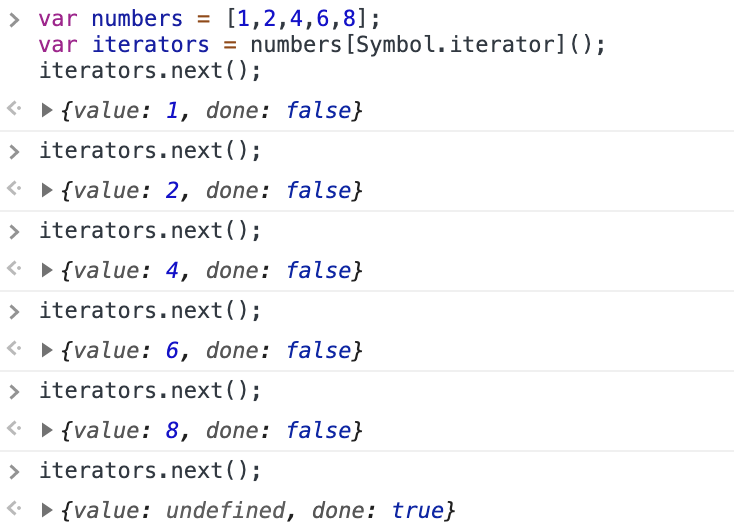
- An iterator is an object that can access one item at a time from a collection while keeping track of its current position
- It just requires that you have a method called next() to move to the next item to be a valid iterator
- The result of next() is always an object with two properties –
- Value: The value in the iteration sequence
- Done: true | false
Generators
Generator functions once called, returns the Generator object, which holds the entire Generator iterable and can be iterated using next() method. Every next() call on the generator executes every line of code until it encounters the next yield and suspends its execution temporarily.
Generators are a special type of function in JavaScript that can pause and resume state. A Generator function returns an iterator, which can be used to stop the function in the middle, do something, and then resume it whenever.
- This generator object needs to be assigned to a variable to keep track of the subsequent next() methods called on itself.
- If the generator is not assigned to a variable then it will always yield only till the first yield expression on every next().
- A generator function is a function marked with the * and has at least one yield-statement in it.
- Syntactically they are identified with a *, either function* X or function *X, — both mean the same thing
Fun Fact – async/await can be based on generators
Generator functions/yield and Async functions/await can both be used to write asynchronous code that 'waits', which means code that looks as if it was synchronous, even though it is asynchronous. ... An async function can be decomposed into a generator and promise implementation which is good to know stuff.
Generator functions are written using the function* syntax –
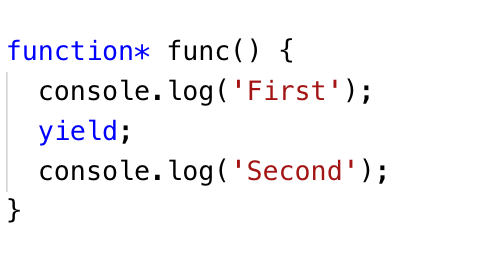
- ‘function*’ is a new 'keyword' for generator functions
- yield is an operator with which a generator can pause itself
Additionally, generators can also receive input and send output via yield. In short, a generator appears to be a function but it behaves like an iterator.
A generator is a function that returns an object on which you can call next(). Every invocation of next() will return an object of shape —
- The value property will contain the value
- The done property is either true or false
- When the done becomes true, the generator stops and won’t generate any more values
Here are some other common definitions of generators
- Generators are a special class of functions that simplify the task of writing iterators
- A generator is a function that produces a sequence of results instead of a single value, i.e you generate a series of values
- The value property will contain the value. The done property is either true or false. When the done becomes true, the generator stops and won’t generate any more values. The yield is a magical keyword that can do more things other than simply return a value and next() can do more things aside from retrieving the value.
- A passing argument to next() - The argument passed to next() will be received by yield –
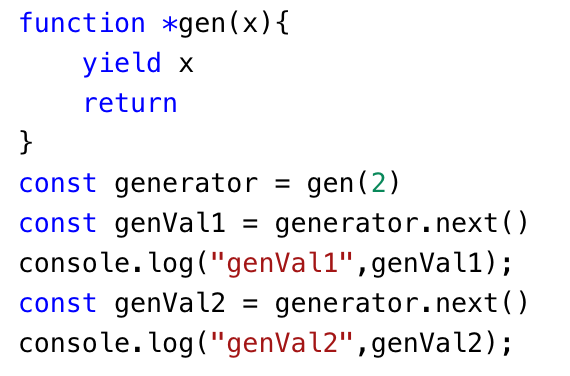
Output

Passing a function to yield
Apart from returning values, the yield can also call a function –
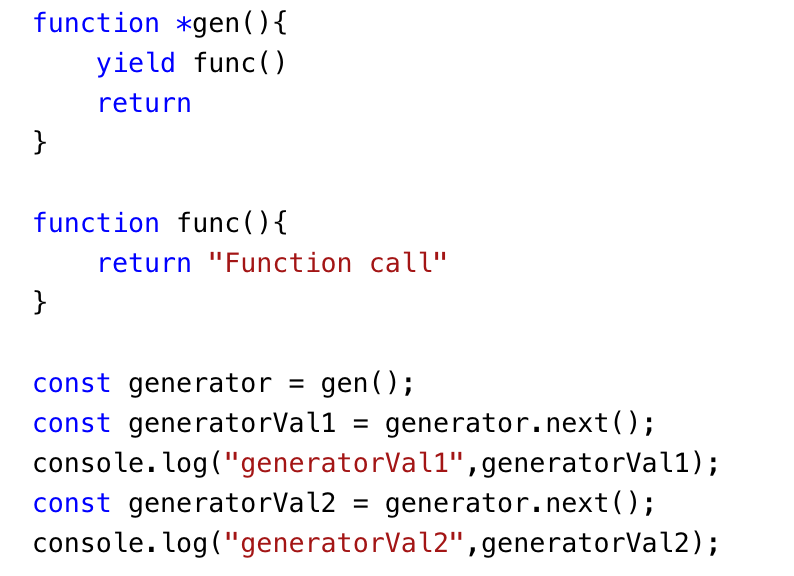
Output

Delegating to another generator or iterable using yield* expression
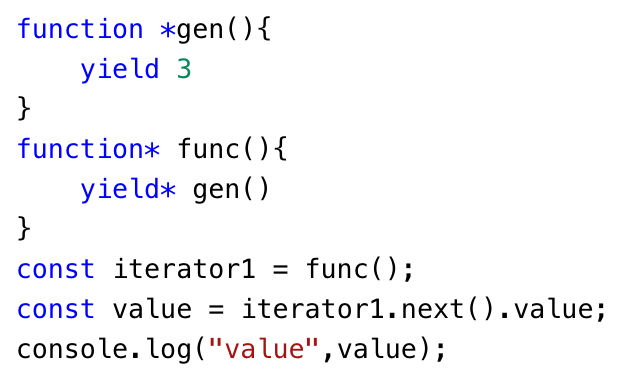
Output

Let’s see an example of fetching a single value from an API
As a Title –
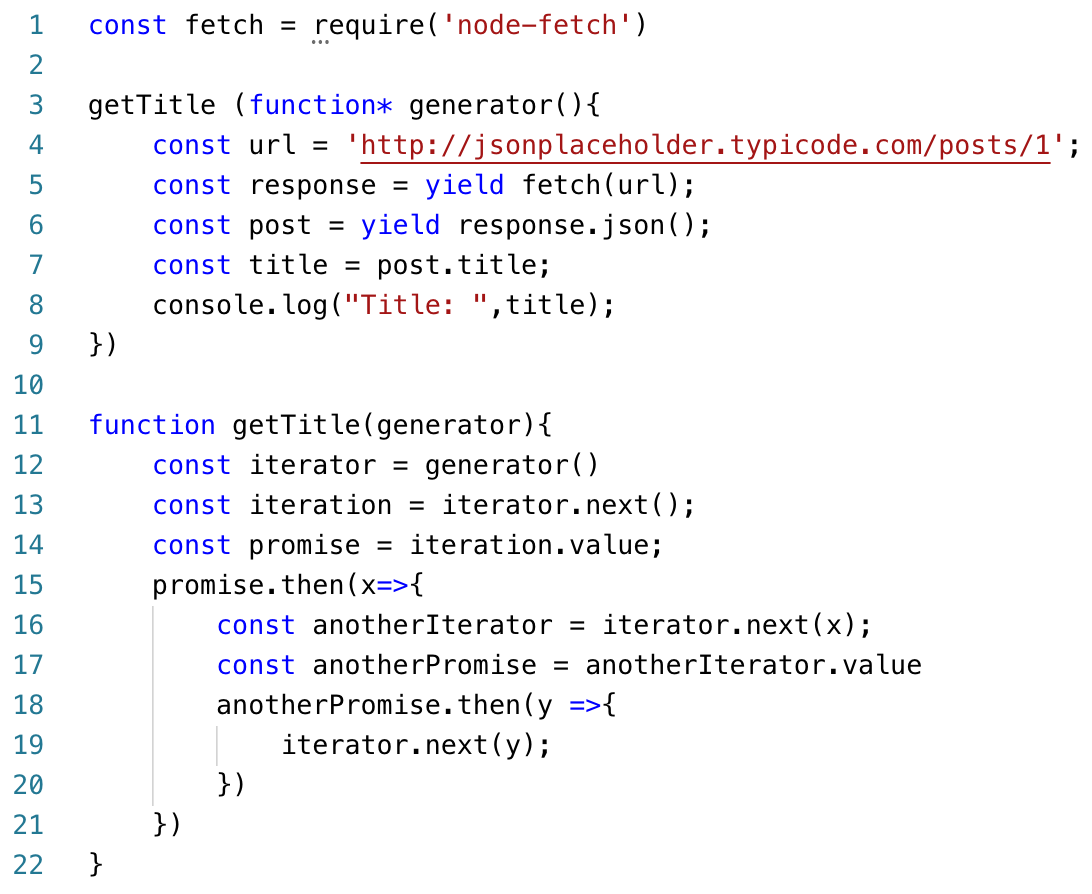
Output

- In this example; to fetch data from API, we have to install node-fetch using the command –
'npm install node-fetch'
- We then pass a generator to a function as a parameter. Let's call the function getTitle()
- Now, in the function, we have to go through some steps to execute the generator
- Initially, we will call the generator method. It returns an iterator(object) which is caught in a variable 'iterator'
- Now execute the iterator using 'next()' method
- When the next method is called, the generator starts executing from this point. At line 4 the 'URL' is fetched
- Fetch returns an object which is captured into variable 'iteration'
- The object has 2 fields, viz. 'value' and 'done'
- Here value is a promise and done is a boolean set to false
- Iteration has a promise. Here we used our first yield
- In our case, the getTitle() function has to resolve the promise. Since the yield doesn’t know how to resolve the promise. So for resolving that promise we caught iteration.value into a variable 'promise'
- Now we resolve the promise say into variable 'x'
- We send the resolved 'x' to the iterator's next method. This x is a response which we collect into a variable 'response'. (line 5)
- Now we have to extract the post from the response
- The response object now again has a promise which is to be resolved by our function. So we extract the object into variable 'anotherIterator' and the value of that object viz. promise into 'anotherPromise'
- Now we resolve that promise in 'y' and pass it to the generator through the next() method
- Here we used the second yield. So now we have resolved the response.json() and caught it into variable 'post'. (line 6)
- Finally, we get our title through the object 'post'.Now we are going to extract our title from 'post.title'. Check the console for the title
Advantages of Generators
Lazy Evaluation
This is an evaluation model that delays the evaluation of an expression until its value is needed. That is, if the value is not needed, it will not exist. It is calculated on demand.
Memory Efficient
A direct outcome of Lazy Evaluation is that generators are memory efficient.
The only values generated are those that are needed. With normal functions, all the values must be pre-generated and kept around case they need to be used later.
Conclusion
We have learned the following things about iterators and generators –
- Iterator functions are a great and efficient way to do a lot of things in JavaScript. There are many other possible ways of using a generator function
- Keeping iteration logic with the object it belongs to, is a good practice and which is the focus of ES6 features
- The ability of a function to exchange data with the calling code during the execution is unique. And, surely, they are great for making iterable objects
- As can be evidenced by the examples, generators are a really powerful tool that lets you have cleaner code - especially when it comes to any kind of asynchronous behaviour
.avif "Implementing Scroll Based Animations using React and GSAP")
Implementing Scroll Based Animations using React and GSAP
As computers are getting more powerful it is getting easier to achieve complex animations without compromising the fluidity and user experience. There are various JavaScript animation libraries available and most of them are pretty good. We at QED42 tried some of them and for the most part, we used GSAP which we think is kind of becoming an industry standard. GSAP is highly configurable and is just the right tool if you want to have scroll-based animations.
Smooth background change on scroll –
One thing that is eye-catching and easy to achieve, is smoothly changing background colour while scrolling. To implement this, we will change the wrapper component’s background colour as its child components move in and out of the viewport.
.avif)
Source:qed42-js.netlify.app
Step 1: Create a context that will wrap our components and provide the necessary functionality

Step 2:We will then import child components (named First, Second and Third), GSAP, and AnimationContext in our main app component. We are monitoring “currentBg” in the “useEffect” hook and whenever its value changes, the GSAP function gets executed. GSAP will change the background in 1 second which gives the fade-in effect.

Step 3: To implement scroll-based triggers for the second and third components we will use GSAP.
The second component returns the following JSX, having a reference to wrapper element and text.


Next, we will create a GSAP timeline and use a scroll trigger to target an element, and set the start and endpoint for animation.

ScrollTrigger has onEnter and onLeaveBack function which gets triggered when the trigger element passes through the scroll markers. That is where we change our background using context.
Note: The same effect can be achieved using gsap.to(), gsap.from() and other methods instead of gsap.timeline().

The code for the above demo can be found at the following Github link.
What we learned from our hands-on experience is that animations should enforce, enhance the user behaviour and experience. The animations should not hinder action items in a way that it takes more time for users to interact with them. Therefore the background animation we saw above is very subtle and doesn’t cause any such hindrance.
.webp "End-to-End type safety: from GraphQL schemas to React Components")
End-to-End type safety: from GraphQL schemas to React Components
It's 2 AM on a Saturday, and your phone buzzes. The app is down. After three hours of debugging, you finally discover the issue: someone changed `userId` to `authorId` in the backend last week. Your frontend was still looking for `userId`. Everything compiled without errors, and TypeScript showed green checkmarks all around. Does this sound familiar?
This blog aims to ensure that this kind of problem never happens again by establishing true end-to-end type safety.
What you'll learn
By the end of this guide, you'll be able to:
- Understand why manual types can lead to significant issues
- Set up a GraphQL API that automatically generates types
- Link your React frontend seamlessly with your backend, avoiding type mismatches
- Identify breaking changes before they affect your users
- Ship code with confidence (and enjoy a good night's sleep)
The problem: your types live on two islands
Imagine your backend and frontend as two separate islands, each with its own TypeScript ecosystem. Both define a type, and both feel secure in their type-safety. However, they're divided by an ocean, with no shared source of truth. A small change on one island can silently break the other.
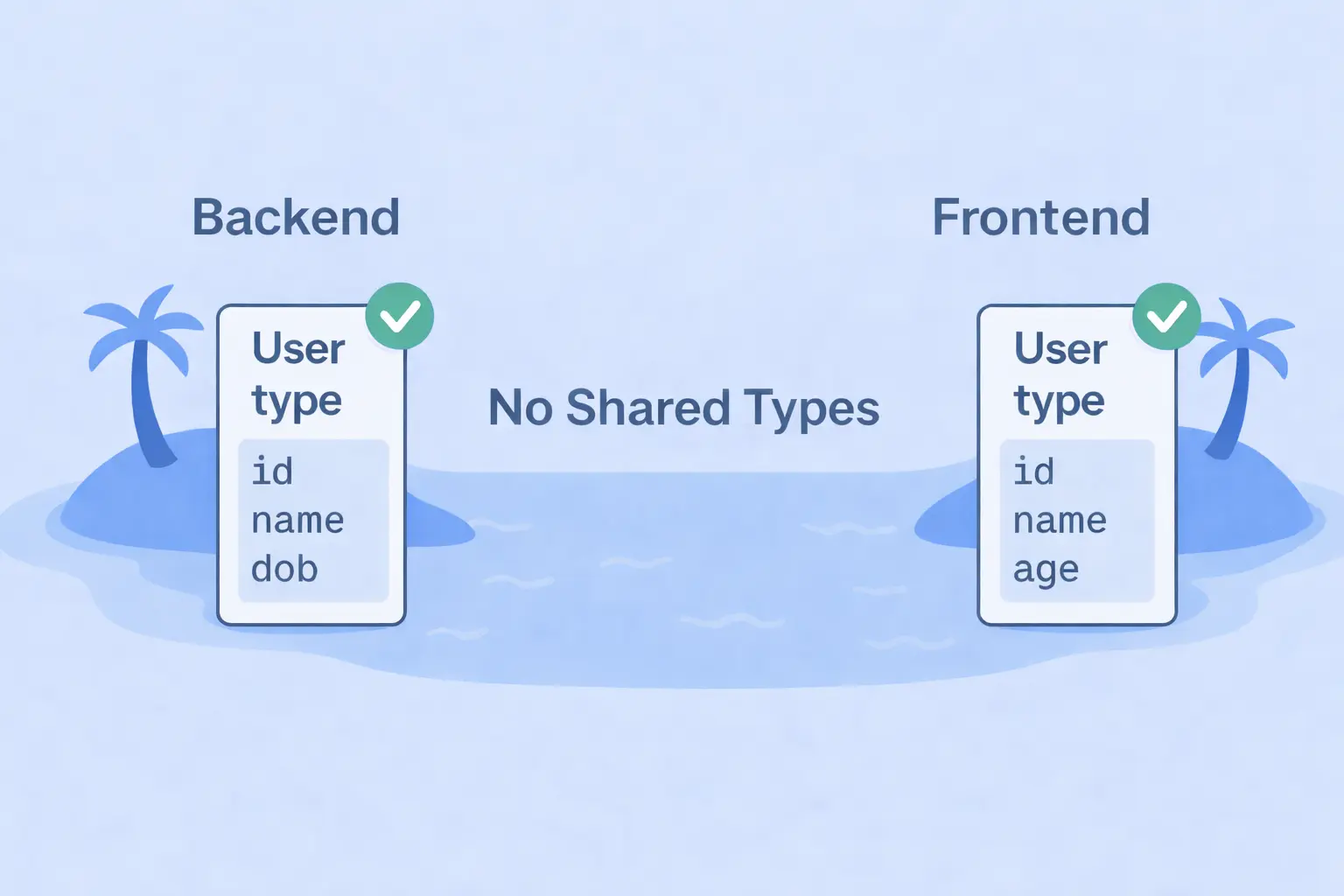
Both the backend and frontend define their own version of the User type.
They look identical, and everything compiles perfectly.
TypeScript shows all green, life is good.
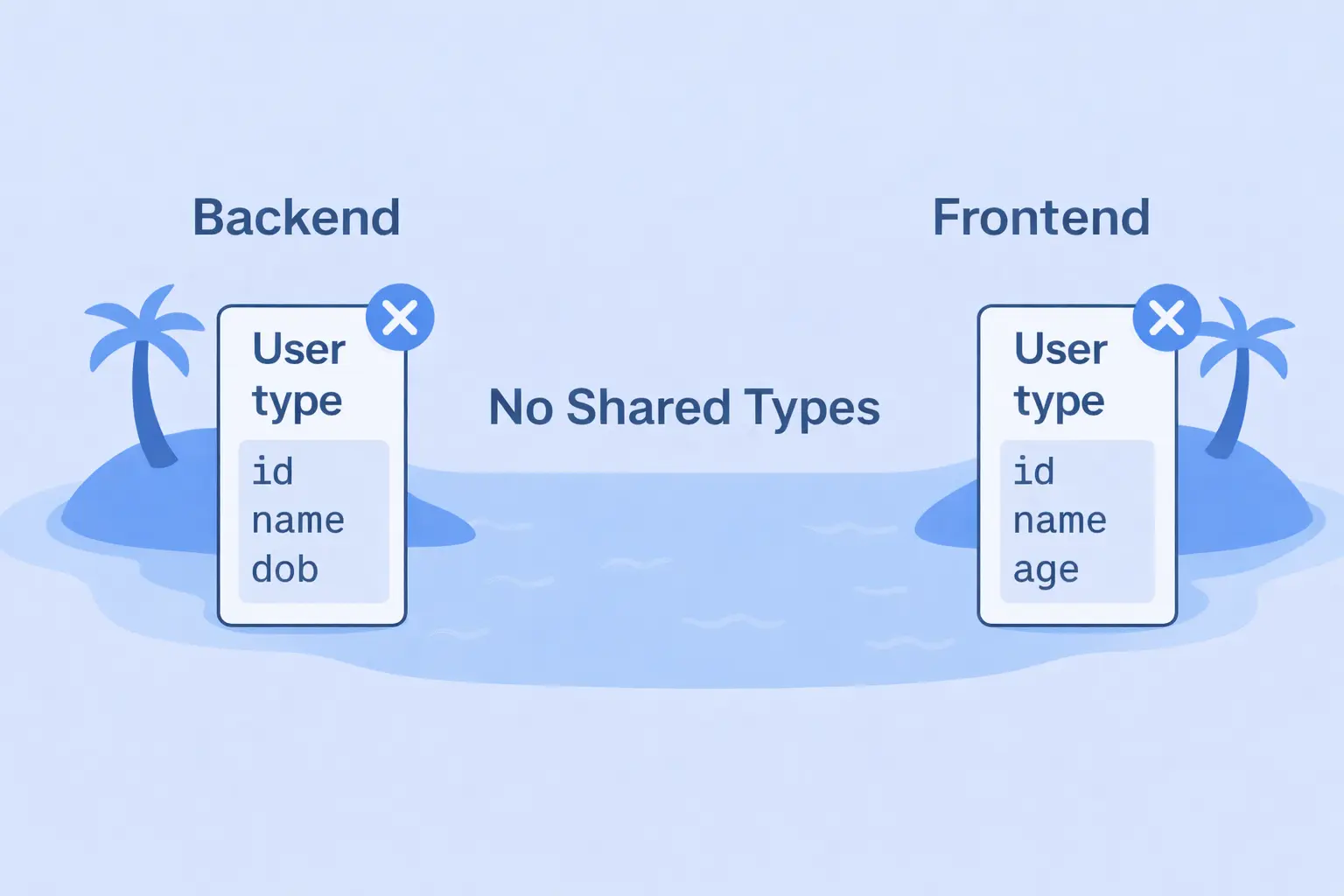
The backend team updates the User to store dob instead of age. Everything compiles fine because TypeScript checks each island separately, and the change goes unnoticed. Both sides are “type safe,” yet your data silently drifted apart.
Monday morning, the support inbox lights up: "Why doesn't the app show user ages anymore?" This is the fundamental problem that end-to-end type safety solves. No more islands. No more silent mismatches.
The solution: one Schema to rule them all
So, how do we stop our backend and frontend from becoming disconnected?
Simple, we need to ensure they communicate effectively, and make them speak the same language. That language is your GraphQL schema, the single source of truth for your entire app.
The Flow: End-to-End Type Safety
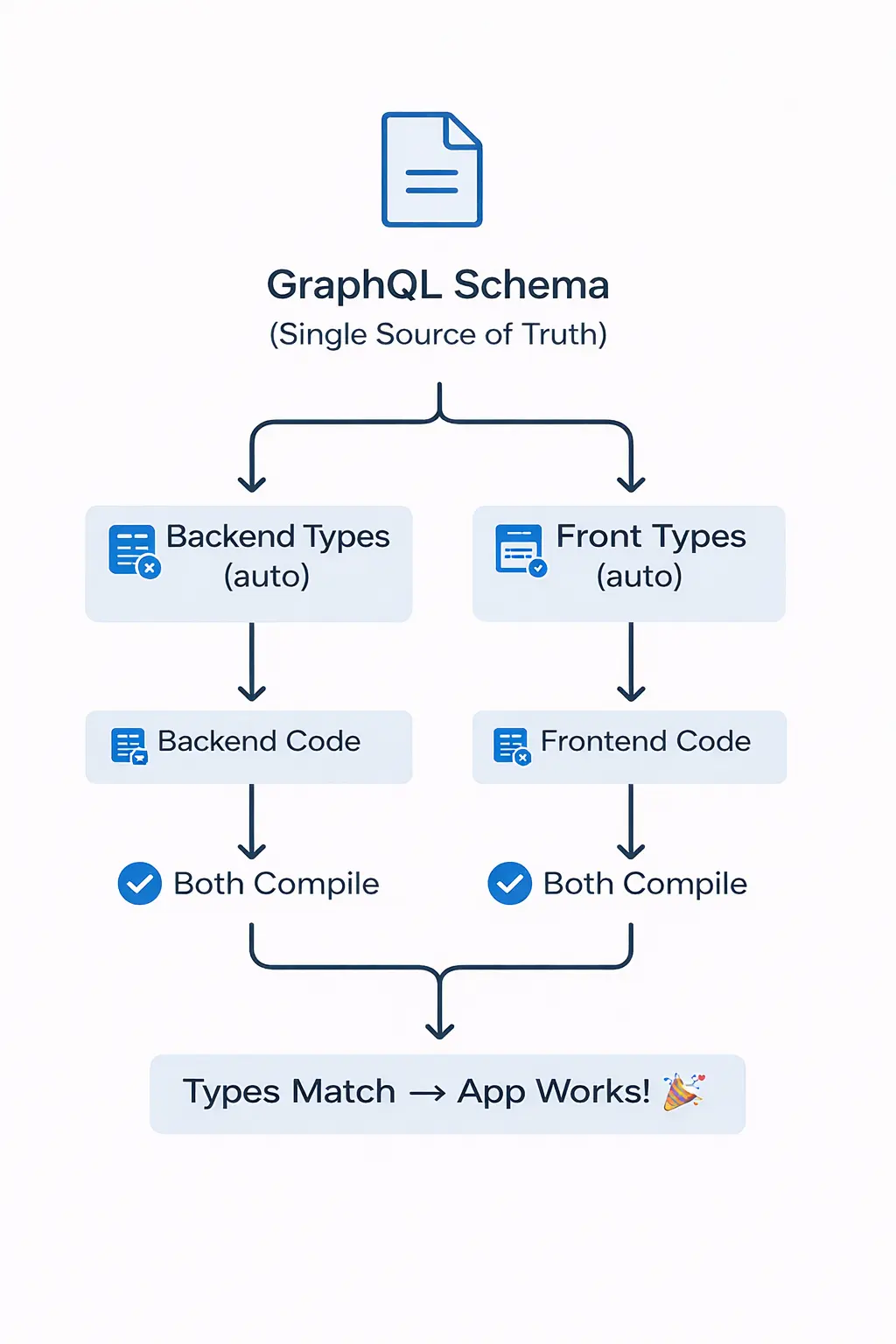
Every type, field, and structure in your application is defined a single time in the schema, which then automatically generates the corresponding types for both the backend and frontend. This eliminates duplicate definitions and the uncertainty of whether they align.

Now the mismatch is caught instantly during compile time, not at 2 AM on Saturday. Your schema drives your code, your code drives your app, and your types stay in sync effortlessly.
From Schema to Codegen
Now that we understand how the GraphQL schema acts as the single source of truth, the next question is — how do we actually achieve end-to-end type safety?
The answer is GraphQL Code Generator (or Codegen for short).
Codegen is a tool that reads your schema and queries, then automatically generates TypeScript types and React hooks for you.
No more writing types by hand or worrying if your frontend and backend have drifted apart — Codegen ensures every part of your stack speaks the same language.
Let’s add this to your project
Now that we know what Codegen does, let’s bring it into your workflow.
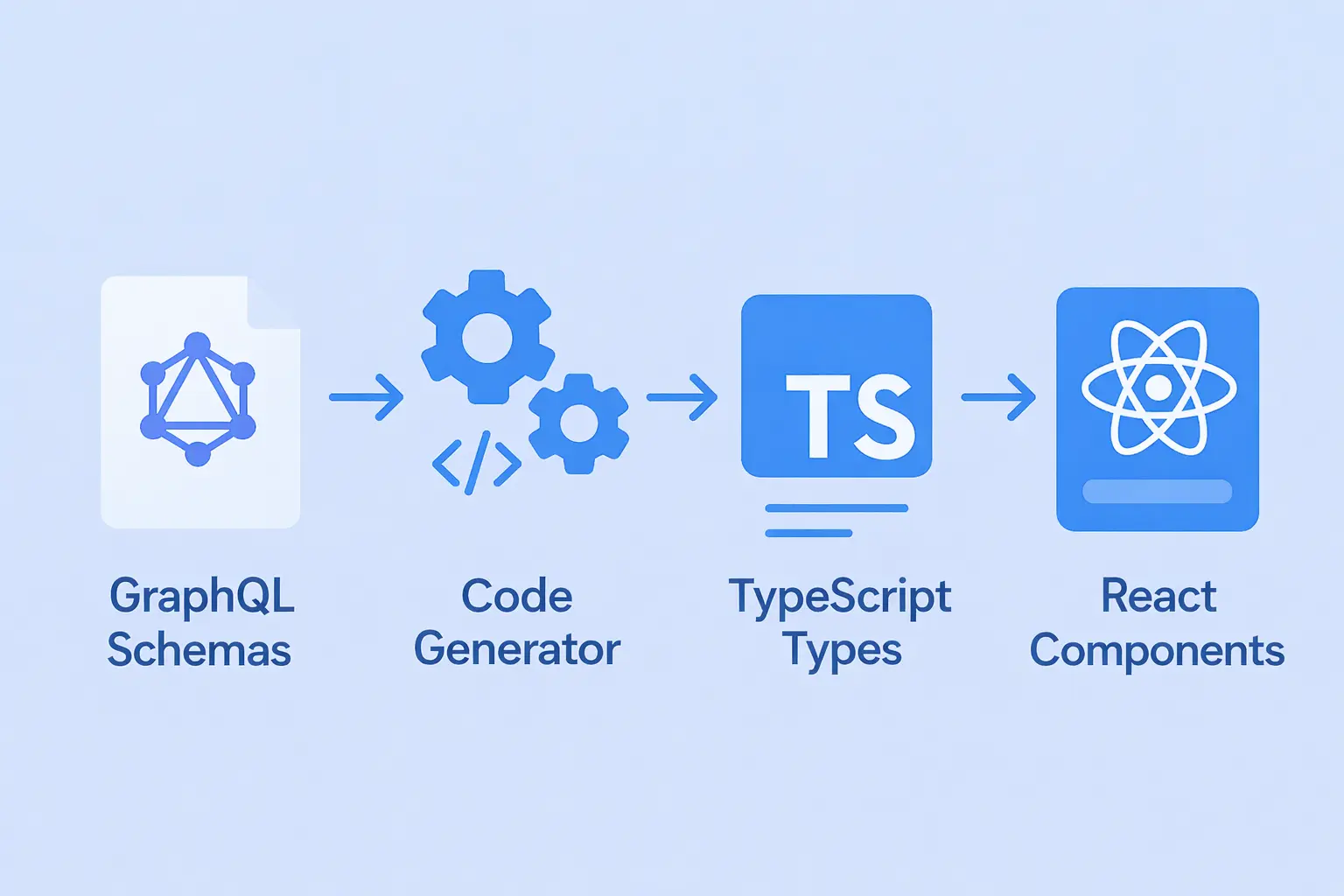
What you’ll do
- Configure Codegen to point to your GraphQL schema
- Write your queries in .graphql files (or inline with gql)
- Run npm run codegen → get typed hooks instantly
- Get instant results:
- Queries match the schema → fully typed hooks generated
- Queries don't match → compile-time error before production
Once configured, Codegen runs in two places:
- Backend: Generates resolver types from your schema
- Frontend: Validates queries and generates typed React hooks. Use those hooks in your React components with full autocomplete and type safety
Let's see it step by step in action.
Step 0: Quick Backend Setup (If needed)
Already have a GraphQL server? Skip to Step 1.
Need one fast? Here's a minimal Apollo Server with a `schema.graphql` file:
npm install @apollo/server graphql
npm install --save-dev @graphql-codegen/cli @graphql-codegen/typescript @graphql-codegen/typescript-resolvers
Note: startStandaloneServer is designed for prototyping and simple use cases — for production, integrate Apollo Server with Express
Create a `schema.graphql` file with:
type Todo {
  id: ID!
  text: String!
  done: Boolean!
}

type Query {
  todos: [Todo!]!
}
Create `server.ts`:
import { ApolloServer } from '@apollo/server';
import { startStandaloneServer } from '@apollo/server/standalone';
import fs from 'fs';
import path from 'path';

const typeDefs = fs.readFileSync(path.join(__dirname, 'schema.graphql'), 'utf-8');

const todos = [
  { id: '1', text: 'Learn GraphQL', done: false },
  { id: '2', text: 'Build a Todo app', done: true },
];

const resolvers = {
  Query: {
    todos: () => todos,
  },
};

const server = new ApolloServer({ typeDefs, resolvers });
const { url } = await startStandaloneServer(server, { listen: { port: 4000 } });

console.log(`🚀 Server ready at ${url}`);
Run the backend server:
npx tsx server.ts
Backend Types? Generate Them
Create `backend/codegen.ts`:
import type { CodegenConfig } from '@graphql-codegen/cli';

const config: CodegenConfig = {
  schema: './schema.graphql',
  generates: {
    './src/generated/graphql.ts': {
      plugins: ['typescript', 'typescript-resolvers'],
    },
  },
};

export default config;
Run backend codegen on schema changes:
npm run codegenStep 1: Frontend Setup with Codegen and Apollo Client
Now lets move forward, In frontend project run:
npm install --save-dev @graphql-codegen/cli \
  @graphql-codegen/typescript \
  @graphql-codegen/typescript-operations \
  @graphql-codegen/typescript-react-apollo

npm install @apollo/client graphql
Create `codegen.ts`:
import type { CodegenConfig } from '@graphql-codegen/cli';

const config: CodegenConfig = {
  schema: 'http://localhost:4000/graphql',
  documents: ['src/**/*.{ts,tsx,graphql}'],
  generates: {
    './src/generated/graphql.ts': {
      plugins: [
        'typescript',
        'typescript-operations',
        'typescript-react-apollo',
      ],
      config: { withHooks: true },
    },
  },
};

export default config;
Add these scripts in `package.json`:
"scripts": {
  "codegen": "graphql-codegen",
  "codegen:watch": "graphql-codegen --watch"
}
Note: Watch mode requires @parcel/watcher as an additional dev dependency — run npm install --save-dev @parcel/watcher once.
Step 2: Write your query
Create a query file, e.g. `src/queries/getTodos.graphql`:
query GetTodos {
  todos {
    id
    text
    done
  }
}
Step 3: Generate types & hooks
Run:
npm run codegen
Generated hooks like `useGetTodosQuery` will be created in `./src/generated/graphql.ts`.
Step 4: Use hook in React
import { useGetTodosQuery } from '../generated/graphql';

export function TodoList() {
  const { data, loading, error } = useGetTodosQuery();

  if (loading) return <div>Loading...</div>;
  if (error) return <div>Error: {error.message}</div>;

  return (
    <ul>
      {data?.todos.map(todo => (
        <li key={todo.id}>
          <input type="checkbox" checked={todo.done} readOnly />
          {todo.text}
        </li>
      ))}
    </ul>
  );
}
At This Point
- Backend and frontend share a single source of truth schema.
- Backend resolvers use type-safe typings.
- Frontend queries and hooks are fully typed.
- Any schema changes propagate type errors during development, preventing runtime bugs.
Wrapping it up: One Schema, One Language
You’ve just seen how a single GraphQL schema can power your entire app, backend to frontend, while maintaining type safety throughout the process.
Let’s recap what we built:
GraphQL Schema → Codegen → TypeScript Types + React Hooks → React Components
Each layer communicates in the same language, automatically—fewer duplicated types, mismatched field names, and runtime 'undefined' errors."
What you gained
- Single Source of Truth: Your GraphQL schema defines the contract once.
- Minimal Drift: Backend and frontend types stay aligned as long as you re-run Codegen after schema changes.
- Faster Dev Flow: Autocomplete, type hints, and compile-time safety everywhere.
Final thought
End-to-end type safety isn’t just about preventing bugs—it’s about building trust between every part of your stack. When your schema defines the truth, your entire stack aligns.

The new architecture in React Native: a turning point for mobile performance
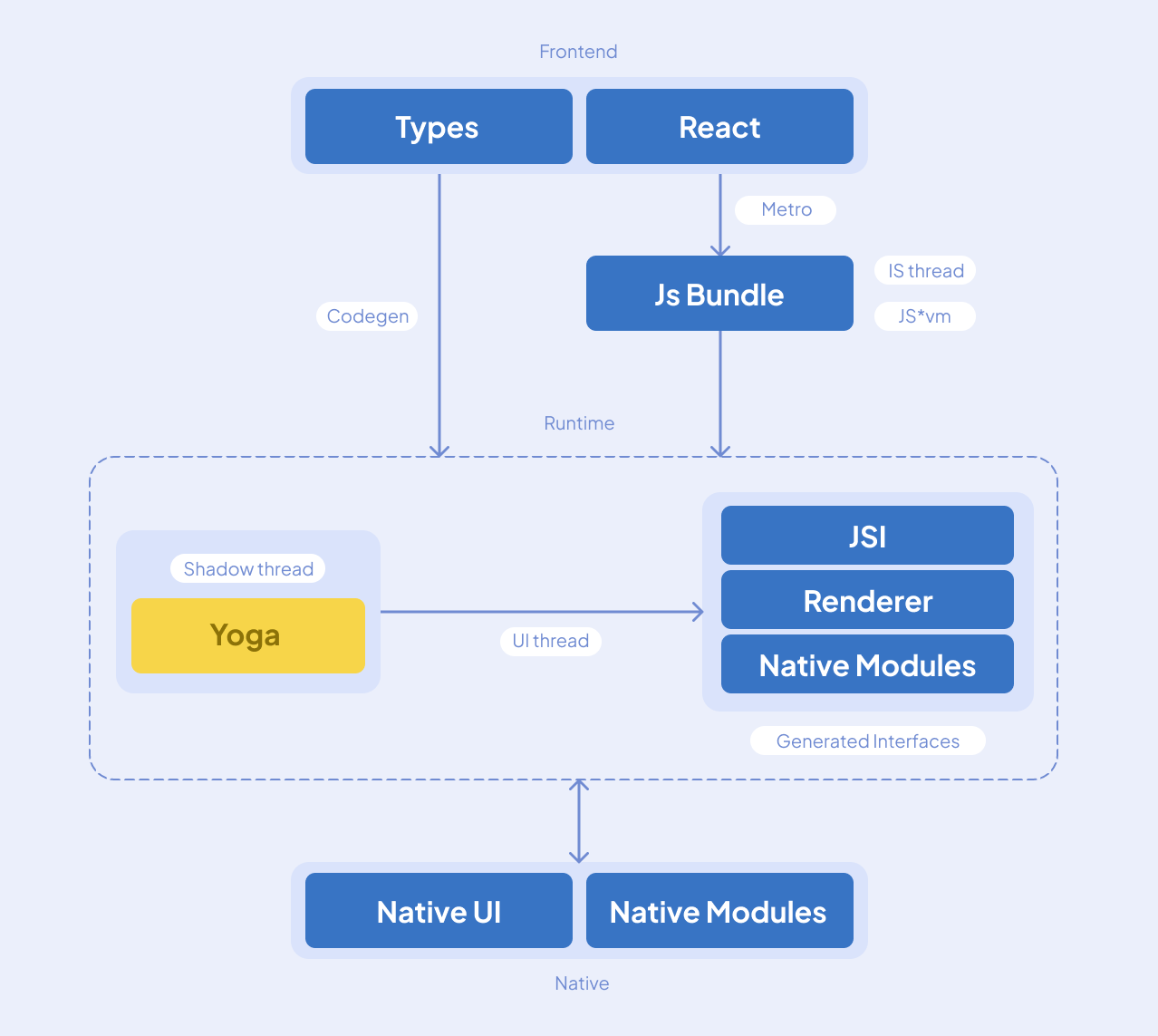
React Native is undergoing one of its most significant transformations since its launch with the adoption of the New Architecture. Built around Fabric, TurboModules, and the JavaScript Interface (JSI), this shift changes how JavaScript communicates with native platforms.
Earlier versions relied on a bridge that serialised data between threads, which often introduced latency in complex applications. The New Architecture removes that limitation by enabling direct communication between JavaScript and native code, resulting in faster rendering, better responsiveness, and lower memory usage.
For production-scale applications, this is more than a technical upgrade. It improves long-term scalability and stability. Fabric brings React Native closer to modern React concurrency, allowing smoother UI updates during heavy processing, while TurboModules improve startup performance by loading native modules only when required.
As businesses increasingly expect native-level performance from cross-platform frameworks, the New Architecture makes React Native more capable of supporting enterprise-grade mobile experiences.
Hermes engine maturity: why JavaScript performance in React Native has improved dramatically
Performance has historically been one of the most discussed concerns in cross-platform development, and React Native’s adoption of the Hermes JavaScript engine marks a decisive step toward solving it. Hermes is optimised specifically for mobile environments, focusing on faster startup times, lower memory usage, and predictable execution performance. Unlike general-purpose JavaScript engines, Hermes precompiles JavaScript into optimised bytecode during build time, reducing runtime processing when the app launches.
This improvement is especially noticeable on mid-range and low-end devices where resource constraints are more visible to users. Faster time-to-interactive metrics and smoother navigation flows directly translate into better user retention and engagement. Beyond performance gains, Hermes also improves debugging and profiling capabilities, giving development teams deeper insight into runtime behaviour. As mobile applications grow more complex, having a JavaScript engine tailored for mobile workloads helps organisations deliver consistent experiences across diverse hardware ecosystems.
React Native and React 18: the shift toward Concurrent Rendering
The alignment between React Native and React 18 introduces a new paradigm in how mobile interfaces handle rendering workloads. Concurrent rendering allows React to prepare UI updates without blocking user interactions, making applications feel significantly more responsive. Instead of freezing the interface during heavy updates, React can prioritise urgent interactions while processing background changes incrementally.
This shift is particularly impactful for applications with dynamic data, such as dashboards, social feeds, and collaborative tools. Users experience smoother scrolling and faster interaction feedback, even when complex state updates occur behind the scenes. For engineering teams, concurrency also encourages better architectural patterns by separating urgent UI updates from non-critical computations. As React Native continues to align closely with the broader React ecosystem, developers benefit from shared innovation across web and mobile platforms, reducing fragmentation and improving long-term maintainability.
Reanimated and the rise of native-level animations in React Native
Modern mobile applications increasingly rely on fluid animations and gesture-driven interactions to deliver premium user experiences. Recent advancements in libraries like React Native Reanimated have significantly changed how animations are executed. By leveraging worklets and running animation logic directly on the UI thread, React Native applications can achieve native-level smoothness without being limited by JavaScript thread performance.
This architectural improvement allows animations to remain responsive even during network requests or heavy computation. Complex transitions, gesture-based navigation, and interactive components now behave consistently across platforms. For product teams, this means design ambitions no longer need to be compromised due to performance constraints. The ability to deliver high-fidelity animations within a cross-platform framework strengthens React Native’s position in industries where user experience directly influences business outcomes.
The evolution of developer experience in React Native
Recent React Native releases have focused heavily on improving developer experience, recognising that productivity directly impacts product delivery timelines. Enhancements to the Metro bundler, faster refresh cycles, and improved error reporting have reduced iteration time during development. Developers now spend less time waiting for builds and more time refining features, which becomes increasingly valuable in large-scale projects.
Tooling modernisation has also improved compatibility with current Android and iOS ecosystems, reducing friction caused by outdated dependencies. Better TypeScript integration has encouraged safer codebases and easier refactoring, particularly in enterprise environments where multiple teams collaborate on shared applications. These improvements collectively signal a maturation phase for React Native, where stability and reliability are prioritised alongside innovation.
Expo’s transformation and its impact on React Native development
Expo has evolved from a beginner-friendly abstraction layer into a production-ready platform capable of supporting complex applications. With the introduction of modern build systems and deeper native integration capabilities, developers can now access advanced features without abandoning Expo’s streamlined workflow. This shift reduces setup complexity while preserving flexibility for custom native development when required.
For organisations seeking faster onboarding and reduced DevOps overhead, Expo’s ecosystem simplifies environment configuration and deployment pipelines. Continuous integration, over-the-air updates, and simplified asset management allow teams to iterate quickly while maintaining production quality. The growing compatibility between Expo and React Native’s New Architecture further strengthens its role as a viable solution for both startups and enterprises.
Why React Native remains strategically relevant in modern mobile development
As the mobile development landscape expands with alternatives like Flutter and Kotlin Multiplatform, React Native continues to maintain strategic relevance due to its ecosystem maturity and alignment with web technologies. Companies already invested in React benefit from shared knowledge, reusable architectural patterns, and easier cross-team collaboration between web and mobile developers.

The framework’s ongoing modernisation demonstrates a commitment to long-term evolution rather than short-term trends. Improvements in performance, architecture, and tooling show that React Native is adapting to industry demands while preserving developer productivity. For organisations balancing development speed with scalability, React Native remains a practical and forward-looking choice capable of supporting both rapid innovation and sustainable growth.
Supercharging Next.js with Strapi webhooks
Content-heavy sites built on Next.js and Strapi often hit the same wall: static pages perform well, but keeping them current without triggering a full rebuild is harder than it should be.
Building a content-heavy site with Next.js and Strapi, we kept running into the same problem: static pages performed well, but every content update triggered a full rebuild and redeploy. Costly, slow, and frustrating, it didn't scale.
The challenge wasn't performance. It was keeping static sites current without paying for it every time something changed.
Static site generation
With Static site generation or SSG, pages are pre-rendered into HTML at build time and served from a Content Delivery Network or CDN. No server processing on each request. That's what makes them fast. It's also what makes updating them a problem.
For mostly static content like blogs, documentation, and marketing pages, this works well. But for sites where content changes frequently, the cracks show quickly. Even a minor edit forces a full site rebuild, which slows down publishing and burns unnecessary compute
Key benefits of SSG:
- Pages are served directly from edge locations, so load times are fast.
- Pre-rendered content is easier for search engines to index, which improves SEO.
- Static files are straightforward to cache and distribute via a CDN.
- Works best for content that doesn't change often: blogs, documentation, and marketing pages.
Challenges with Traditional SSG:
- Every content change triggers a full site rebuild, even if only one page was touched.
- For large sites, this means longer build times, slower publishing, and delayed content
This leads to a "problem" where managing frequently changing content with a purely static approach becomes cumbersome and inefficient.
Incremental Static Regeneration (ISR): The evolution of static sites
ISR addresses the core limitation of SSG. Instead of rebuilding the entire site on every change, it updates only the pages that need it, regenerating them in the background.
How ISR solves the problem:
- Updates only the affected pages on demand rather than triggering a full site rebuild for every content change.
- Pages regenerate in the background, so users always see the cached version while new content is being built.
- Works well for sites with frequent content changes without sacrificing static performance.
- ISR builds on SSG rather than replacing it. The site stays static, but individual pages can refresh when their content changes.
When ISR isn't a fit:
- Requires a server or edge runtime to work.
- Not supported in purely static exports.
- Won't run on CDN-only or standard JAMstack environments.
Building your own ISR Workflow
To make this work with Strapi as the content source, we built a five-component pipeline:
- Strapi webhook — Content source that fires on every change.
- API gateway — Receives and validates webhook events securely.
- SQS queue — Buffers and stores update events.
- Cron job — Batches events and triggers builds intelligently.
- Next.js build system — Performs partial or full regeneration based on what changed.
Step 1: Strapi webhook
The first component in the ISR workflow is the Strapi Webhook. When content changes in Strapi, it automatically sends an HTTP POST request to a predefined endpoint. This is what connects your CMS to the rest of the build pipeline.

How it works:
Strapi provides a straightforward way to configure webhooks directly within its admin interface. As a content editor, when you perform actions such as:
- Creating a new blog post.
- Updating an existing product description.
- Publishing a revised landing page.
- Deleting an outdated piece of content.
Strapi detects these events. For each configured event, it automatically sends an HTTP POST request to a predefined URL that you specify. This URL typically points to an external endpoint such as an API Gateway or a serverless function designed to receive and process these notifications.
What the webhook sends:
This POST request carries a payload, a block of structured data (usually JSON) that contains information about the content change that just occurred. This payload can include:
- The type of event (e.g., entry.create, entry.update, entry.delete).
- The model type of the changed content (e.g., blog-post, product).
- The ID of the specific entry that was modified.
- Potentially, a subset of the new or old content data itself.

Its role in the ISR workflow:
The Strapi webhook serves as the initial trigger for the entire regeneration process. Rather than constantly polling Strapi for changes, which is inefficient and resource-heavy, we let Strapi notify our system the moment something is updated.
This notification carries enough information to identify exactly what changed, which content type was affected, and which entry was modified.
That specificity is what makes targeted page regeneration possible. Instead of rebuilding the entire site, the system knows precisely which pages need to be refreshed, keeping the Next.js site current with the latest content from Strapi while maintaining the speed benefits of static hosting.
Step 2:API gateway – routing securely
Once the Strapi webhook sends its content change notification, the next component in the pipeline is the API Gateway. It sits between Strapi and the rest of the system, ensuring that only valid and properly formatted requests make it through to the backend for processing.
Key functions of the API gateway in this workflow:
- Security: Acts as a controlled entry point, verifying incoming requests.
- Structure: Receives raw data from Strapi and transforms it into a consistent payload.
- Forwarding: After validation and transformation, the payload is pushed to the SQS queue.
- Decoupling: Separates the CMS from backend processing, meaning Strapi doesn't need to know anything about the internal build logic.
- The API Gateway ensures that only valid signals enter the system and pass them to the queue, preventing any direct dependency or overload on the subsequent content processing steps.
Step 3: SQS queue – decoupling logic
After the API Gateway securely receives and validates the Strapi webhook payload, the next step in our ISR workflow involves sending that payload to an AWS Simple Queue Service (SQS) Queue. SQS handles asynchronous communication and is fundamental to building a reliable and scalable content update pipeline.
What is SQS and its Role?
SQS is a fully managed message queuing service that enables you to decouple and scale microservices, distributed systems, and serverless applications. In our context, it performs several vital functions:
- A eeliable buffer: When a content update comes in from Strapi, SQS temporarily stores it as a message in the queue. This acts as a buffer, smoothing out spikes in demand and ensuring no update gets lost in the process.
- Decoupling layer between webhook and build system: Instead of the API Gateway directly triggering the build system, it places a message in the SQS queue. This means the two systems operate independently of each other, and a slowdown in one doesn't affect the other.
- Scalable event store for asynchronous processing: SQS can handle a large number of messages per second, ensuring that content update events are never dropped no matter how frequently your content team makes changes. The API Gateway doesn't have to wait for the build system to finish processing before it can move on. Each side works at its own pace, which keeps the overall pipeline responsive and stable.
The result is a system where every content change is eventually processed without risk of overload or data loss.
Step 4: Cron job – smarter build triggers
After content update events are queued in SQS, the Cron Job is what decides when and how to act on them. Rather than reacting to every single content save and potentially overwhelming the build infrastructure, the Cron Job batches updates and processes them at scheduled intervals.
How the Cron Job Operates:
The Cron Job is a scheduled task that runs at predefined intervals, every 15 minutes by default, though this can be configured based on how frequently content changes. Its primary responsibilities include:
.webp)
- Fetches events from SQS:
- At its scheduled time, the Cron Job polls the SQS queue, pulling down any new content update messages that have accumulated since its last run. This allows it to process multiple changes in a single batch, rather than initiating a separate build for each individual edit.
- Determines what changed:
- Once it retrieves the events from SQS, the Cron Job's logic analyzes the payloads. It "Understands what changed (page, blog, product?)". By inspecting the event data (e.g., the content type, the ID of the changed item), it can ascertain the scope and nature of the content modification. Did an editor update a single blog post? Or was a site-wide navigation element modified? This intelligence is crucial for optimizing the build process.
- Triggers either a partial or full build based on the scope of change:
- This is where the "smarter" aspect of the Cron Job truly shines. Based on its determination of what changed, it makes an informed decision:
- Partial build: If the change is localized, affecting only a specific page or a set of related pages, the Cron Job triggers a partial build.
- Full site rebuild: If the change is global, impacting elements that appear across multiple pages (like a shared header, footer, navigation menu, or site-wide configuration), the Cron Job triggers a full site rebuild.
- This is where the "smarter" aspect of the Cron Job truly shines. Based on its determination of what changed, it makes an informed decision:
Benefits of this batching approach:
- Avoids "Build spam": By waiting and batching multiple changes, the Cron Job prevents your build system from being constantly hammered by frequent, small edits made by content editors. This leads to a more stable and predictable build environment.
- Resource optimization: Fewer, more comprehensive builds consume fewer overall compute resources and can be more cost-effective than a barrage of tiny, individual builds.
- Controlled flow: It introduces a controlled and rhythmic flow to your content updates, allowing for a more manageable deployment process. It brings "calm and control to the update flow."
In summary, the Cron Job acts as the intelligent orchestrator, ensuring that content changes from Strapi are efficiently and precisely translated into the necessary Next.js site updates, choosing the most optimal build strategy (partial or full) for maximum speed and efficiency.
Step 5: Build system
The final stage in our custom ISR workflow is the Build System, where the actual regeneration of your Next.js site takes place. Guided by the decisions made by the Cron Job, the build system determines whether to perform a partial build or a full regeneration. This choice is fundamental to achieving both speed and consistency.
1. Partial build
A partial build is the preferred and most efficient method when content changes are localized.
What it Rebuilds: A partial build rebuilds only the affected route or page. It doesn't touch the parts of your site that haven't been modified.
When it's Used: This approach is ideal for page-level changes such as:
Updating a blog post: If you edit the content of a specific blog article, only that individual blog post's page needs to be regenerated. Modifying a product page: If a product description or image changes, only that specific product page is rebuilt.
Speed and Cost-Effectiveness: Partial builds are fast and cost-effective. They consume minimal resources because they only process a small portion of your site. For a site with 1500+ pages, a partial build could take approximately 9 seconds. This means your content goes live almost instantly with no downtime for the user.
2. Full build
While partial builds are ideal for localized changes, a full build becomes necessary when the modifications affect global elements or require a complete regeneration of the site.
What it Rebuilds: A full build rebuilds the entire site. Every page, route, and static asset is regenerated from scratch.
When it's Used: This is typically reserved for global updates such as:
Changing global navigation: If your website's main menu or footer content is updated, this impacts every page, requiring a full rebuild to ensure consistency across the entire site. Layout or theme changes: Any fundamental changes to the site's overall layout, CSS, or shared components may also trigger a full build.
Speed and Resource Usage: Full builds are slower and more resource-heavy compared to partial builds. For the same 1500+ page example, a full build could take around 40 seconds. While slower, it's sometimes a necessary step to ensure site-wide consistency.
Once the build logic determines what type of build is needed, it triggers the actual build process.
Here's what happens during the final deployment phase: The site is built using the updated content. The output is pushed into the serve directory or the target static host folder. This directory is what your CDN or server uses to serve the site. Once deployed, the updated content becomes live without affecting other parts of the site. In partial builds, only the specific page or route is updated, meaning no downtime or full-site redeploy. This ensures fast updates, high availability, and a smooth user experience. This setup works smoothly without much manual effort. It's reliable, efficient, and easy to maintain. Ultimately, we've enabled a workflow that makes content changes fast, safe, and scalable without relying on full redeployments every time.
Conclusion
The problem we started with was straightforward: static sites are fast but updating them shouldn't require rebuilding everything from scratch every time a content editor makes a change. The five-component pipeline we built with Next.js and Strapi webhooks solves exactly that. Changes are captured the moment they happen, queued reliably, and processed in batches. The build system handles the rest, whether that means regenerating one page in 9 seconds or the entire site in 40.
The result is a workflow that gives content teams the freedom to publish without waiting, and gives developers a system that doesn't buckle under the weight of frequent updates. Static performance stays intact. Content stays current. And the pipeline runs without much manual effort once it's in place.
.webp "Unblocking the UI with web workers: a guide for faster web apps")
Unblocking the UI with web workers: a guide for faster web apps
Ever clicked a button in a web app, and the UI just froze? Maybe a timer stopped, animations stuttered, or clickable elements stopped responding. This happens because JavaScript is single-threaded, meaning it can only do one thing at a time.
When a heavy computation runs on the main thread, it blocks the UI, creating a poor user experience.
In this blog, we’ll explore Web Workers, a simple and effective way to offload heavy computations to a background thread in a React app, keeping your UI smooth and responsive.
Understanding the problem: single-threaded JavaScript
JavaScript runs on a single thread that handles both:
- UI rendering
- JavaScript execution
This means if you run a heavy task, everything else stops until it finishes. Here’s a classic example:
// Blocks UI for several seconds
    function fibonacci(n) {
      if (n <= 1) return n;
      return fibonacci(n - 1) + fibonacci(n - 2);
    }
    const result = fibonacci(44);
    console.log(result)
If this runs on the main thread, timers, animations, and clicks stop responding.
Introducing web workers
Web Workers allow us to run JavaScript code in a separate background thread. This way:
- Heavy tasks don’t freeze the UI
- You can continue interacting with the page
- Communication is done via postMessage() and onmessage()
Note: Workers cannot access the DOM directly; they are only for computations.
Web worker syntax
Worker File (public/worker.js):
self.onmessage = function (e) {

    function fibonacci(n) {
      if (n <= 1) return n;
      return fibonacci(n - 1) + fibonacci(n - 2);
    }

    const result = fibonacci(e.data);
    self.postMessage(result);
};
Main Thread (React Component):
  const workerRef = useRef(null);

  useEffect(() => {
    workerRef.current = new Worker("/worker.js");

    workerRef.current.onmessage = (e) => {
      alert('worker finished! Result : ',e.data);
    };

    return () => {
      workerRef.current.terminate();
    };
  }, []);

  const runWorkerTask = () => {
    workerRef.current.postMessage(44);
  };
React demo: without vs with web worker
Setting up a Next.js Project with Web Workers
1. Create Next.js App

2. Project Folder Structure
Here’s a minimal structure we’ll use:

Without worker (UI freezes)
Create WithoutWorker Component File (app/WithoutWorker.js)
'use client';
import { useEffect, useState } from 'react';

function fibonacci(n) {
  if (n <= 1) return n;
  return fibonacci(n - 1) + fibonacci(n - 2);
}

export default function WithoutWorker() {
  const [timer, setTimer] = useState(0);
  const [color, setColor] = useState('lightblue');
  const [size, setSize] = useState(100);

  useEffect(() => {
    const interval = setInterval(() => setTimer((t) => t + 1), 1000);
    return () => clearInterval(interval);
  }, []);

  const handleHeavyTask = async () => {
    console.log('handleHeavyTask started...');
    const result = fibonacci(44); // Heavy enough to lag most browsers
    console.log('handleHeavyTask ended... : ', result);
  };

  const animateBox = () => {
    // Try clicking this during a heavy task, no response
    setColor((prev) => (prev === 'lightblue' ? 'lightcoral': 'lightblue'));
    setSize((prev) => (prev === 100 ? 550 : 100));
  };

  return (
    <div>
      <h2>Without Web Worker</h2>
      <p>Timer: {timer}</p>
      <button
        onClick={handleHeavyTask}
        className="text-white bg-blue-700 hover:bg-blue-800 focus:ring-4 focus:ring-blue-300 font-medium rounded-lg text-sm px-5 py-2.5 me-2 mb-2 dark:bg-blue-600 dark:hover:bg-blue-700 focus:outline-none dark:focus:ring-blue-800"
      >
        Run Heavy Task
      </button>
      <div
        onClick={animateBox}
        style={{
          marginTop: '20px',
          width: `${size}px`,
          height: `${size}px`,
          backgroundColor: colour,
          cursor: 'pointer',
          transition: 'all 0.3s ease',
        }}
      >
        Click Me
      </div>
    </div>
  );
}
Observation: Click the box while running the heavy task , nothing happens. The timer also freezes.

With worker (UI smooth)
Create Worker File (public/worker.js)
self.onmessage = function (e) {

    function fibonacci(n) {
      if (n <= 1) return n;
      return fibonacci(n - 1) + fibonacci(n - 2);
    }

    const result = fibonacci(44);

    self.postMessage(result);
};
Create WithWorker Component File (app/WithWorker.js)
"use client"
import { useEffect, useRef, useState } from "react";

export default function WithWorker() {
  const [timer, setTimer] = useState(0);
  const [color, setColor] = useState("lightgreen");
  const [size, setSize] = useState(100);
  const workerRef = useRef(null);

  useEffect(() => {
    const interval = setInterval(() => setTimer(t => t + 1), 1000);
    return () => clearInterval(interval);
  }, []);

  useEffect(() => {  // Create the worker on mount
    workerRef.current = new Worker("/worker.js"); // Creates a new background thread by loading our worker script.
    workerRef.current.onmessage = (e) => { // Listens for the result from the worker.
      console.log('handleHeavyTask ended... : ',e.data)
    };
    return () => {
      workerRef.current.terminate(); // Cleans up the worker on component unmount.
    };
  }, []);

  const runWorkerTask = () => {
    console.log('handleHeavyTask started...')
    workerRef.current.postMessage(44); // Sends a message to the worker to begin processing.
  };

  const animateBox = () => {  // This should stay responsive even during heavy task
    setColor((prev) => (prev === "lightgreen" ? "orange" : "lightgreen"));
    setSize((prev) => (prev === 100 ? 550 : 100));
  };

  return (
    <div>
      <h2>With Web Worker</h2>
      <p>Timer: {timer}</p>
      <button
        onClick={runWorkerTask}
        className="text-white bg-blue-700 hover:bg-blue-800 focus:ring-4 focus:ring-blue-300 font-medium rounded-lg text-sm px-5 py-2.5 me-2 mb-2 dark:bg-blue-600 dark:hover:bg-blue-700 focus:outline-none dark:focus:ring-blue-800"
      >Run Heavy Task</button>
      <div
        onClick={animateBox}
        style={{
          marginTop: "20px",
          width: `${size}px`,
          height: `${size}px`,
          backgroundColor: colour,
          cursor: "pointer",
          transition: "all 0.3s ease"
        }}
      >
        Click Me
      </div>
    </div>
  );
}
.png)
Observation: Click the box while the worker runs, the timer keeps going, and the box responds instantly!
Error handling
Handle Worker Errors in React
You can attach an onerror listener when creating the worker:
  useEffect(() => {  // Create the worker on mount
    workerRef.current = new Worker("/worker.js"); // Creates a new background thread by loading our worker script.
    workerRef.current.onmessage = (e) => { // Listens for the result from the worker.
      console.log('handleHeavyTask ended... : ',e.data)
    };
    workerRef.current.onerror = (err) => { // Error handler
      console.error("Worker error:", err.message);
      alert("Something went wrong in the worker: " + err.message);
    };
    return () => {
      workerRef.current.terminate(); // Cleans up the worker on component unmount.
    };
  }, []);
Catch Errors Inside Worker File
In your worker.js, wrap computation in a try/catch:
self.onmessage = function (e) {
  try {
    const n = e.data;

    if (typeof n !== "number" || n < 0) {
      throw new Error("Invalid input for Fibonacci");
    }

    function fibonacci(x) {
      if (x <= 1) return x;
      return fibonacci(x - 1) + fibonacci(x - 2);
    }

    const result = fibonacci(n);
    self.postMessage(result);
  } catch (err) {
    // Send error back to main thread
    self.postMessage({ error: err.message });
  }
};
Key takeaways
- Web Workers allow true multithreading in the browser.
- Use them for CPU-intensive tasks like data processing, parsing large files, or complex calculations.
- Async/await only helps with I/O operations, not CPU-heavy work.
- Always clean up workers using .terminate() to avoid memory leaks.
Conclusion
Web Workers keep React apps responsive by moving heavy computations off the main thread, ensuring smooth user experiences even under load. They are already valuable in finance, simulations, and real-time communication, and their role will expand as WebAssembly, progressive web apps, and edge computing mature.
Countries like Singapore, South Korea, and Estonia are leading in digital infrastructure, while global research explores energy-efficient and privacy-focused applications. Future directions include integration with in-browser AI, distributed multi-worker systems, and secure collaboration protocols.
In my view, Web Workers are still underused in React, but they are on track to become a standard tool for performance-driven development.

Modern JavaScript delivery in 2025: what really matters
Many businesses still operate on JavaScript-heavy platforms built years ago. They work on the surface, but under the hood, they slow down under load, fail Core Web Vitals checks, and cost more to maintain than they should.
The rules have shifted. Google now uses Interaction to Next Paint (INP) as a ranking factor, flagging any interaction above 200 milliseconds as poor (Google Web.dev). That means slow responsiveness is no longer just a technical issue; it is a visibility and revenue issue. Users expect instant performance across devices and abandon products that cannot keep up.
At the same time, AI is transforming delivery pipelines. Teams that embed it are cutting release cycles by up to 30 per cent and reducing technical debt remediation by 40 to 50 per cent (McKinsey). Security and compliance expectations are stricter than ever (CISA). Budgets are under pressure, and product leaders are asked to deliver more with less.
The framework choice is secondary. The real question is whether JavaScript delivery produces visibility, lowers costs, and reduces risk.
Challenges
Performance is now a business-critical metric
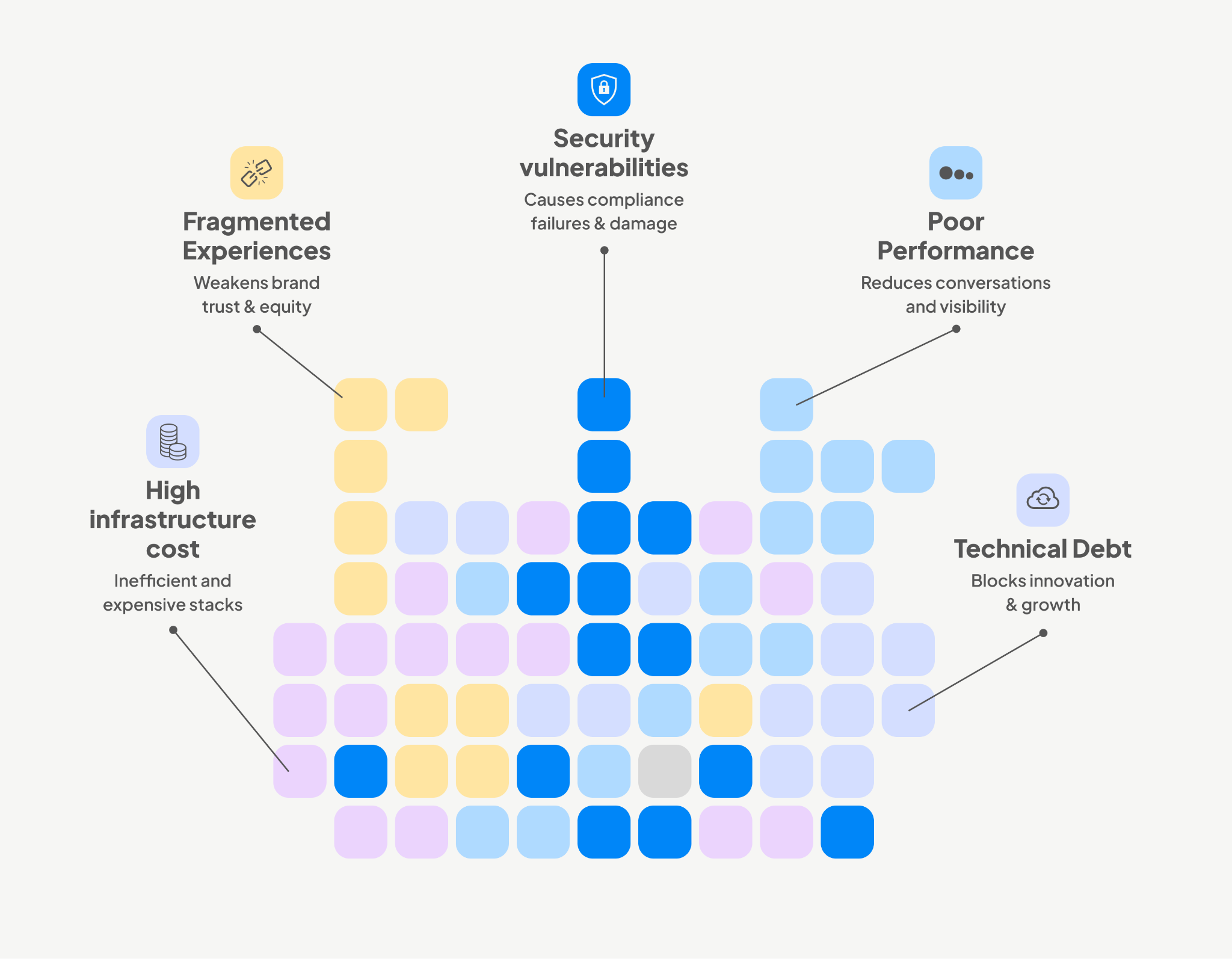
Applications that miss Core Web Vitals lose visibility and customers. Research shows that every 100ms delay in load time can reduce conversions by up to 7 per cent (Akamai). Many older single-page apps, designed for a different era, simply cannot pass INP thresholds. This is not just about faster websites; it is about protecting top-line revenue.
Technical debt has become a growth blocker
A Stripe study revealed that developers spend 42 per cent of their time dealing with technical debt. Every hour spent patching legacy code is an hour not spent on features that drive growth. The compounding effect is brutal: delays in new launches, growing maintenance overhead, and higher developer turnover. Businesses that fail to address this stall their ability to innovate.
Security is no longer optional
High-profile supply chain attacks such as SolarWinds and malicious npm packages show how easily vulnerabilities slip into production. With regulations tightening globally (GDPR, HIPAA, PCI DSS), compliance failures can result in heavy fines and reputational damage. Security must be embedded in pipelines and runtime, not bolted on later.
Infrastructure costs are climbing without control
Running multiple brand websites on separate stacks is expensive and inefficient. Each new launch duplicates effort, inflates hosting bills, and slows expansion. In one case, consolidating 12 fragmented sites into a modular JavaScript platform reduced infrastructure costs by 28 per cent and shortened launch timelines from months to weeks. Businesses that ignore infra optimisation risk ballooning OPEX.
Fragmented experiences weaken brand trust
Without standardised design systems, teams rebuild the same components repeatedly. This leads to inconsistencies across platforms, longer delivery times, and higher costs. Gartner has identified design systems as a key strategy for scaling product delivery effectively (Gartner). For global businesses, fragmented experiences are more than a design issue; they directly impact customer trust and brand equity.
Solutions
Application development tuned for outcomes
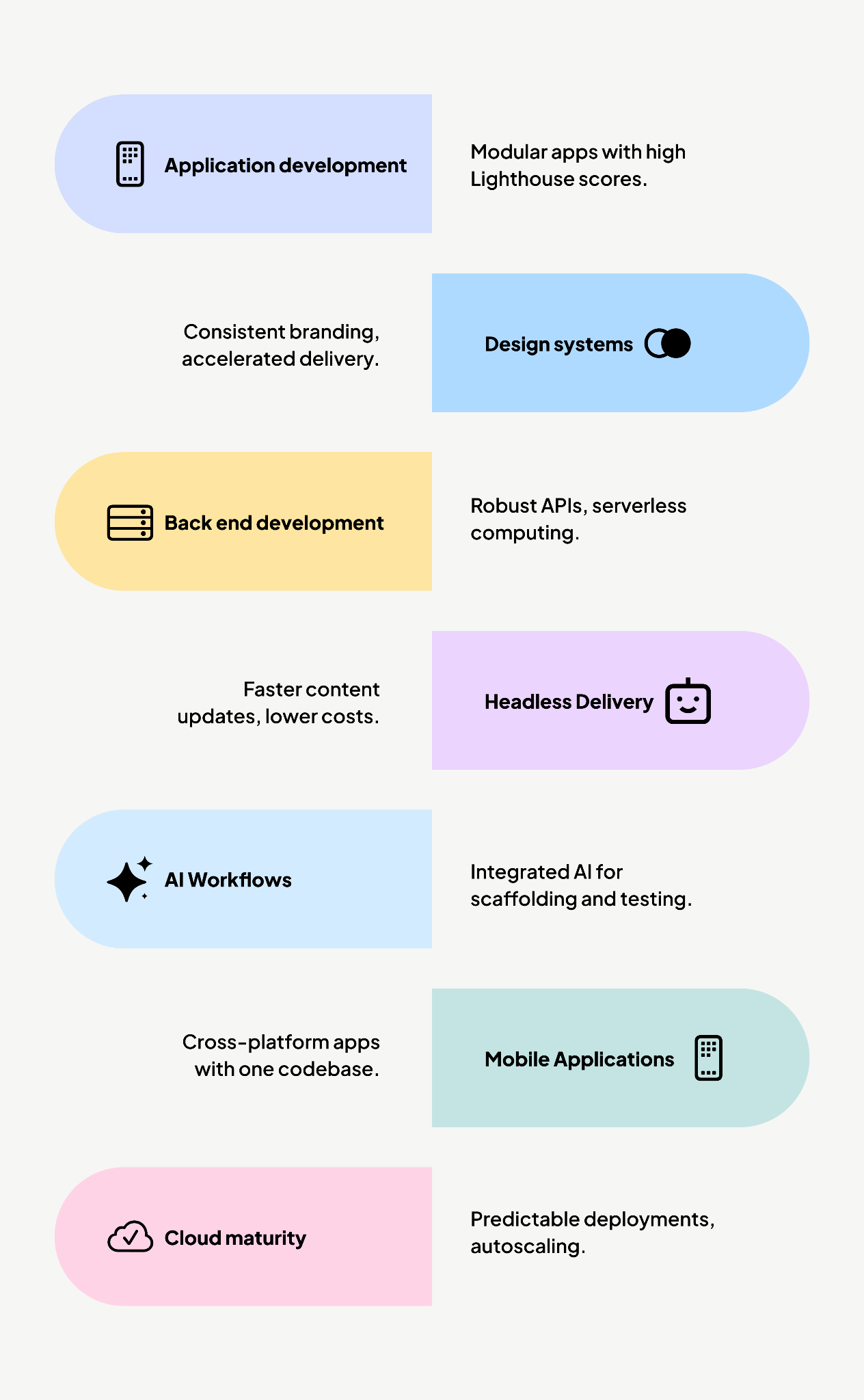
React, Angular, Vue, and Svelte are used to build modular, performant apps. Component-driven architecture and asset budgets deliver 80+ Lighthouse scores on mobile as a baseline.
Example: A financial services platform adopted this approach, combined with AI-assisted testing, and reduced regressions significantly, making releases more predictable and performance stable.
Design systems and component libraries
Storybook, Tailwind, Radix UI, and Atomic Design principles accelerate delivery by 25–40 per cent while ensuring consistent branding across regions and devices.
Example: A hospitality company used this approach to launch three regional websites in half the time, without diluting experience or brand identity.
Back-end and API development
Node.js, NestJS, and Express power robust, secure APIs. Serverless computing reduces infrastructure overhead while ensuring scalability. GraphQL improves developer productivity and system interoperability.
Headless and decoupled delivery
JAMstack approaches with Strapi, Ghost, or Contentful, combined with Next.js, deliver faster content updates and lower infra costs. Example: A global non-profit delivering climate hazard data to governments used headless architecture to serve real-time interactive dashboards with faster performance and easier updates.
AI-enabled workflows
GenAI is integrated directly into delivery: scaffolding, testing, and remediation. Human oversight ensures quality while reducing delivery cycles by 20–30 per cent and cutting technical debt remediation time by 40–50 per cent (Harvard Business Review).
Example: A media company embedded AI into QA workflows, reducing regression issues by half and improving release velocity.
Mobile and cross-platform applications
React Native and Flutter enable mobile apps with one codebase. Feature parity across iOS and Android is faster, with lower maintenance overhead.
Example: A quick-commerce company integrated a headless CMS with React Native, enabling marketers to publish content directly to mobile apps without developer bottlenecks. This reduced turnaround time and increased release cadence.
Cloud and DevOps maturity
CI/CD with GitHub Actions or GitLab CI, observability with Datadog and Prometheus, and Infrastructure as Code ensure predictable, secure deployments. Autoscaling reduces costs by up to 30 per cent while maintaining reliability.
Impact Framework

Why businesses are moving to Headless CMS
Consider a global beverage brand. A new product launch requires detailed information such as nutritional values, packaging visuals, and compliance notes. That content is first published on the corporate website, then re-entered into the mobile ordering app, reformatted for in-store digital displays, and again adapted for marketing campaigns.
Every update, even something as simple as a revised label or a new allergen disclosure, has to pass through different teams and channels. This creates bottlenecks, introduces the risk of inconsistencies, and slows down time to market.
With a headless CMS, the product information authored once can flow through APIs into the website, the app, the in-store displays, and the campaigns. Updates made at the source immediately reach every channel, reducing duplication and keeping the brand consistent everywhere it appears.
What is a Headless CMS?
A headless CMS stores content in a single repository and delivers it to different platforms through APIs. Unlike traditional systems, it is not bound to a fixed website layer.
This separation between content and design means businesses can choose the frameworks, tools, and delivery channels that best fit their needs.
A set of product specifications in manufacturing, a set of treatment guidelines in healthcare, or a catalogue of items in retail can be authored once and then published across the corporate site, mobile apps, in-store displays, and campaigns. Developers gain freedom to shape each channel as required, while the content team works from one trusted source.
Traditional vs Decoupled vs Headless CMS
The shift to Headless is clearer when compared with other CMS models:
| Feature | Traditional CMS | Decoupled CMS | Headless CMS |
|---|---|---|---|
| Architecture | Backend and frontend are tightly bound | Backend and frontend are loosely separated | Backend only, API-first |
| Content delivery | Single website | Website or app via fixed frontend | Any device via API |
| Flexibility | Limited | Moderate | High |
| Developer choice | Restricted to the system stack | Some freedom | Any framework or stack |
| Best fit | Simple sites | Secure sites with stable content | Multi-channel and enterprise scale |
A traditional CMS like WordPress delivers content to a predefined website template.
A decoupled CMS separates content storage and delivery but still assumes a fixed frontend.
A Headless CMS removes the frontend entirely, giving teams freedom to deliver content anywhere. See Decoupled Drupal.
Why businesses adopt Headless CMS
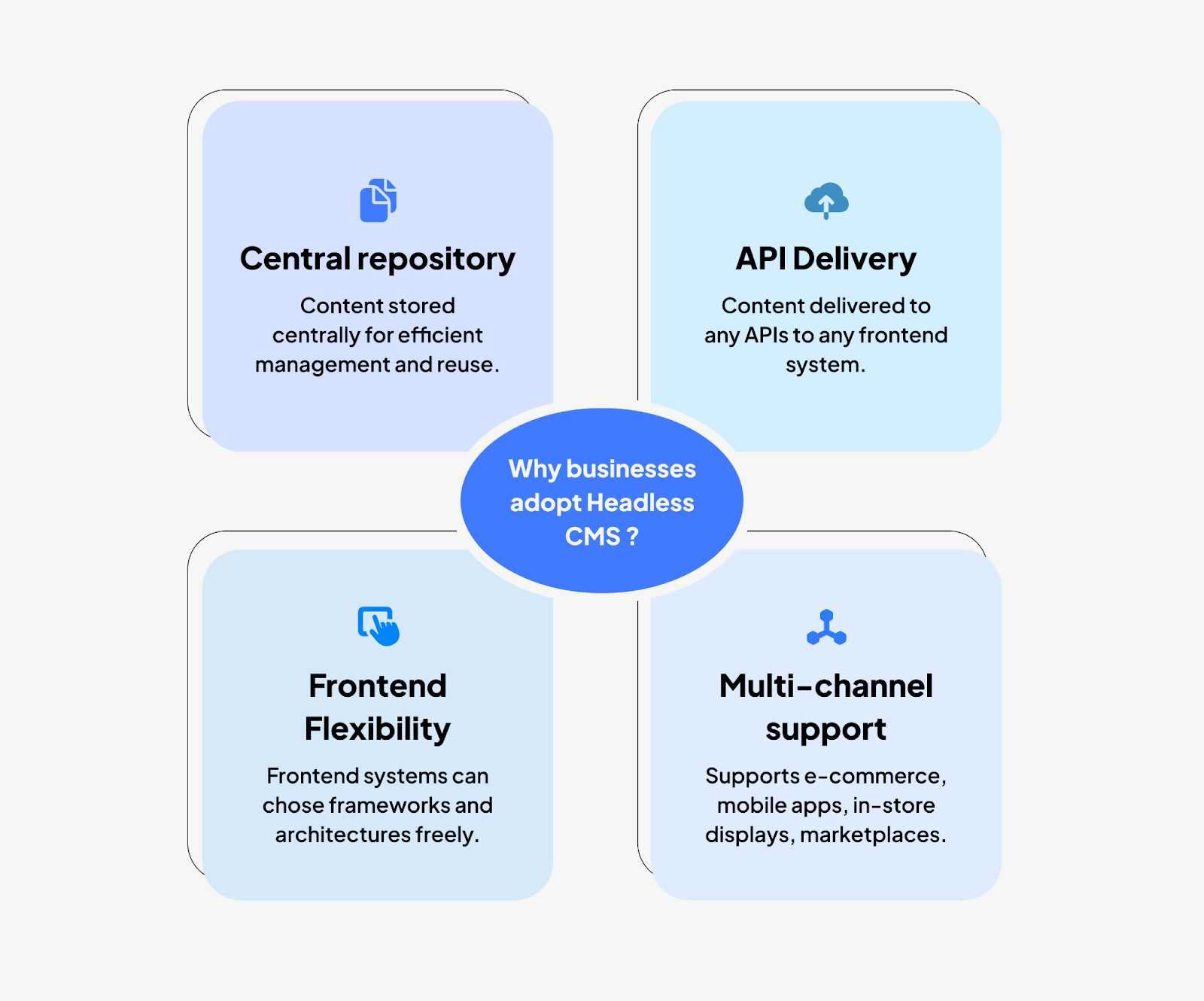
Adoption is rarely about technology alone. It is about reducing operational cost, improving time-to-market, and supporting growth.
1. Multi-channel delivery without duplication
Content created once can be delivered to the web, mobile, marketplaces, and new channels.
For example, a consumer goods company can maintain consistent product messaging across regional websites, mobile apps, and partner portals without duplicate authoring.
Read more about multi-brand website consolidation.
2. Faster delivery cycles
With a traditional CMS, marketing campaigns often wait for template updates or new page builds. A Headless CMS allows frontend and backend teams to work in parallel, cutting rollout time for new sites or products.
3. Lower security risk
Since the CMS backend is not tied directly to the public-facing frontend, the attack surface is smaller. This is valuable for enterprises managing sensitive or regulated information.
4. Prepared for new channels
When a new digital channel emerges, businesses do not have to re-platform. APIs allow content to be delivered wherever needed, from voice assistants to commerce marketplaces. See Headless Commerce.
5. Performance and scale
Frontends can be optimised for caching, load speed, and customer experience without affecting the CMS backend. This separation produces faster, more reliable customer experiences.
When Headless CMS may not be right
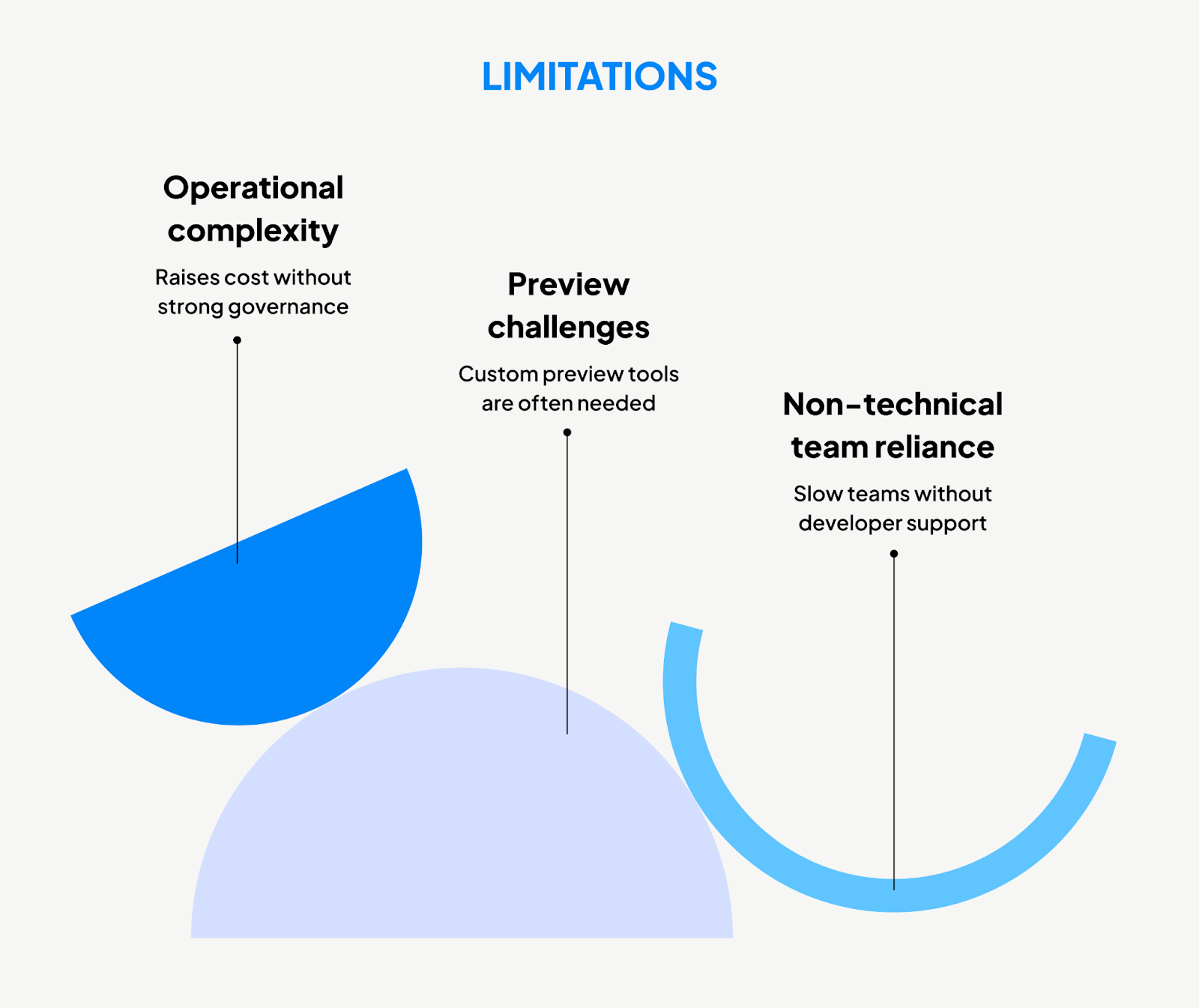
Headless is powerful but not universal.
- High reliance on non-technical teams: If marketing teams expect to control layout and design directly, a Headless approach can slow them down without developer support.
- Preview challenges: A WYSIWYG editor is not native to most Headless systems. Custom preview tools are often needed.
- Operational complexity: Enterprises must manage CMS, frontend frameworks, and infrastructure separately. Without strong governance, this can raise costs.
Business use cases
Headless CMS adoption is strongest where scale and multi-channel delivery are essential.
Multi-brand enterprises
A manufacturer with multiple brands can centralise content while still allowing brand-specific frontends. This improves governance and speeds localisation. See Open DXP with Headless Drupal.
E-commerce platforms
Retailers can deliver consistent product catalogues across websites, mobile apps, and marketplaces while integrating with personalisation engines and headless commerce platforms. Explore Headless commerce.
Global publishers
News organisations can push stories simultaneously to websites, mobile apps, smart TVs, and syndication feeds. Headless ensures consistency while reducing editorial overhead.
Multilingual delivery
Enterprises operating in multiple geographies can manage translations and regional variations in one system. See multilingual Headless with Strapi.
Examples
- Nike adopted a Headless approach for e-commerce launches, ensuring product drops appear simultaneously on the web, app, and in-store displays.
- The New York Times relies on API-first publishing to distribute content to its website, apps, and devices without duplicating effort.
- Audi uses a Headless CMS for its global websites, giving local teams the flexibility to manage content while keeping brand consistency.
Popular Headless CMS platforms
- Contentful: Enterprise-grade SaaS CMS with strong integrations.
- Strapi: Open-source, customizable, suited for developer-heavy teams.
- Sanity: Real-time collaboration and structured content management.
- Storyblok: Visual editing combined with Headless architecture.
- Drupal (decoupled): A mature CMS that supports both traditional and Headless deployments. Explore Decoupled Drupal.
Conclusion
A headless CMS is not the story on its own; the story is how a business chooses to handle content. When content is locked into pages, every new channel means extra work, duplication, and delay. When it is set up as infrastructure, it is ready to move wherever it is needed.
That matters because new channels will keep appearing.
Tomorrow, it may be a marketplace, a device, or a platform we don’t see today. Businesses that prepare their content once can use it anywhere. Businesses that don’t will always be catching up.
The takeaway is straightforward. Treat content as infrastructure, and it will carry you forward no matter what comes next.
FAQs
What is a Headless CMS?
A content management system that stores content centrally and delivers it via APIs to any frontend.
How does a Headless CMS differ from a Traditional CMS?
A Traditional CMS ties the backend and frontend together. A Headless CMS separates them, allowing content to flow to multiple channels.
What are the business benefits of a Headless CMS?
Reduced duplication, faster delivery cycles, stronger security, and flexibility to expand across platforms.

React's latest evolution: a deep dive into React 19
React remains the foundation of modern web development. React 19 is now stable and available on npm, bringing significant changes to how developers build applications.
The release solves long-standing complexity issues in React development. Tasks like fetching product data, syncing user preferences, and updating inventory previously required extensive boilerplate code with useEffect hooks and loading states. React 19's Server Components and built-in data fetching handle these operations automatically.
Early adopters report 40% faster development cycles and 25% smaller bundle sizes. Companies including Airbnb and Netflix have started migrations, with some teams seeing 60% improvements in time-to-interactive metrics.
React 19 introduces automatic batching improvements, enhanced Concurrent Features, and better TypeScript integration. These updates represent the framework's biggest evolution since hooks launched in 2018, benefiting everything from startups to enterprise applications serving millions of users.
What's new in React 19?
The game-changing React compiler
The React Compiler is a new JavaScript compiler introduced in React 19 that automatically optimises your components by:
- Automatically memoising components to avoid unnecessary re-renders
- Tracking reactive values (like props and state) with fine-grained precision
- Removing the need for useMemo, useCallback, and React. memo in many cases
How It works
The React Compiler looks at your component code at build time, understands how values change, and generates optimised output that skips re-rendering parts of your component tree unless needed.
It tracks
- Which props and state does each component and effect depend on
- When values are stable or changing
- What parts of JSX need to be re-rendered
Before React 19 (manual optimisation):
import { useMemo, useCallback } from 'react';

function ExpensiveComponent({ items, onItemClick }) {
 // Manual memoization required
const expensiveValue = useMemo(() => {
  return items.reduce((sum, item) => sum + item.value, 0);
}, [items]);

// Manual callback memoization
const handleClick = useCallback((id) => {
  onItemClick(id);
}, [onItemClick]);

return (
<div>
   <p>Total: {expensiveValue}</p>
   {items.map(item => (
     <button key={item.id} onClick={() => handleClick(item.id)}>
       {item.name}
     </button>
   ))}
</div>
);
}
With React 19 compiler (automatic optimisation):
function ExpensiveComponent({ items, onItemClick }) {
// No manual memoization needed - compiler handles it!

const expensiveValue = items.reduce((sum, item) => sum + item.value, 0);

const handleClick = (id) => {
  onItemClick(id);
};

return (
<div>
   <p>Total: {expensiveValue}</p>
   {items.map(item => (
     <button key={item.id} onClick={() => handleClick(item.id)}>
       {item.name}
     </button>
    ))}
</div>
)
}
Bonus: works with React features
Compatible with:
- Server Components
- Transitions (useTransition)
- Actions and Forms (useActionState, useFormStatus)
- Contexts (<Context> JSX syntax)
Opt-in or on by default?
- The compiler is not yet on by default in all tools.
- You'll need to opt in (for now) via:
- Next.js App Router (automatic soon)
- Vite plugin (when released)
- Babel (with @react/compiler)
The React Compiler is the future of how React apps will be written ,with less boilerplate, better performance, and simpler mental models.
Actions API: simplifying synchronous operations
The Actions API in React 19 is a powerful new feature that simplifies asynchronous operations, especially for form submissions, mutations, and server-side logic ,without needing client-side useEffect, fetch calls, or state management for each action.
It’s a core part of React Server Components, but it works seamlessly with client components too.
What is the Actions API?
The Actions API allows you to define server functions (aka Server Actions) that are directly callable from forms or JS, and React automatically handles:
- POST request submission
- FormData parsing
- Server execution
- Client-side state updates
Example: basic server action with form
1. Define a server action
// app/actions.ts
'use server'

export async function sendMessage(_, formData) {
 const name = formData.get('name');
 const message = formData.get('message');

 // Save to DB or send email...
 console.log(Message from ${name}: ${message}`);
   return { status: 'ok', message: 'Message sent!' };
}
formData is automatically parsed, no manual wiring.
2. Use it in a client component
'use client'

import { useActionState } from 'react'
import { sendMessage } from './actions'

export default function ContactForm() {
 const [state, formAction, isPending] = useActionState( sendMessage,{ status: null, message: });

return (
 <form action={formAction}>
    <input
      name="name"
      placeholder="Your name"
      required
    />
    <textarea
      name="message"
      placeholder="Your message"
      Required
    />
    <button
      type="submit"
      disabled={isPending}
    >
      {isPending? 'Sending...' : 'Send'}
    </button>

    {state?.message && <p>{state.message}</p>}
 </form>
 );
}
1.No API routes
2.No client-side fetch()
3.Clean async form state handling
Use cases
- Login / Signup
- Create/update database entries
- Submitting feedback forms
- File uploads (with FormData)
- Triggering emails/side effects
Advanced: combine with useTransition()
'use client'

const [isPending, startTransition] = useTransition();

function handleSubmit (formData) {
   startTransition (async () => {
     await sendMessage(null, formData);
});
}
Example: form submission with actions
import { useActionState } from 'react';
async function updateName(prevState, formData) {
 const name = formData.get('name');
  try {
    await fetch('/api/update-name', {
      method: 'POST',
      body: JSON.stringify({ name }),
    });
    return { success: true, message: 'Name updated successfully!' };
  } catch (error) {
    return { success: false, message: 'Failed to update name' };
  }
}
function NameForm() {
  const [state, formAction, isPending] = useActionState(updateName, null);
return (
  <form action={formAction}>
    <input name="name" placeholder="Enter your name" />
    <button type="submit" disabled={isPending}>
      {isPending? 'Updating...' : 'Update Name'}
    </button>
    {state?.message && (
      <p style={{ color: state. success? 'green' : 'red' }}>
          {state.message}
      </p>
    )}
  </form>
);
}
Optimistic Updates with Actions:
import { useOptimistic } from 'react';
function TodoList({ todos, addTodo }) {
  const [optimisticTodos, addOptimisticTodo]=useOptimistic(todos,
    (state, newTodo) => [...state, {...newTodo, pending: true }]
  );
}
async function handleAddTodo (formData) {
  const title = formData.get('title');
  const newTodo = { id: Date.now(), title, completed: false };
  // Optimistically add the todo
  addOptimisticTodo (newTodo);
  // Perform the actual update
  await addTodo (newTodo);
return (
  <div>
    <form action={handleAddTodo}>
      <input name="title" placeholder="Add a todo" />
      <button type="submit">Add Todo</button>
  </form>
    <ul>
      {optimisticTodos.map(todo => (
        <li key={todo.id} style={{ opacity: todo.pending? 0.5: 1 }}>
          {todo.title}
        </li>
      ))}
    </ul>
  </div>
);
}
Enhanced server components
In React 19, Server Components get a major upgrade, making them more powerful, flexible, and production-ready. They are now tightly integrated with React's new features like the Actions API, metadata support, and React Compiler.
What are server components?
Server Components are React components that:
- Run only on the server (never sent to the browser)
- Don’t include JavaScript in the client bundle
- Can fetch data directly (e.g., from a DB, API, filesystem)
- Can be composed with Client Components
They improve performance by reducing bundle size and moving work off the client.
Server Components are one of the biggest changes in React 19, providing a new way to render components on the server and deliver a faster, more efficient user experience. The improvements to React Server Components in version 19 bring significant performance benefits:
- Improved initial page load times: Components render on the server, reducing the JavaScript bundle size sent to clients
- Better SEO: Server-rendered content is immediately available to search engines
- Enhanced performance: Reduced client-side processing leads to faster, more responsive applications
Example: Simple server component
// app/pages/about/page.tsx

export default async function AboutPage() {
 const data = await fetch('https://api.example.com/team')
 .then(res => res.json());

return (
<>
 <title>About Us</title>
   <h1>Our Team</h1>
   <ul>
     {data.members.map(member => (
       <li key={member.id}>{member.name}</li>
     ))}
  </ul>
</>
)
}
No client-side JS
Can use async/await
Supports <title> natively
Where to Use Server Components
Use Server Components for:
- Data fetching from DB or APIs
- SEO-friendly content (like blog pages)
- Static or dynamic layouts
- Reducing JavaScript on the client
Composing with client components
- React 19 handles boundaries better:
// Server Component
import ClientWidget from './ClientWidget';

export default async function DashboardPage() {
 const stats = await getStats();

return (
  <>
     <h1>Dashboard</h1>
     <ClientWidget stats={stats} />
 </>
 );
}
ClientWidget is marked with "use client" and can handle interactivity.
Enhanced streaming in React 19
React 19 improves streaming rendering, which means:
Server Components can stream chunks of HTML progressively.
<Suspense> works for async server logic.
Reduces Time-to-First-Byte (TTFB).
<Suspense fallback={<Loading />}>
    <ExpensiveServerComponent />
</Suspense>
Security & privacy
Server Components:
- Never expose secrets (run only on the server)
- Keep database credentials, tokens, and private logic safe
- Reduce client bundle attack surface
Requirements
To use Enhanced Server Components in React 19:
- React 19 (of course)
- A server-rendering-aware framework like:
- Next.js (App Router)
- Remix (future)
- Custom setups with React Server Build
React 19’s Server Components enable a leaner, faster, and more scalable React architecture ,especially for large apps, content-heavy sites, and hybrid rendering.
The new "use" hook
- The new use hook in React 19 is a powerful and radical addition that allows you to directly use promises, async data, and context in a synchronous way inside components ,without needing useEffect, useState, or Suspense boundaries everywhere.
- It simplifies how we fetch data, consume context, and handle resources in both Server and Client Components.
What is the ‘use’?
use is a React 19 built-in hook that lets you:
- Await any Promise (e.g., from a fetch or DB call)
- Read Context directly in Server Components
- Await resources like loader(), stream(), or cache entries
Example 1: Async data fetching (server component)
import { use } from "react";

const userPromise = fetch("https://api.example.com/user/123")
 .then((res) => res.json());

export default function ProfilePage() {
  const user = use(userPromise);

return (
   <>
     <title>{user.name}</title>
     <h1>Welcome, {user.name}</h1>
   </>
);
}
React suspends automatically until the promise resolves
No loading states or effects needed unless you want them
Example 2: Reading context in server component
// ThemeContext.ts

export const ThemeContext = createContext("light");

// Layout.tsx (Server Component)
import { use } from "react";
import {ThemeContext } from "./ThemeContext";

export default function Layout({ children }) {
 const theme = use (ThemeContext);
 return (
   <div className={`theme-${theme}`}>
     {children}
   </div>;
 )
}
No useContext() needed
Works only on the server (for now)
Advanced: use() with suspense
<Suspense fallback={<Loading />}>
  <ExpensiveComponent />
</Suspense>
Example : ExpensiveComponent.tsx
export default function ExpensiveComponent(){
  Const data = use(fetch(‘/api/heavy’)
  .then(res => res.json());
  return <div>{data.value}</div>;
}
React will suspend ExpensiveComponent until the fetch resolves, showing the fallback in the meantime.
When to use ‘use’
- You’re in a Server Component and want to await data cleanly
- You want declarative loading without useEffect
- You're using a context in a server-rendered layout or page
- You want to simplify the code for loading + rendering
JSX transform improvements
The JSX transform receives major enhancements that make it not only more ergonomic but also faster and smarter during compilation and bundling.
The JSX transform receives significant enhancements in React 19, including:
- Using ref as a prop directly
- Performance improvements in JSX compilation
1. Using ref as a Prop directly (no more forwardRef everywhere)
Before (React 18 and earlier)
To pass a ref to a child component, you needed to wrap it in React.forwardRef:
const MyInput = React.forwardRef((props,ref)=>{
  return <input ref={ref} {...props} />;
})
Now in React 19:
You can pass ref directly as a JSX prop, and React automatically handles it via the compiler:
function MyInput(props){
  return <input {...props} />;
}

export default function Form(){
   Const ref = useRef();
   return <MyInout ref={ref} />;
}
React Compiler will rewrite this safely behind the scenes, no need for boilerplate!
New ref Prop usage:
function CustomInput ({ref,...props}) {
  return <input ref={ref} {...props} />
}
function App() {
  const inputRef = useRef(null);
 return (
  <div>
    {/* ref can now be passed as a regular prop*/}
    <CustomInput ref={inputRef} placeholder="Type here…" />
    <button onClick={()=>inputRef.current?.focus()}>
      Focus Input
    </button>
  </div>
)
}
Before React 19 (forwardRef required):
import {forwardRef} from 'react'
//Previously required forwardRef wrapper
const CustomInput  = forwardref(function  CustomInput(props,ref){
  return <input ref={ref} {...props} />
});
function App() {
  const inputRef = useRef(null);
return (
  <div>
    <CustomInput ref={inputRef} placeholder=”Type here…” />
      <button onClick={()=>inputRef.current?.focus()}>
          Focus Input
      </button>
  </div>
)
}
2. Performance improvements in JSX compilation
JSX in React 19 is now:
- More efficient at runtime (less diffing, fewer allocations)
- Compiled smarter by the React Compiler
- Automatically memoised where possible
Example :
<MyComponent prop1={x} prop2={y} />
If x and y are stable, React skips re-rendering entirely without needing memo().
You write JSX normally, but get the performance of fine-tuned memoisation.
useTransition()
In React 19, adding support for using async functions in transitions to handle pending states, errors, forms, and optimistic updates automatically.
useTransition lets you mark a state update as low-priority. React can then interrupt or delay it to keep the UI responsive.
When you want to defer a heavy update (like filtering a big list) so that more urgent updates (like typing in an input) stay fast and responsive.
List filter With transition
import { useState, useTransition } from "react";

function SearchComponent({ data }) {
 const [input, setInput] = useState("");
 const [filteredData, setFilteredData] = useState(data);
 const [isPending, startTransition] = useTransition();

const handleChange = (e) => {
 const value = e.target.value;
 setInput(value); // High-priority update

  startTransition(() => {
  const filtered = data.filter(item => item. includes (value));
  setFilteredData(filtered); // Low-priority update
  });
};

return (
<>
 <input value={input} onChange={handleChange} />
  {isPending && <p>Updating list...</p>}
 <ul>
  {filteredData.map((item, i) => <li key={i}>{item}</li>)}
 </ul>
</>
)
}
useTransition() - Defer non-urgent state updates isPending - Shows loading state during transition
startTransition(fn) - Marks a state update as low-priority
In React 19, the compiler optimisations and improved scheduling make useTransition more powerful:
- Better scheduling of concurrent tasks.
- Enhanced responsiveness on slow devices.
- Improved server/client sync with Actions and Transitions.
Compared to Web workers?
No, useTransition doesn’t run code on a separate thread like a Web Worker. It just tells React:
“This update isn’t urgent, schedule it when the main thread isn’t busy.”
If you want true parallelism, use Web Workers ,but combine both for advanced apps.
useActionState()
In React 19, useActionState() is a new hook introduced to work with Server Actions, enabling you to manage the state of a form or async action that is submitted to the server.
It combines server-side actions with client-side state, similar to how you'd manage a form and submission result (success, error, pending) ,all in one place.
Syntax
const [state, formAction, isPending] = useActionState(actionFn, initialState);
actionFn: an async Server Action function (defined using the new async function model).
initialState: default state value (e.g., { message: '' })
state: current state from the action (response).
formAction: submit handler you can use in a <form action={formAction}>.
isPending: boolean indicating if the action is running.
Before React19
// actions.ts (React Server Component file)
"use server";

export async function loginAction (prevState, formData) {
 const username = formData.get("username");
 const password = formData.get("password");

if (username === "admin" && password === "1234") {
 return { success: true, message: "Login successful!" };
} else {
 return { success: false, message: "Invalid credentials" };
}
}
After React19
// LoginForm.tsx (Client Component)
"use client";

import { useActionState } from "react";
import { loginAction} from "./actions";

export default function LoginForm() {
 const [state, formAction, isPending] = useActionState( loginAction,
 { success: null, message: "" }
);

return (
<form action={formAction} className="login-form">
   <input type="text" name="username" placeholder="Username" required />
   <input type="password" name="password" placeholder="Password" required />
   <button type="submit" disabled={isPending}>
     {isPending? "Logging in..." : "Login"}
   </button>

   {state.message && (
      <p className={state.success ? "text-green" : "text-red"}>
         {state.message}
      </p>
   )}
</form>
);
}
useActionState() helps you manage form state + server interaction in a unified way.
Works perfectly with React Server Actions introduced in React 19.
Best used in forms for login, signup, submit, etc. where the backend logic runs on the server.
useFormStatus()
useFormStatus() is a new hook designed to be used inside a form that uses Server Actions (React’s new server-side form handling). It helps track the status of a form submission ,whether it’s pending, successful, or failed.
What is useFormStatus?
It lets you read the submission status of a form from inside the form, which is very helpful for:
- Disabling submit buttons during submission
- Showing loading indicators
- Styling inputs or error conditionally
const status = useFormStatus();
status includes:
- pending: boolean – true when the form is submitting
- data: FormData | undefined – submitted form data (optional)
- method: "POST" | "GET" | undefined – submission method
- action: Function | undefined – the form action
- enctype: string – encoding type
“use client”;
import  { useFormStatus } from “react-dom”;

function SubmitButton() {
  Const {pending} = useFormStatus();

return (
  <button type=”submit” disabled={pending}>
	 {pending ? “Submitting…”  :  “Submit”}
  </button>
)
}
Full Example with useFormStatus + useActionState
// Server Action
// action.ts (server file)
"use server";
export async function submitFormAction(prevState, formData){
  await new Promise ((res) => setTimeout(res, 1000));
  return {message: "Form submitted!" };
}
// Client Component
"use client";
import { useActionState, useFormStatus } from "react";
import {submitFormAction } from "./actions";
function SubmitButton() {
  const {pending} = useFormStatus();
  return (
    <button type="submit" disabled={pending}>
        {pending ? “Submitting…”  : “Submit”}
    </button>
  )
}
export default function ContactForm() {
  Const [state, formAction] = useActionState(submitFormAction,{ Message: " "});
return (
  <form action={formAction}
    <input type="text" name="name" placeholder="Your name" Required />
    <SubmitButton />
    {state.message && <p>{state.messgae}</p>}
  </form>
)
}

Takeaways from React Nexus 2025
Are we moving towards a future where we write less code or where we write code more intelligently?
At this year's React Nexus, held at IISc Bengaluru, felt like a bit of both. The sessions and conversations portrayed that React 19 and AI are transforming our development processes, and the way we build software is evolving fast.
By automating repetitive tasks and minimising boilerplate code, these tools allow us to concentrate on what really matters, creating performance-driven architectures, enabling inclusive user experiences, and building systems that endure over time.
For the 700 attendees, this was more than just another tech event. With 29 brilliantly sharp speakers sharing their insights, it became a space to really pause and think about where React is going, and where our whole industry might be headed.
Personally? It was unforgettable. My first-ever tech conference, and oddly enough, it didn’t feel like a formal event at all. It felt more like a reunion.
For the past 3 years, I’ve been working remotely at QED42, bonding with my team through Slack threads, Google Meet calls, and GitHub pull requests. Getting to meet my teammates from the Pune office again was something else entirely.
Day 1: performance, architecture, and understanding the core


The first day was an incredible opportunity to understand fundamentals that scale. From exploring the React Compiler to understanding Fiber internals, each session was packed with insights you could immediately apply to real-world problems..
The event was run really well. Registration was quick, volunteers were on point, and everything just flowed smoothly.
The breaks for tea and lunch weren’t just a breather; they gave us a perfect chance to network with fellow developers and check out booths from companies like ImageKit, Asgardio, GoDaddy, Vonage, and Zoho Catalyst.
React 19: from boilerplate to beautiful
In her session on building better forms with React 19, Nipuni Paaris demonstrated how React 19 is transforming our approach to forms. With the introduction of new form actions and hooks, the era of tedious form boilerplate may finally be behind us. It's a relief for developers, seamlessly integrated into the framework.
Akash Hamirwasia shared what it’s like to adopt the new React Compiler. If performance tuning has ever taken over your workflow, this will feel like a breath of fresh air. The compiler now takes care of optimisations like memoisation, letting you stay focused on writing clear, expressive code.
Wadad Parker’s session on context was informative and full of personality. While prop drilling can feel like a workout, React 19’s revamped Context API streamlines state sharing, making it more efficient and reliable, with fewer unnecessary re-renders.
Scaling systems: from micro frontends to micro-architecture
Padam Jeet Singh and Shruti Bansal from GoDaddy shared practical strategies for making micro frontends work at scale. Their session focused on building shared infrastructure, setting up strong communication between teams, and putting solid governance in place. With the right structure, micro frontends become a reliable way to grow large applications without losing control.
Alok Kumar Singh from Cashfree Payments gave a clear and thoughtful breakdown of React Fiber internals. He explained how React handles rendering through incremental, interruptible updates and how lane-based prioritisation helps manage what gets rendered and when. It offered a deeper look at the mechanics behind React’s responsiveness and performance.
Performance & observability: build fast, stay fast
Harshit Budhraja from ImageKit.io delivered a session full of practical tips for improving Lighthouse scores, especially for media-heavy applications. He walked through techniques like using responsive images and AI-powered transformations through ImageKit.io. The live demo showed how these optimisations can make a real difference in both speed and quality.
Apurv Khare from Adobe explored the difference between knowing something broke and understanding why it happened. His session on frontend observability covered how to use sampling-based telemetry, real-time profiling, and structured logs to gain deeper insights. The focus was on moving from reactive fixes to proactive improvements that keep systems healthy and predictable.
Supercharging your IDE: the AI coding sidekick
I tested every cursor trick, so you don’t have to!
In her session, Tanisha Sabherwal talked about how the cursor isn’t just an editor; it’s your coding companion, demonstrating how to leverage context-aware prompts and other cursor features to receive AI support that truly understands your project's structure.
Give your code editor real superpowers
In this lightning talk with Apoorv Taneja was incredibly engaging, highlighting how MCPs can transform your editor with amazing new capabilities.
After a full day of learning, we navigated the infamous Bengaluru traffic to enjoy a wonderful team dinner, energised by the ideas we had discussed throughout the day.
Day 2: The rise of the AI-native developer

While Day 1 laid the groundwork, Day 2 propelled us into a future where AI is seamlessly integrated into development processes.
AI as co-pilot: from design to code
Chaitanya Deorukhkar from Razorpay showed how their design system, Blaze, works with an MCP server to generate React components directly from Figma. This setup brings design and development much closer, turning design files into production-ready code almost instantly.
Sanket Sahu from GeekyAnts walked us through the evolution of visual builders and introduced ShaperStudio, a new tool designed to connect design environments like Figma with developer tools like VS Code. It’s built to make collaboration between designers and developers smoother and more intuitive. We were so impressed, we caught up with him after the session and managed to get early access to try it out ourselves.
Accessibility as default, not an afterthought
Building accessible UI with copilot – Navya Agarwal
Showed how Copilot can be an accessibility partner if you ask the right way. Copilot can help us address accessibility issues. Concluding with a powerful quote: “Accessibility isn't more work, the work was incomplete.”
Input accessibility deep dive with Shrilakshmi Shastry emphasised the importance of using proper ARIA labels and understanding when and how to apply them. She warned that incorrect use of ARIA can do more harm than good, stating, “No ARIA is better than bad ARIA.” Through clear examples, she demonstrated the proper application of these attributes.
These sessions fundamentally changed how I think about Accessibility and our ethical responsibilities as front-end developers.
A proud moment: framework mastery in action

The highlight of Day 2, and perhaps the entire conference for my team, was a moment of immense pride watching our colleague, Archana Agivale, Tech Lead at QED42, take the stage. Her talk, "Static Regeneration: Supercharging Next.js with Strapi Webhooks," was a masterclass in solving a real-world problem we all face.
She presented an elegant strategy for keeping static sites fresh without constant rebuilds by batching updates from Strapi via webhooks and using Next.js's Incremental Static Regeneration (ISR).
The result? Static sites with dynamic superpowers blazingly fast, always up-to-date, and incredibly efficient. It was a brilliant showcase of practical innovation, and seeing her share that expertise with the wider community was a fantastic experience.
Panel discussion on AI was the cherry on top
It was captivating to listen to developers from Razorpay and Adobe discuss how AI is transforming our coding practices. The panel shared honest takes on both the potential and pitfalls of AI. While tools like Cursor, Copilot, and ChatGPT can enhance our productivity, they also require careful oversight and guidelines.
The day rounded out with more framework mastery from Tapas Adhikary on Next.js caching and Soumya Ranjan Mohanty on using Web Workers for smoother UIs, before Akshay Kumar U gave a demonstration of running a language model entirely on the client-side using React and WebLLM, paving the way for innovative, private AI features that operate directly on devices.
Key takeaways
As I look back on my first-ever tech conference, a few core ideas stand out:
- The Developer's role Is Shifting to architecture. With React 19's built-in Compiler now taking care of optimisations and AI assistants generating boilerplate code, our main contribution is shifting higher up the stack. We are transitioning into architects who design scalable, high-performance systems.
- Performance is not a Feature, it's the foundation. From React Fiber internals to image optimisation and frontend observability, the message was clear: building fast and resilient applications is an essential part of our role.
- Accessibility is a moral imperative. The back-to-back sessions on accessibility served as a strong call to action. It's not merely a "nice-to-have" or an afterthought; it's our fundamental duty to create an inclusive web experience for everyone.
- AI is becoming a core layer of the UI. The future isn't just about using AI to write code; it's about building intelligence directly into the user interface itself. On-device WebLLMs are just the beginning of this new frontier.
More than just a conference
As Day 2 came to a close, so did one of the most memorable experiences of my career so far.
After the final session, our team met for dinner before my colleagues returned to Pune. It was the perfect pause to reflect on everything we had learned, discussed, and experienced over the past two days. The energy, the ideas, and the people all came together in a way that felt both inspiring and grounded.
React Nexus 2025 wasn’t just a showcase of what’s possible with React 19 and AI. It was a celebration of how far we’ve come and a glimpse into where we’re heading. More importantly, it was a reminder that the community sits at the heart of everything we do. Behind every new feature or tool is a group of people asking thoughtful questions, sharing what they’ve learned, and helping each other grow.
While i had met them before, this was the first time i truly got to spend meaningful time with them. After three years of remote collaboration, sitting around the same table and sharing stories felt incredibly meaningful.
As we wrapped up and said our goodbyes, I left feeling more connected, more curious, and more excited about what we get to build next.


Mastering Cron Jobs in CMS: a practical guide with Strapi
In modern web development, automation plays a crucial role in enhancing productivity and ensuring applications run smoothly. One common and effective tool for automation is the cron job, which allows developers to schedule specific tasks to run at set intervals.
For content-driven applications, automation can simplify workflows such as publishing articles, clearing outdated entries, or syncing external data. Strapi, a popular headless CMS built with Node.js, supports cron jobs natively using straightforward JavaScript syntax, making it easier to set up recurring tasks, like scheduling blog posts to go live at a certain time or cleaning up draft content every night.
What is a Cron Job?
A cron job is a time-based task scheduler commonly used in Unix-like operating systems. It allows you to automate the execution of scripts or commands at specific times or intervals, such as every minute, hour, or day.
You can think of it as setting an alarm clock for your server, helping it perform routine tasks like sending email reports, clearing logs, or updating content without manual effort.
Example Cron schedule syntax
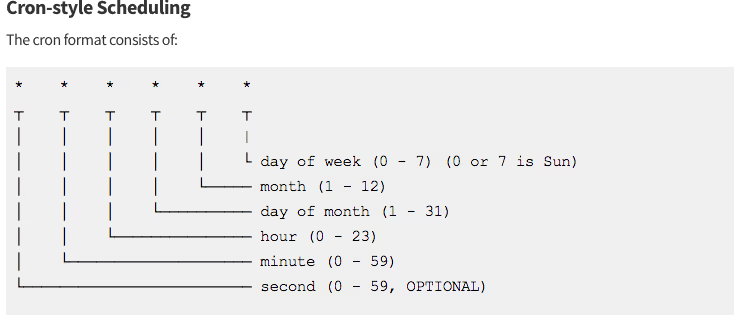
How to set up Cron jobs in Strapi
To configure and run cron jobs in Strapi:
- Create the necessary cron job file.
- Enable cron jobs in your server.js configuration file.
💡 Tip: Optionally, cron jobs can be directly created in the cron.tasks key of the server configuration file.
Creating a Cron job in Strapi
Strapi supports defining cron jobs using two formats:
1. Object format (recommended)
To define a cron job using the object format:
1. Create or edit the file at:
./config/cron-tasks.js // For Strapi v5
2. Use the following structure inside that file:
./config/cron-tasks.js
module.exports = {
  /**
   * Simple example.
   * Every Monday at 1am.
   */

  myJob: {
    task: async({ strapi }) => {
      // Add your own logic here (e.g. send a queue of email, create a database backup, etc.).
    },
    options: {
      rule: "0 0 1 * * 1",
    },
  },
};
In this format:
- The rule ('0 0 1 * 1') is a standard cron expression that defines when the task runs.
- The value is an async function that contains the code to be executed.
The following cron job runs on a specific timezone:
./config/cron-tasks.js
module.exports = {

  /**
   * Cron job scheduled with timezone support.
   * This task runs every Monday at 1:00 AM (Asia/Dhaka timezone).
   * Reference for valid timezones:
   * https://en.wikipedia.org/wiki/List_of_tz_database_time_zones#List
   */

  myJob: {
    task: ({ strapi }) => {
      // Add your own logic here (e.g. send a queue of email, create a database backup, etc.).
    },
    options: {
      rule: '0 0 1 * * 1',
      tz: 'Asia/Dhaka',    // Timezone in which the job should execute
    },
  },
};
The following cron job is run only once at a given time:
./config/cron-tasks.js
module.exports = {
  myJob: {
    task: ({ strapi }) => {
      /* Add your own logic here */
    },
    // only run once after 10 seconds
    options: new Date(Date.now() + 10000),
  },
};
The following cron job uses start and end times:
./config/cron-tasks.js
module.exports = {
  myJob: {
    task: ({ strapi }) => {
      /* Add your own logic here */
    },
    options: {
      rule: "* * * * * *", // Runs Every second
      // start 10 seconds from now
      start: new Date(Date.now() + 10000),
      // end 20 seconds from now
      end: new Date(Date.now() + 20000),
    },
  },
};
2. Key format
To define a cron job using the key format:
1. Create or edit the file at:
./config/cron-tasks.js // For Strapi v5
2. Use the following structure inside that file:
./config/cron-tasks.js
module.exports = {
  /**
   * Simple example.
   * Every monday at 1am.
   */

  "0 0 1 * * 1": ({ strapi }) => {
    // Add your own logic here (e.g. send a queue of email, create a database backup, etc.).
  },
};
In this format, the cron rule is used directly as the key instead of naming the job explicitly, resulting in the creation of an anonymous cron job.
Warning:
Using the key format to define cron jobs results in anonymous jobs, which may cause problems when attempting to disable them or when working with certain plugins. For improved control and compatibility, it's always advisable to use the object format instead.
Enabling Cron jobs
To enable cron jobs in Strapi, set cron.enabled to true in the server configuration file and register your defined tasks as shown below:
// ./config/server.js
const cronTasks = require("./cron-tasks");

module.exports = ({ env }) => ({
  host: env("HOST", "0.0.0.0"),
  port: env.int("PORT", 1337),
  cron: {
    enabled: true,
    tasks: cronTasks,
  },
});
This setup ensures that Strapi will run the scheduled tasks defined in your /config/cron-tasks.js file.
Adding, removing, and listing Cron jobs in Strapi
You can dynamically manage cron jobs in Strapi using the built-in strapi.cron methods:
1. Adding Cron jobs
To programmatically add a cron job, use strapi.cron.add() within your plugin or custom code:
// ./src/plugins/my-plugin/strapi-server.js
module.exports = () => ({
  bootstrap({ strapi }) {
    strapi.cron.add({
      myJob: {
        // This job runs every second
        task: ({ strapi }) => {
          console.log("Hello from plugin");
        },
        options: {
          rule: "* * * * * *",
        },
      },
    });
  },
});
2. Removing Cron jobs
To remove a cron job by its name, use strapi.cron.remove() and provide the key:
strapi.cron.remove("myJob");
Note: Cron jobs defined using the key format (i.e., where the rule itself is the key) cannot be removed.
3. Listing Cron jobs
To get a list of all active(currently running) cron jobs anywhere in your custom code, use:
strapi.cron.jobs
This will return the current cron jobs registered in the application.
Example: auto- publish scheduled blog posts in Strapi
A case where you want to allow your content editors to schedule blog posts to go live at a specific time in the future. Here's how we can achieve that with a cron job in Strapi.
Setup: Content type
Let's assume your BlogPost content type has these fields:
- title (Text)
- content (Rich Text)
- publishAt (Datetime) — custom field for scheduling
- publishedAt (Datetime) — default field handled by Strapi
Step-by-step implementation
1. Enable Cron Jobs in config/server.js
module.exports = ({ env }) => ({
  cron: {
    enabled: true,
  },
});
2. Add Cron Job in /config/cron-tasks.js
module.exports = {
  autoPublishBlogPosts: {
    task: async ({ strapi }) => {
      const now = new Date().toISOString();

      const posts = await strapi.entityService.findMany('api::blog-post.blog-post', {
        filters: {
          publishAt: { $lte: now },
          publishedAt: null, // Only unpublished posts
        },
      });

      for (const post of posts) {
        await strapi.entityService.update('api::blog-post.blog-post', post.id, {
          data: {
            publishedAt: new Date().toISOString(),
          },
        });

        strapi.log.info(`Auto-published post: "${post.title}"`);
      }
    },
    options: {
      rule: '*/1 * * * *', // Runs every minute
     },
  },
};
Testing the Cron job
- Add a blog post in the Strapi admin collection(api::blog-post.blog-post) and save it without publishing.
- Set publishAt to a future time.
- Leave publishedAt empty.
- Wait until the scheduled time passes.
- Strapi will automatically update publishedAt, marking it as live.
Real-world use cases of Cron jobs
- Automated Report Generation
- Cleaning up old data or logs
- Sending scheduled emails or notifications
- Backing up databases at night
- Auto-publishing or unpublishing CMS content
Conclusion
Cron jobs are essential in modern development. Paired with CMS platforms like Strapi, they handle content publishing, data syncing, and background tasks without extra tools.
Now AI is making them smarter.
Platforms like Cronly use real-time data like server load and user activity to schedule tasks at the best possible moment. They also detect errors and fix issues before they cause problems.
Strapi is used by over 2,000 companies in more than 50 countries. Teams across e-commerce, media, and tech rely on cron jobs to keep content fresh and systems running smoothly.
AI takes this further. It enables predictive publishing, real-time triggers, and personalised content delivery. According to PostWhale, CMS platforms are moving toward fully automated, AI-powered workflows.
Cron jobs aren’t outdated. They’re evolving into smart automation tools that make digital operations faster, lighter, and more reliable.

Building APKs locally with expo: a step-by-step guide
Building an APK locally with Expo gives you greater control over your development workflow, allowing you to generate a standalone Android package without depending on Expo’s cloud build services.
This approach is particularly valuable for developers who need faster iteration, offline capabilities, or want to customize their build process.
In this blog, we’ll walk you through the steps to build an APK locally using Expo, highlight the tools you'll need, and cover potential challenges you might face along the way.
Prerequisites
Before you begin, ensure you have the following installed:
- Node.js (Latest LTS version recommended)
- Expo CLI (npm install -g expo-cli)
- Android Studio (with Android SDK and emulator support)
- EAS CLI (npm install -g eas-cli)
Step 1: Initialise an Expo project
If you don’t already have an Expo project, create one with the following command:
npx create-expo-app myApp
cd myApp
Step 2: Configure Expo for bare workflow
By default, Expo manages builds in the cloud, but to generate an APK locally, we need to prebuild our project:
npx expo prebuild
This command converts your managed Expo project into a bare React Native project with the necessary Android and iOS folders.
Step 3: Open the project in Android studio
- Open Android Studio.
- Click Open and navigate to your project’s android directory.
- Let Android Studio sync the Gradle files.
- Ensure you have installed the required Android SDKs.
Step 4: Build the APK using Gradle
To build an APK, use the following command inside the android directory:
cd android
./gradlew assembleRelease
This process might take a few minutes. Once completed, your APK will be located in:
android/app/build/outputs/apk/release/app-release.apk
Step 5: Signing the APK (optional)
For distribution, you should sign your APK. Generate a keystore using:
keytool -genkeypair -v -keystore my-release-key.jks -keyalg RSA -keysize 2048 -validity 10000 -alias my-key-alias
Move the generated keystore to android/app/ and update the android/app/build.gradle file to reference your signing details.


Step 6: Install and test the APK
Once the APK is built, install it on an Android device or emulator:
adb install android/app/build/outputs/apk/release/app-release.apk
You can now run and test your Expo-built Android application locally!
Alternative method: building APK locally with EAS build
EAS Build is available to anyone with an Expo account, regardless of whether you pay for EAS or use their Free plan. You can sign up at https://expo.dev/signup.
Expo also provides EAS Build (Expo Application Services), which allows you to build APKs locally without manually handling Gradle commands. Here’s how:
1. Install EAS CLI (if not installed already):
npm install -g eas-cli
2. Configure EAS for local builds:
eas build: configure
3. Run a local build:
Android: eas build --local --platform android
iOS: eas build --local --platform ios
Alternatively, you can use --platform all option to build for Android and iOS at the same time:
eas build --local --platform all
4. This command will build the APK on your local machine.
5. Find the generated APK:
- The built APK will be located inside the dist/ directory in your project.
Why use EAS build locally?
- Automates the build process without requiring manual Gradle commands.
- Works with both managed and bare workflows.
- Simplifies configuration and signing.
If you are already signed in to an Expo account using Expo CLI, you can skip the steps described in this section. If you are not, run the following command to log in:
eas login
You can check whether you are logged in by running
eas whoamiConfigure the project
To configure an Android or an iOS project for EAS Build, run the following command:
eas build:configureExpo APK local build: The challenges I faced & how I solved them
While building an APK locally with Expo, you might encounter various challenges. Here are some common issues and how to resolve them:
1. Gradle version issues
Problem: The Build fails due to incompatible Gradle versions.
Solution: Update your Gradle version in android/gradle/wrapper/gradle-wrapper.properties.
Find this line:
distributionUrl=https\://services.gradle.org/distributions/gradle-x.x.x-all.zip
Update it to the latest stable version. You can find the latest version here.
Example:
distributionUrl=https\://services.gradle.org/distributions/gradle-8.6-all.zip

Update Gradle Plugin (If Needed) android/build.gradle
find classpath 'com.android.tools.build:gradle:x.x.x'
Update it to the latest version found in Android Gradle Plugin release notes.
Ensure your Android SDK is current.
2. Java version mismatch
Problem: Gradle build fails due to incompatible Java versions.
Solution: Ensure you are using the correct Java version (usually Java 11 or Java 17) by setting it in your environment variables.
Open a terminal or command prompt and run: java -version
If the version is not Java 11 or Java 17, you need to update it.
Install the Correct Java Version
Windows: Download & install Java from Adoptium or Oracle.
Mac/Linux: Use Homebrew (Mac) or SDKMAN (Linux) to install:
brew install openjdk@17
macOS/Linux
Open the Terminal and edit your shell config:
nano ~/.zshrc  # (For macOS with zsh)

nano ~/.bashrc  # (For Linux or bash)
Add this
export JAVA_HOME=$(/usr/libexec/java_home -v 17)
export PATH=$JAVA_HOME/bin:$PATH
Apply changes:
source ~/.zshrc # or source ~/.bashrc
Verify the version:
java --version
Set Java Version in gradle.properties
Open:android/gradle.properties
Add: org.gradle.java.home=/path/to/java17
(Replace /path/to/java17 with your actual Java installation path.)
3. Dependency conflicts
Problem: Errors related to conflicting dependencies in package.json.
Solution: Run expo doctor to identify issues and resolve conflicts by upgrading/downgrading dependencies as needed.
4. Missing Android SDK or emulator issues
Problem: The build process cannot locate the required Android SDK.
Solution: Install and configure the Android SDK in Android Studio and set ANDROID_HOME and ANDROID_SDK_ROOT environment variables.
5. Build fails with Hermes
Problem: The app crashes or doesn't build due to the Hermes engine.
Solution: Try disabling Hermes by modifying android/app/build.gradle or ensure you are using a compatible Hermes version.
Check if Hermes is enabled
Open:
android/app/build.gradle
Find this block:
project.ext.react = [enableHermes: true // Change to false to disable Hermes]
If enableHermes: true, try switching it to false and rebuilding.
6. Slow build times
Problem: Gradle takes too long to compile the project.
Solution: Enable Gradle caching and daemon mode, and use a more powerful machine for faster builds.
Enable gradle daemon & caching
1. Open:
~/.gradle/gradle.properties
(If it doesn’t exist, create it.)
2. Add or modify these lines:
org.gradle.daemon=true # Keeps Gradle running in the background for faster builds
3. Enable build caching
org.gradle.caching=true # Enables build caching
4. Enable parallel execution
org.gradle.parallel=true # Enables parallel execution
5. Configures projects on demand
org.gradle.configureondemand=true # Configures projects on demand
6. Limits worker processes (adjust based on CPU)
org.gradle.workers.max=4 # Limits worker processes (adjust based on CPU)
Use a faster gradle distribution
1. Open
android/gradle/wrapper/gradle-wrapper.properties
2. Update to the latest Gradle version (check Gradle Releases):
distributionUrl=https\://services.gradle.org/distributions/gradle-8.6-all.zip
Allocate more RAM to gradle
1. Open
android/gradle.properties
2. Add
org.gradle.jvmargs=-Xmx4g -XX:MaxMetaspaceSize=512m -Dkotlin.daemon.jvm.options="-Xmx2g"(Increase -Xmx4g based on available RAM.)
Use incremental compilation
1. Open
android/build.gradle
2. Add this inside the android block:
 android {...
compileOptions {
        	incremental true  // Enables incremental Java compilation
   	     }
   }
Conclusion
Building APKs locally with Expo gives you complete control over your app’s build process, making it an excellent choice for offline development, thorough debugging, and distributing apps without depending on cloud-based services. This approach can be especially helpful when working in secure environments or when faster iteration cycles are needed.
However, it’s important to be prepared for some common hurdles along the way, such as Gradle version mismatches, dependency conflicts, or issues related to Android SDK configuration.
By identifying and addressing these challenges early, you can create a more reliable and streamlined build workflow.
With the right tools, attention to detail, and a clear understanding of the process, you can confidently build, test, and distribute your Expo-based Android applications entirely on your local machine.
Happy coding!
.avif "Next.js performance tuning: practical fixes for better Lighthouse scores")
Next.js performance tuning: practical fixes for better Lighthouse scores
Achieving strong Lighthouse scores starts with basic optimisations, but reaching exceptional performance takes more than default settings. While Next.js offers powerful tools out of the box, real results come from deliberate decisions across rendering, asset management, and Core Web Vitals.
This blog breaks down seven high-impact areas I focused on while improving performance in a real-world project. These targeted optimisations lead to significant Lighthouse improvements, from smart image handling and thoughtful rendering strategies to precise bundle analysis and fine-tuned font delivery.
You’ll get a practical sense of how to reduce layout shifts, cut bundle sizes, and debug Web Vitals effectively. Each technique blends Next.js capabilities with core web performance principles to help you cross the 90+ Lighthouse score threshold with confidence.
NOTE: All approaches highlighted are not router-specific and will work with both App router and page router.
1. Optimise images
Images often dominate page weight and hurt performance. By leveraging Next.js's <Image>component with modern formats, lazy loading, and responsive sizing, you can slash load times, eliminate layout shifts, and boost Lighthouse scores, without sacrificing visual quality. Here’s how to implement these optimisations effectively.
- next/image: Auto-optimise images with built-in compression, CDN hosting, and format conversion.
- Set dimensions: Prevent layout shifts by defining width/height matching the intrinsic aspect ratio.
- Responsive sizes: Use sizes to serve optimally scaled images for every viewport.
- Lazy load offscreen: Skip priority for non-critical images to speed up initial load.
- WebP/AVIF first: Let Next.js auto-serve modern formats at quality={75} for smaller files.
- Boost LCP: Mark hero images as priority={true} to preload key content.
<Image
  src="/example.jpg"
  alt="Example"
  width={800}
  height={400}
  sizes="(max-width: 600px) 100vw, (max-width: 1200px) 50vw, 800px" //for responsiveness
  priority={true} //to go against the default lazy loading image
  quality={} //determine what quality to load the image in
/>
Pros:
- Boosts Largest Contentful Paint by preloading key resources.
- Reduces file sizes by 30-70%, supports modern formats, and simplifies implementation.
- Eliminates layout shifts (CLS) by reserving space during load.
- Serves optimally sized images for each device, reducing payload by 20-40% on mobile.
- Improves initial load time by 20-50% via resource deferral.
- Achieves 50-80% smaller files than JPEG/PNG with comparable visual quality.
Cons:
- Requires static imports or domain whitelisting for external images.
- Overuse may congest initial bandwidth; limit to 1-2 images.
- Requires manual dimension tracking for dynamic content.
- Requires viewport breakpoint planning; improper values may overserve large images.
- Risk of delayed loading for critical content if misconfigured (use priority strategically).
- AVIF encoding can increase build times; test browser fallbacks.
2. SSR, SSG & ISR
Choosing between Static Site Generation (SSG) and Server-Side Rendering (SSR) has a significant impact on performance, especially regarding Lighthouse scores, page speed, and scalability.
SSG (getStaticProps)
- Pre-renders HTML at build time - Faster load speeds.
- CDN-cached globally - Ideal for static/mostly-static content.
// Static Site Generation (SSG):
export default function Home() {
  return <main>Static Content</main>
}

// For dynamic data fetching (SSG with data)
async function getData() {
  const res = await fetch('<https://api.example.com/data>', {
    cache: 'force-cache' //SSG
  })
  return res.json()
}

export default async function Page() {
  const data = await getData()
  return <main>{data.content}</main>
}
Pros:
- Near-instant page loads (improves LCP, FCP, and TTFB).
- Can be served from a CDN for global performance.
- No unnecessary API calls per request, reducing server load.
Cons:
- Not to be used when the data changes frequently and must be updated per request.
- Not to be used when user-specific data (authentication, dashboards) is required.
SSR (getServerSideProps)
- Generates HTML on each request - Ensures dynamic, real-time content (e.g., user-specific data).
- No CDN caching by default - TTFB may be slower than SSG, but avoids stale content.
- Critical for SEO-heavy dynamic pages - Product listings, authenticated dashboards, or CMS-driven content.
- Combine with edge caching - Use Cache-Control headers to mitigate performance costs.
Pros:
- Runs on every request.
- Generates HTML dynamically on the server.
- It can slow down page loads due to server response time.
- Best for real-time, frequently changing data (e.g., dashboards, user profiles).
Cons:
- Slower TTFB (Time to First Byte) due to real-time server processing.
- Every request hits the server, increasing infrastructure costs.
- Not cached, meaning slower repeat visits.
// Server-Side Rendering (SSR):
async function getData() {
  const res = await fetch('<https://api.example.com/data>', {
    cache: 'no-store' // SSR
  })
  return res.json()
}

export default async function Page() {
  const data = await getData()
  return <main>{data.content}</main>
}
ISR (Incremental Static Regeneration) for Dynamic Content
- ISR allows you to update static pages without rebuilding the whole site.
- This enables you to get SSG performance but with automatic updates.
// Incremental Static Regeneration (ISR):
async function getData() {
  const res = await fetch('<https://api.example.com/data>', {
    next: { revalidate: 3600 } // ISR: Revalidate every hour
  })
  return res.json()
}

export default async function Page() {
  const data = await getData()
  return <main>{data.content}</main>
}
Pros:
- Near-SSG performance with dynamic freshness (no server-side rendering overhead, faster than SSR).
- Background regeneration updates stale pages automatically.
- Reduced API calls vs. SSR – cached pages reuse data until revalidation triggers.
- No full rebuilds needed for content updates (unlike traditional SSG).
Cons:
- Stale content briefly shows for new visitors during revalidation.
- Updates aren’t instant (minimum 1s interval).(revalidation gap)
3. Code splitting & dynamic imports
- Code splitting allows Next.js to split JavaScript bundles into smaller chunks and load them only when needed. This improves performance by reducing the initial page load time.
Pros:
- Faster initial load - Smaller JavaScript bundles reduce initial page load time.
- Improved time to interactive (TTI) - Less JavaScript to parse/execute = quicker interactivity.
- Reduced JS execution time - Only load necessary code for the current view.
- Better Low-Power Device Performance - Decreased memory usage on mobile/older devices.
- Optimised resource loading - Chunks load on-demand as users navigate your app.
Cons:
- Initial load complexity - Multiple network requests for split chunks may cause slight overhead in high-latency environments.
- Hydration delay - Dynamically loaded components may briefly show a loading state, affecting perceived performance.
- Tooling dependency - Requires proper bundler (Webpack) and framework (Next.js) support for optimal splitting.
- Debugging overhead - More chunks can make source-map debugging slightly harder in development.
- Dynamic imports
- Instead of importing everything at once, Next.js supports on-demand loading of components using next/dynamic.
- Only loads HeavyComponent when needed instead of bundling it in the initial JavaScript file.
- Reduces the main bundle size, improving page speed.
import dynamic from "next/dynamic";

// Import component only when needed (client-side)
const HeavyComponent = dynamic(() => import("../components/HeavyComponent"), {
  ssr: false, // Prevents server-side rendering for this component
});

export default function Page() {
  return (
    <div>
      <h1>Code Splitting with Dynamic Import</h1>
      <HeavyComponent />
    </div>
  );
}
- Avoid bundling large libraries
- JavaScript libraries like moment.js, lodash, chart.js are large and should be loaded only when needed.
- Improves page load speed as unnecessary libraries are not included upfront.
.avif "Seamless Headless Drupal integration with Next.js 15 (App Router)")
Seamless Headless Drupal integration with Next.js 15 (App Router)
Drupal is a mature and flexible content management system (CMS) trusted for building structured content models and managing complex workflows.
On the front end, Next.js is a widely adopted React framework known for its speed, developer experience, and production-grade features. With the release of Next.js 15, the new App Router brings powerful updates, including built-in support for async/streaming, granular caching, and improved routing patterns.
When connecting a decoupled Drupal backend to a Next.js 15 frontend, handling authentication becomes a key step, especially for gated content, personalisation, or editorial workflows.
This blog covers how to implement authentication in a headless Drupal + Next.js 15 setup using the latest App Router features and best practices around API routes, sessions, and token handling.
Why integrate Drupal with Next.js?
- Decoupled Architecture: Separates the back-end (Drupal) and front-end (Next.js) for increased flexibility.
- Improved Performance: Next.js 15 introduces automatic caching and async rendering for faster load times.
- Better User Experience: Provides a modern React-powered front-end for improved interactivity.
- Scalability: Using Drupal as a headless CMS makes it easier to scale and manage content across platforms.
Setting up Next.js 15 with App Router
Create a Next.js application
Before starting, ensure you have Node.js installed. Then, run the following command to create a new Next.js 15 project:
npx create-next-app@latest my-nextjs-app --ts --experimental-app
cd my-nextjs-app
npm install
To start the development server:
npm run dev
Your Next.js app should now be running at http://localhost:3000.
Basic Project Structure
my-nextjs-app/
├── app/                 # App Router directory
│   ├── layout.tsx       # Root layout (applies to all pages)
│   ├── page.tsx         # Home page (/)
│   ├── about/           # Example route: /about
│   │   └── page.tsx
│   └── api/             # API routes
│       └── user/route.ts
│
├── components/          # Reusable components (e.g., Header, Button)
│   └── Header.tsx
│
├── styles/              # Global and module CSS files
│   ├── globals.css
│   └── Home.module.css
│
├── public/              # Static assets (images, favicon, etc.)
│   └── favicon.ico
│
├── next.config.js       # Next.js configuration
├── tsconfig.json        # TypeScript configuration (if using TS)
└── package.json         # Project metadata and dependencies
Setting Up Drupal as a Headless CMS
Install Drupal new setup
Install and configure Drupal JSON: API
To enable API-based communication between Next.js and Drupal, install the JSON: API module:
ddev composer require drupal/jsonapi
ddev drush en jsonapi -y
Enable CORS for API requests
To allow Next.js to access Drupal’s API, update services.yml:
cors.config:
  enabled: true
  allowedOrigins: ['*']
  allowedHeaders: ['Content-Type', 'Authorisation']
  allowedMethods: ['GET', 'POST', 'OPTIONS', 'PATCH', 'DELETE']

Clear the cache:
ddev drush cr
Fetching Drupal data in Next.js 15 (Using Async and Cache)
Next.js 15 introduces improved async handling and caching. To fetch content from Drupal, install the required packages:
npm install next-drupal drupal-jsonapi-params
Set the variables
# Required
NEXT_PUBLIC_DRUPAL_BASE_URL=https://my-site.ddev.site/
NEXT_IMAGE_DOMAIN=my-site.ddev.site


NEXT_PUBLIC_BASE_URL=http://localhost:3000
Update the image dome in next.config.ts file
Import type { NextConfig } from “next”;
const nextConfig: NextConfig = {
 images: {
   domains: ["my-site.ddev.site"], // Allow images from this domain
   remotePatterns: [
     {
       protocol: "https",
       hostname: "my-site.ddev.site",
       pathname: "/sites/default/files/**",
     },
   ],
 },
};


export default nextConfig;
Then, create a client to fetch data using the new fetch API with caching:
import { NextDrupal } from "next-drupal"
import { DrupalJsonApiParams } from "drupal-jsonapi-params";


const drupal = new NextDrupal(process.env.NEXT_PUBLIC_DRUPAL_BASE_URL);


process.env.NODE_TLS_REJECT_UNAUTHORIZED = "0"; // To fix the development fetch error


export async function fetchArticles() {
 const params = new DrupalJsonApiParams()
   .addFields("node--article", ["title", "id", "body", "field_image", "field_tags"])
   .addInclude(["field_image", "field_tags"])
   .addSort("created", "DESC");


 const response = await drupal.getResourceCollection("node--article", {
   params: params.getQueryObject(),
   cache: "force-cache" // Ensures fast loading
 });
 return response;
}
Rendering the fetched content in Next.js 15:
import { fetchArticles } from "../lib/drupal";
import Image from "next/image";


export default async function Page() {
 const data = await fetchArticles();
 console.log(data);
  return (
   <div className="">
     {data.map((article) => (
       <div key={article.id || article.title}> {/* ✅ Add key to top-level item */}
         <h2 className="article-title">{article.title}</h2>

         {article.field_image?.uri?.url && (
           <Image
             src={`${process.env.NEXT_PUBLIC_DRUPAL_BASE_URL}${article.field_image.uri.url}`}
             alt={article.title}
             width={400}
             height={250}
             className="image"
           />
         )}

         {article.body?.value ? <p>{article.body.value}</p> : <p></p>}

         {article.field_tags?.length > 0 && (
           <ul>
             {article.field_tags.map((tag, index) => (
               <li key={tag.id || `${tag.name}-${index}`}>{tag.name}</li>
             ))}
           </ul>
         )}
       </div>
     ))}
   </div>
 );
}
Conclusion
By integrating Drupal’s headless capabilities with Next.js 15 and its modern App Router, teams gain a powerful architecture that combines content flexibility with frontend performance.
Drupal continues to provide a structured, API-first backend for complex content models and editorial workflows, while Next.js 15 brings faster rendering through granular caching, improved async handling, and enhanced developer ergonomics.
This setup creates a future-ready foundation for scaling digital experiences. You can introduce personalisation, real-time updates, static generation for anonymous content, and even edge rendering with Next.js middleware, which also aligns well with the growing demand for composable architectures, enabling easy integration with third-party services like analytics, commerce, or AI-based recommendations.
As headless adoption grows, pairing Drupal with Next.js 15 offers a stable yet forward-looking path, supporting editorial flexibility, high performance, and extensibility for evolving digital products.

Solving web performance with the Speculation API
Web applications today are expected to respond instantly. Even minor lags between user action and content load can lead to user drop-off, higher bounce rates, and lost engagement.
At QED42, we’ve been experimenting with several ways to address these challenges, and one technology that has stood out is the Speculation API. This powerful tool has allowed us to solve critical performance bottlenecks, delivering faster and more seamless experiences to our users.
This article breaks down the performance bottlenecks we faced, why traditional methods fell short, and how the Speculation API helped us solve them—both in Vanilla JavaScript and in Next.js 15+ environments.
The problem we solved
Challenge: slow navigation between pages
One of the most common performance issues we faced was slow navigation between pages. In a typical web application, when a user clicks a link, the browser must fetch the new page’s resources, such as HTML, CSS, and JavaScript. This process can take time, especially on slower networks or for pages with heavy assets. The delay between clicking a link and seeing the new page load often led to a poor user experience.
Traditional solutions and their limitations
To address this, we initially relied on traditional techniques like <link rel="prefetch"> and <link rel="preload">. While these methods helped to some extent, they had significant limitations:
- Static and inflexible: These techniques required us to manually specify which resources to preload, making it difficult to adapt to dynamic user behaviour.
- Overfetching: Preloading unnecessary resources wastes bandwidth and sometimes even slows down the application.
- Complexity with service workers: While service workers offered more control, they required significant setup and maintenance, making them impractical for simpler use cases.
The breakthrough: Speculation API
- Dynamic preloading based on user behaviour: The Speculation API enabled us to preload resources only when they were likely to be needed. For example, when a user hovers over a link, we can prefetch the target page’s resources in the background. This ensures that the page loads almost instantly when the user clicks the link.
- Bandwidth efficiency: By preloading resources dynamically, we avoided overfetching and ensured that only the most critical resources were loaded. This was particularly important for users on slower networks or limited data plans.
- Seamless integration: It is lightweight and easy to integrate into existing projects. It doesn’t require complex setups like service workers, making it accessible for both small and large applications.
Implementation: how we did it
To demonstrate how we implemented the Speculation API, we’ll walk through examples in both Vanilla JavaScript and Next.js 15+. These examples reflect real-world scenarios where we used the API to solve performance challenges.
Vanilla JavaScript implementation
In one of our projects, we used the Speculation API to preload the next page when a user hovers over a link. Here’s how we did it:
// Check if the browser supports the Speculation API
if ('speculationRules' in document) {
  // Define a rule to preload the next page when a link is hovered
  const rule = {
    source: "list",
    urls: ["/next-page.html"],
    actions: ["prefetch"],
  };

  // Apply the rule
  document.speculationRules.add(rule);
}
Impact
- Reduced navigation latency: By prefetching the next page on hover, we reduced the time it took to load the page when the user clicked the link.
- Improved user experience: Users reported faster and smoother transitions between pages, leading to higher engagement.
Next.js 15+ implementation
In a Next.js 15+ project, we used the Speculation API to preload critical pages during the initial page load. Here’s how we implemented it:
Enable the Speculation API in next.config.js:
module.exports = {
  experimental: {
    speculationRules: true,
  },
};
Add Speculation rules in a component:
import { useEffect } from 'react';

export default function Home() {
  useEffect(() => {
    if ('speculationRules' in document) {
      const rule = {
        source: "list",
        urls: ["/about", "/contact"],
        actions: ["prefetch"],
      };
      document.speculationRules.add(rule);
    }
  }, []);

  return (
    <div>
      <h1>Welcome to the Home Page</h1>
      <a href="/about">About Us</a>
      <a href="/contact">Contact Us</a>
    </div>
  );
}
Impact
- Faster page transitions: By prefetching the /about and /contact pages during the initial load, we ensured that these pages loaded almost instantly when users navigated to them.
- Scalable solution: The implementation was lightweight and scalable, making it easy to extend to other pages and components.
Comparing the Speculation API to alternatives
While the Speculation API has been a game-changer for us, it’s important to understand how it compares to other solutions:
.avif "Test-driven development (TDD): code that starts with a test")
Test-driven development (TDD): code that starts with a test
Software development works best when every feature is clear, tested, and built with purpose. Test-Driven Development (TDD) supports this by starting with tests before any code is written. Each test defines a specific behaviour, guiding the implementation and confirming that it works as intended.
For example, when building a login feature, a developer first writes a test for successful authentication. Only then do they write the code to make it pass. This approach keeps development focused and consistent, with built-in checks at every step.
TDD helps teams write cleaner code, avoid surprises, and move forward with confidence—one test at a time.
What is Test-Driven Development (TDD)?
Test-Driven Development (TDD) is a development approach where writing tests comes before writing any functional code. The idea is to first define how a piece of software should behave by writing a test that will initially fail—because the code doesn’t exist yet. Then, the developer writes just enough code to pass that test. Once it passes, the code can be improved or extended, guided by additional tests.
This method keeps the development process focused, with each new feature or fix backed by a specific, testable outcome. It also helps catch issues early and makes sure that the codebase grows in a predictable, maintainable way.
The process follows a simple cycle called Red-Green-Refactor:
- Red: Write a test that initially fails (since the feature isn't implemented).
- Green: Write just enough code to make the test pass.
- Refactor: Optimize the code while ensuring tests still pass.
Here's a visual representation of the TDD cycle:
.avif)
Why is TDD necessary?
In traditional development, developers write code first and test it afterwards. This often leads to situations where tests are written as an afterthought or skipped altogether, increasing the chances of undetected bugs and technical debt. Test-driven development (TDD) addresses these problems by enforcing a strict test-first approach, leading to better software quality and maintainability.
Key reasons why TDD is necessary
1. Reduces bugs and improves code reliability
By writing tests before implementing functionality, developers are forced to think about the expected behaviour of the code. This reduces the likelihood of unexpected bugs and makes debugging easier. If a bug appears later, developers can quickly pinpoint the issue by running tests.
2. Encourages clear and well-defined requirements
TDD forces developers to define the behaviour of a feature before writing its implementation. This ensures that the requirements are clear, unambiguous, and testable. It helps in avoiding scope creep and ensures that each feature is built with a well-defined purpose.
3. Supports Agile development and continuous integration (CI/CD)
TDD aligns well with agile development methodologies, where incremental changes are made frequently. Automated tests allow developers to integrate new code confidently, ensuring that existing functionality is not broken when adding new features. This is particularly useful in Continuous Integration/Continuous Deployment (CI/CD) pipelines.
4. Reduces debugging time
Since tests are written first, failures highlight exactly where the problem lies. This drastically reduces the time spent debugging and searching for errors. Developers no longer need to spend hours troubleshooting unexpected issues because failing tests guide them directly to the problem area.
5. Leads to better code design and maintainability
Writing tests first encourages developers to break down their code into smaller, testable units. This results in:
- More modular and loosely coupled code (easier to modify and extend).
- Better encapsulation (as developers focus on isolated functionalities).
- Code that is self-documenting, since tests describe how the system should behave.
6. Provides a safety net for refactoring
TDD allows developers to refactor code with confidence. Since test cases already cover expected behaviours , developers can improve code structure without worrying about breaking existing functionality. If something breaks, the tests immediately notify them.
7. Reduces cost of fixing bugs in later stages
The cost of fixing a bug increases significantly the later it is found in the development cycle.
- Bugs found in the development stage (via TDD) are easy and inexpensive to fix.
- Bugs found in production can be catastrophic and expensive.
By catching issues early, TDD helps reduce software development costs and ensures a smoother development lifecycle.
Impact of TDD on software development
The introduction of TDD fundamentally changes how software is written, tested, and maintained. It brings both technical and business benefits, ensuring long-term success for development teams.
1. Improves software quality
By continuously testing the code, TDD guarantees that the application behaves as expected under different scenarios. The early detection of bugs and logical errors helps prevent software failures and improves reliability.
2. Increases developer productivity and confidence
Although writing tests initially takes extra time, TDD saves time in the long run by reducing debugging efforts and regression issues. Developers gain confidence that their code works as intended, leading to a more productive workflow.
3. Reduces code complexity and improves design
- Forces developers to write simple, focused, and testable code.
- Encourages writing reusable and maintainable code.
- Results in better system architecture by breaking down code into small, independent units.
Developers tend to write only the necessary code to pass the test, avoiding unnecessary complexity.
4. Enhances collaboration in teams
With a well-defined set of tests, new developers can quickly understand the expected behaviour of different system parts. It also facilitates pair programming and code reviews, as tests document how different components interact.
5. Reduces technical debt
Technical debt arises when developers take shortcuts to meet deadlines, leading to poor code quality and future maintenance nightmares. TDD mitigates this by ensuring:
- Every piece of code is covered by tests.
- Refactoring can be done safely without breaking existing features.
- Fewer bugs accumulate over time.
6. Supports continuous Deployment and CI/CD pipelines
Modern software development relies heavily on automation. TDD enables seamless integration with CI/CD pipelines, allowing teams to:
- Automate testing during deployment.
- Prevent faulty code from reaching production.
- Deliver software updates faster and more reliably.
7. Speeds up debugging and issue resolution
When a test fails, it immediately points to the exact part of the code that needs attention. This minimizes the time spent searching for issues and accelerates the debugging process.
Overall impact
Steps to implement TDD (string calculator example in JavaScript using Jest)
Let’s walk through the TDD process by building a String Calculator that sums numbers given in a string format.
Step 1: Write the first test (RED phase)
Create a new file stringCalculator.test.js and write the first test case:
const add = require('./stringCalculator');
test('returns 0 for an empty string', () => {
    expect(add("")).toBe(0);
});
Step 2: Write minimal code to pass the test (GREEN phase)
Create a new file stringCalculator.js and implement a minimal solution:
function add(numbers) { return 0; // Minimal implementation to make the test pass } module.exports = add;
Run the test using Jest:
npm test
The test should pass now.
Step 3: Add more test cases (iterate the process)
Now, let's add a test for a single number input:
test('returns the number itself when a single number is passed', () => {
    expect(add("5")).toBe(5);
});
Modify the add function:
function add(numbers) {
    if (!numbers) return 0;
    return parseInt(numbers);  // Convert string to integer
}
Repeat the process for multiple numbers:
test('returns sum of two comma-separated numbers', () => {
    expect(add("1,2")).toBe(3);
});
Modify add to handle multiple numbers:
function add(numbers) {
    if (!numbers) return 0;
    return numbers.split(',').reduce((sum, num) => sum + parseInt(num), 0);
}
Now, the function correctly adds numbers given as a string!
TDD setup in a project (using Jest in JavaScript)
To implement TDD in a project using Jest:
- Initialize a Node.js project
npm init -y
- Install Jest
npm install --save-dev jest
- Modify package.json to add a test script
"scripts": {
   "test": "jest"
}
- Write test cases in a *.test.js file
- Run the tests
npm test
Impact of TDD on application quality
Enhances reliability – Early bug detection reduces production issues.
Improves maintainability – Clear test cases serve as documentation.
Increases development speed in the long run – Less debugging and troubleshooting.
Encourages simplicity – Forces developers to write minimal and effective code.
However, TDD has some trade-offs:
Initial development might take longer due to writing tests first.
Requires discipline to follow the Red-Green-Refactor cycle.
Conclusion
Test-driven development (TDD) is gaining new momentum, supported by industry adoption and the rise of AI in software workflows. Mature agile teams are leading the way—70% of advanced teams use TDD, compared to just 15% of early-stage teams. Research also shows a 40% reduction in defect density when TDD is applied effectively.
AI is now amplifying these benefits. Razer’s Wyvrn platform includes an AI QA Copilot that reduces testing time by 50% and improves bug detection by 25%. In India, Tata Consultancy Services (TCS) reports that generative AI is accelerating engineering timelines by up to 20% in complex sectors like automotive.
This combination of TDD and AI is already improving stability for businesses, reliability for nonprofits, and traceability for legal systems. In my view, AI-assisted TDD won’t replace developers—it will simply raise the baseline of software quality. As adoption grows, this approach will likely become a standard across industries.

SEO strategies for Next.js 14+ and TypeScript: building search-optimised websites
Getting your website noticed is no small feat, especially when competing with millions of others online. Search Engine Optimization (SEO) is what makes your site easier to find, helping it rank higher in search results and bring in more visitors.
Imagine you're building an online store with Next.js 14+ and TypeScript. You want customers to find your products when they search for them, and you also want your site to load fast and feel smooth.
This is where Next.js and TypeScript come in. With features like server-side rendering (SSR), dynamic routing, and automatic image optimization, Next.js helps you create websites that search engines love.
In this guide, we'll look at practical ways to boost SEO with Next.js and TypeScript. You’ll learn how to use SSR to deliver content faster, manage metadata to improve your page rankings, and optimize images so they load quickly without sacrificing quality. We'll also cover how dynamic routing can make your URLs more user-friendly, which is great for both search engines and visitors.
Whether you’re building a small personal blog or a feature-packed e-commerce site, these techniques will help you create a website that ranks higher, works better, and keeps visitors coming back.
Let’s dive into how you can combine the latest tools and techniques to make your website a success.
What is SEO ?
Search Engine Optimization, or SEO, is about making your website easier for search engines like Google to find and understand.
When your site is optimized for search engines, it has a better chance of showing up higher in search results when people look for topics related to your content. This can help your website attract more visitors, grow its audience, and achieve its purpose.
Think of search engines as librarians for the internet. When someone searches for something, the search engine scans its vast library of websites to find the best matches.
SEO helps your website stand out to these search engines by showing them that your site is trustworthy, relevant, and easy to navigate.
Next.js makes it easier to build SEO-friendly websites by providing tools like:
- Server-Side Rendering (SSR): This ensures that your webpage is fully prepared when a search engine looks at it, including all its content. This helps search engines understand your site better and improves its chances of ranking higher.
- Static Site Generation (SSG): This creates fast and pre-built pages that load instantly, offering a great user experience while being friendly to search engines.
- Dynamic Routing: This allows your website to create clean and descriptive web addresses (URLs), which both users and search engines appreciate.
Setting Up a Next.js App with TypeScript
The initial step is to create a Next.js app configured with TypeScript. You can do this by running the following command:
npx create-next-app@latest seo-nextjs — typescript
This will set up a new Next.js project preconfigured for TypeScript. For more details, visit the Next.js documentation.
SEO Friendly URLs
A well-structured website URL hierarchy can benefit our websites ranking. Clean and descriptive URLs improve both user experience and SEO. Next.js enables the creation of dynamic routes, making it simple to build SEO-friendly URLs.
Next.js uses file-system routing built on the concept of pages. When a file is added to the pages directory, it is automatically available as a route. The files and folders inside the pages directory can be used to define most common patterns.
Let’s take a look at a couple of simple URLs :
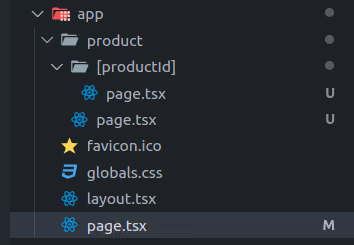
Homepage: https://www.example.com → app/page.tsx
- This serves as the homepage of your application.
- URL corresponds directly to /.
Listings: https://www.example.com/product → app/product/page.tsx
- This defines the route for the product listings page.
- URL corresponds directly to /product.
Detail: https://www.example.com/product/1 → app/product/[productId]/page.tsx
- This dynamic segment [productId] allows for detail pages for each product.
- URL corresponds to /product/:productId (e.g., /product/1 or /product/42).
Optimizing Images and Multimedia
Image optimization is a fundamental SEO factor. With Next.js, we can use the next/image component to ensure responsive image loading and efficient optimization. Don’t forget to provide descriptive alt attributes for our images to improve accessibility and SEO.
import Image from 'next/image';

export default function ImageComponent() {
  return (
    <Image
      src='/img.png'
      width={500}
      height={500}
      alt='alt-text'
    />
  );
}
XML Sitemaps
XML sitemaps provide search engines with a map of our website’s structure, making it easier for them to index our content. The next-sitemap package simplifies the generation of XML sitemaps.
Here’s an example where we generate sitemap entries for a homepage, a product listing page, and individual product pages dynamically fetched from an API:
import type { MetadataRoute } from 'next'

const getProducts = () => {... // Fetch and return Products
}

export default function sitemap(): MetadataRoute.Sitemap {
  type SitemapEntry = {
    url: string;
    lastModified?: string | Date;
    changeFrequency?: 'daily' | 'yearly' | 'always' | 'hourly' | 'weekly' | 'monthly' | 'never';
    priority?: number;
  };

  const baseUrl = 'https://www.example.com';
  const productUrl = '/product';
  const productsRes = getProducts(); // Fetch products from an API

  const productsData: SitemapEntry[] = productsRes?.map((productEle) => ({   // Map products to sitemap format
    url: `${baseUrl}${productUrl}/${productEle?.slug}`,
    lastModified: productEle?.createdDate || new Date(),
    changeFrequency: 'daily',
    priority: 1,
  })) || [];

  const sitemap: SitemapEntry[] = [ // Combine static and dynamic entries
    {
      url: baseUrl, // Homepage
      lastModified: new Date(),
      changeFrequency: 'yearly',
      priority: 1,
    },
    {
      url: `${baseUrl}${productUrl}`, // Product Listing page
      lastModified: new Date(),
      changeFrequency: 'monthly',
      priority: 1,
    },
    ...productsData, // Product Detail Pages
  ];

  return sitemap;
}
Define Static URLs
- The homepage (baseUrl) and product listing page (${baseUrl}${productUrl}) are defined as static entries in the sitemap.
- These URLs are included with their respective changeFrequency and priority settings to guide search engines.
Fetch Dynamic Data
- Use an API call to fetch the list of products. Each product’s slug is used to construct its unique URL.
- The lastModified field ensures search engines know the last time the resource was updated.
Map Dynamic Data to Sitemap Format
- For each product, we create an object containing url, lastModified, changeFrequency, and priority.
- The changeFrequency field indicates how often the content is likely to change, helping search engines prioritize crawling.
Combine Static and Dynamic Entries
- The static entries are merged with the dynamic product entries to form the complete sitemap.
Generated XML Sitemap
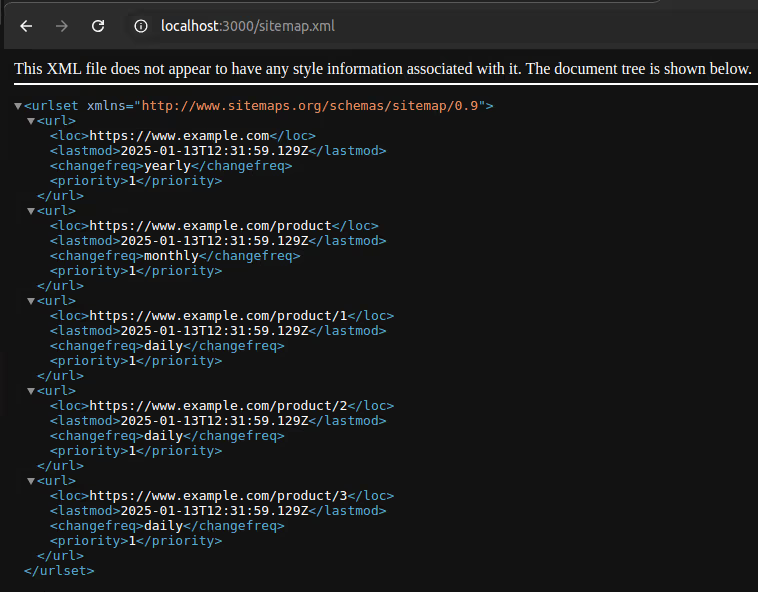
Robots.txt
In Next.js, a robots.txt file is used to provide instructions to search engine crawlers (e.g., Googlebot, Bingbot) about which pages or sections of your site should be indexed or ignored. It helps manage search engine visibility for your website.
- userAgent: Defines which crawlers the rules apply to. Use * to apply the rules universally.
- allow: Specifies paths that crawlers are permitted to access.
- disallow: Blocks access to paths you don’t want crawled (e.g., /private/).
- sitemap: Points to the sitemap URL, helping crawlers discover and index your pages efficiently.
Here’s an example how to configure a robots.txt file in a Next.js app using the MetadataRoute.Robots type provided by Next.js
import type { MetadataRoute } from 'next'

export default function robots(): MetadataRoute.Robots {

  const baseUrl = 'https://www.example.com';

  return {
    rules: {
      userAgent: '*',
      allow: ['/', '/product'],
      disallow: '/private/',
    },
    sitemap: `${baseUrl}/sitemap.xml`,
  }
}
Generated Robots.txt
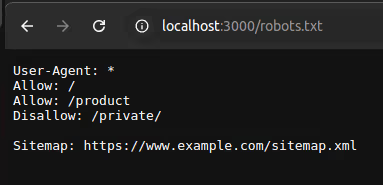
SEO Metadata
The Metadata API in Next.js simplifies defining metadata for your application, such as meta tags and link tags, inside the HTML <head> element. This helps improve SEO and makes your pages more shareable on social media platforms.
You can export either:
- A static metadata object for predefined metadata.
- A dynamic generateMetadata function for generating metadata dynamically based on runtime data.
These exports go in layout.js or page.js files associated with your routes.
Static Metadata
Static metadata in Next.js refers to predefined, unchanging metadata values added to your application for SEO and social sharing purposes. These metadata values, such as titles, descriptions, and Open Graph tags, are set at build time and do not change dynamically based on runtime conditions.
Here’s an example of static metadata defined in a layout file in a Next.js application. It provides default metadata for the pages within the layout, ensuring consistency across the section of the app.
import type { Metadata } from "next";
import "./globals.css";

export const metadata: Metadata = {
  metadataBase: new URL('https://www.example.com'),
  title: {
    default: 'Example',
    template: `%s | Example`,
  },
  keywords: ['keyword1', 'keyword2', 'keyword3'],
  openGraph: {
    description: 'This is a meta description...',
    images: [''],
  },
};

export default function RootLayout({
  children,
}: Readonly<{
  children: React.ReactNode;
}>) {
  return (
    <html lang="en">
      <body>
        {children}
      </body>
    </html>
  );
}
metadataBase
- Specifies the base URL of the website.
title
- default: The default title of the page when no specific title is set.
- template: A string template for generating titles dynamically.
keywords
- An array of keywords for SEO purposes.
openGraph
Contains metadata used for Open Graph protocol, which enhances link previews on platforms like Facebook and LinkedIn.
- description: A brief description of the page.
- images: An array of URLs pointing to images used for link previews.
Generated Meta tags in DOM
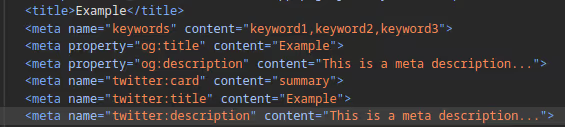
Dynamic Metadata
Dynamic metadata in Next.js allows you to programmatically generate and customize metadata values based on runtime data, such as page content, user preferences, or external APIs. Unlike static metadata, which is predefined and consistent across pages, dynamic metadata can change depending on the context, providing a more tailored experience for each page.
Dynamic metadata is especially useful for pages that rely on user input or content that changes frequently, such as blog posts, product details, or user profiles.
Here’s an example of dynamic metadata defined in a product file in a Next.js application. It provides dynamic metadata for the product detail pages based on data fetched from API.
import React from 'react';
import { notFound } from 'next/navigation';

export async function generateMetadata({ params }: { params: { productId: string } }){
  try{
    // read route params
    const id = params?.productId;
    // fetch product data
    const response = await fetch(`https://.../${id}`).then((res) => res.json());
    if(response?.length === 0){
      return{
        title: 'Not Found',
        description: 'The page you are looking for does not exist'
      }
    }
    return {
      openGraph: {
        title: response[0].title,
        description: response[0].description,
        images: [''],
      },
    };
  } catch(error){
    console.error(error);
    return{
      title: 'Not Found',
      description: 'The page you are looking for does not exist'
    }
  }
}

const page = ({ params }: { params: { productId: string } }) => {
  if (parseInt(params?.productId) > 5) {
    notFound();
  }
  return (
    <div>HTML code hoes here</div>
  );
};

export default page;
Extract Route Parameters: The productId is extracted from params.
Fetch Product Data: Fetches data from API for the product using the productId.
Returns Dynamic Metadata:
If the product is not found (response?.length === 0), a fallback metadata object is returned with a “Not Found” title and description.
If the product is found, metadata is populated using the product data.
Error Handling: If any error occurs during the process, a fallback metadata object is returned.
Conclusion
SEO is essential for making your website visible to the right audience, and with the capabilities of Next.js 14+ and TypeScript, building an SEO-friendly web application has never been more straightforward.
From server-side rendering and static site generation to optimized images, dynamic routes, and detailed metadata management, Next.js provides all the tools you need to create high-performing websites that search engines love.
By combining these features with a thoughtful approach to your website’s structure, content, and accessibility, you can enhance your search engine rankings while delivering a seamless user experience.
Whether you’re crafting a small project or managing a large-scale application, leveraging the power of Next.js and TypeScript ensures your site is ready to meet modern SEO demands effectively.

How to build your first plugin in Strapi: A beginner’s guide
Strapi is a powerful CMS that offers a variety of features out of the box, along with a robust plugin marketplace. However, there are times when you might need a custom solution to meet specific project requirements. Fortunately, Strapi makes it easy to extend its functionality through custom plugins. Some common use cases for this include creating a custom authentication provider, integrating with third-party APIs, or enhancing the admin panel's search functionalities.
In one of our projects, we needed to implement custom functionality, so we turned to the documentation and available examples. While there were plenty of examples, the documentation felt scattered and didn’t provide a clear, cohesive guide on how to get started with plugin development.
In this tutorial, we will walk through the steps of creating a simple plugin in Strapi. Our goal is to fetch configuration data from the plugin and display it on the admin panel.
Strapi plugins are structured in two parts: the backend (server folder) and the frontend (admin folder). We will create custom routes and expose APIs that can be accessed from Strapi’s frontend to retrieve data and trigger various events.
Step 1: Setting up Strapi
Before starting, ensure that you have Strapi installed and running. If you don't have it installed yet, you can create a new Strapi project with the following command:
yarn create strapi-app test-project-1 --quickstartPlugins in Strapi are located in the ./plugins directory of your project. To create a new plugin, use the CLI command below:
yarn strapi generate pluginAfter running this command, enter the desired plugin name. A new folder will be generated inside the /src/plugins/<plugin-name> directory.
This folder will consist of two subfolders: admin (for the UI, built with React.js) and server (for backend logic like routes, controllers, and services).
Note: Strapi uses a design system for its UI components, which you can explore here.
Step 2: Enabling the Plugin
To enable the plugin, navigate to the config/plugins.js file and add the following configuration:
module.exports = () => ({
    'test-plugin': {
      enabled: true,
      resolve: './src/plugins/test-plugin',
    },
});
This will enable the plugin and make it available in the Strapi admin panel. Once this is done, run the following command:
yarn run develop -- --watch-adminThen, open http://localhost:1337/admin/ in your browser, and you should see your plugin listed in the sidebar.

Step 3: Adding configuration data
To display configuration data in the Strapi admin panel, we need to modify the config/plugins.js file. Plugins can have a config property where custom configurations can be defined and accessed throughout your plugin.
For example, let's add a configuration object to our my-plugin entry in the config/plugins.js file.
module.exports = () => ({
     'test-plugin': {
       enabled: true,
       resolve: './src/plugins/test-plugin',
       config: {
         base_url: 'http://connect-to-third-party-api.com',
         publicKey: '1234567890',
       },
     },
});
Step 4: Accessing configuration data via API
Step 4.1: Create a Route
First, let's create a route to fetch the configuration data. Open src/plugins/my-plugin/server/routes/index.js and add the following route definition:
module.exports = [
    {
        method: 'GET',
        path: '/',
        handler: 'myController.index',
        config: {
            policies: [],
        },
    },
    {
        method: 'GET',
        path: '/get-configs',
        handler: 'myController.configs',
        config: {
            policies: [],
        },
    },
];
Step 4.2: Create a Controller
Now, create a controller that handles the route we just defined. Go to src/plugins/my-plugin/server/controllers/my-controller.js and add this function:
'use strict';

module.exports = ({ strapi }) => ({
    index(ctx) {
        ctx.body = strapi.plugin('test-plugin').service('myService').getWelcomeMessage();
    },

    configs(ctx) {
        console.log('called configs');
        ctx.body = strapi.plugin('test-plugin').service('myService').getConfigs();
    },
});
In this example, we're using the strapi.plugin() method to access the plugin's services, such as myService.
Side Note - Strapi provides several helper functions within the controller. For example, using strapi.plugin() and passing the plugin's name as a parameter, you can access the plugin’s services, middleware, and other data. To call a specific service, use the strapi.plugin('plugin-name').service('serviceName') method. The service name should match the file name in the services folder, using camelCase.
For instance, if the service file is named user-authentication-aws.js, you would access it with strapi.plugin('test-plugin').service('userAuthenticationAws').
Note: When generating a plugin, Strapi automatically creates key files such as the controller (my-controller.js) and service (my-service.js) files under the server folder
Step 4.3: Create a Service
Next, define the service that the controller is using. In src/plugins/my-plugin/server/services/my-service.js, add the following:
'use strict';

module.exports = ({ strapi }) => ({
    getWelcomeMessage() {
        return 'Welcome to Strapi 🚀';
    },

    getConfigs() {
        return strapi.config.get('plugin.test-plugin');
    },
});
Step 5: Displaying data in the admin panel
Step 5.1: Fetch Configuration Data
Now that the backend is set up, let's display this configuration data on the Strapi admin panel. Open the src/plugins/my-plugin/admin/src/pages/HomePage/index.js file and modify it as follows:
import React, { useEffect, useState } from 'react';
import pluginId from '../../pluginId';
import { useFetchClient } from '@strapi/helper-plugin';

const HomePage = () => {
    const [configs, setConfigs] = useState({});
    const client = useFetchClient();

    useEffect(() => {
        client
            .get(`/my-plugin/get-configs`)
            .then((response) => {
                setConfigs(response.data);
            })
            .catch((error) => {
                console.error('Error fetching configs:', error);
            });
    }, [client]);

    return (
        <div>
            <h1>{pluginId} HomePage</h1>
            <p>Configs: {JSON.stringify(configs)}</p>
        </div>
    );
};

export default HomePage;
This component makes a GET request to the /get-configs route we defined earlier and displays the configuration data.
Step 5.2: Beautify the UI
To make the UI more presentable, we can utilize Strapi's design system components. Update the HomePage component as follows:
import React, { useEffect, useState } from 'react';
import pluginId from '../../pluginId';
import { useFetchClient } from '@strapi/helper-plugin';
import { Box, Tbody, Thead, Typography, Table, Tr, Th, Td } from '@strapi/design-system';

const HomePage = () => {
    const [configs, setConfigs] = useState({});

    const client = useFetchClient();

    useEffect(() => {
        client.get(`/test-plugin/get-configs`).then((response) => {
            setConfigs(response.data);
        });
    }, []);

    return (
        <Box padding={6}>
            <Typography variant="alpha">{pluginId} HomePage</Typography>

            <Table colCount={2}>
                <Thead>
                    <Tr>
                        <Th>Key</Th>
                        <Th>Value</Th>
                    </Tr>
                </Thead>
                <Tbody>
                    {Object.keys(configs).map((key) => (
                        <Tr key={key}>
                            <Td>{key}</Td>
                            <Td>{configs[key]}</Td>
                        </Tr>
                    ))}
                </Tbody>
            </Table>
        </Box>
    );
};

export default HomePage;
Now, the configuration data will be displayed in a table format using Strapi's design system components.
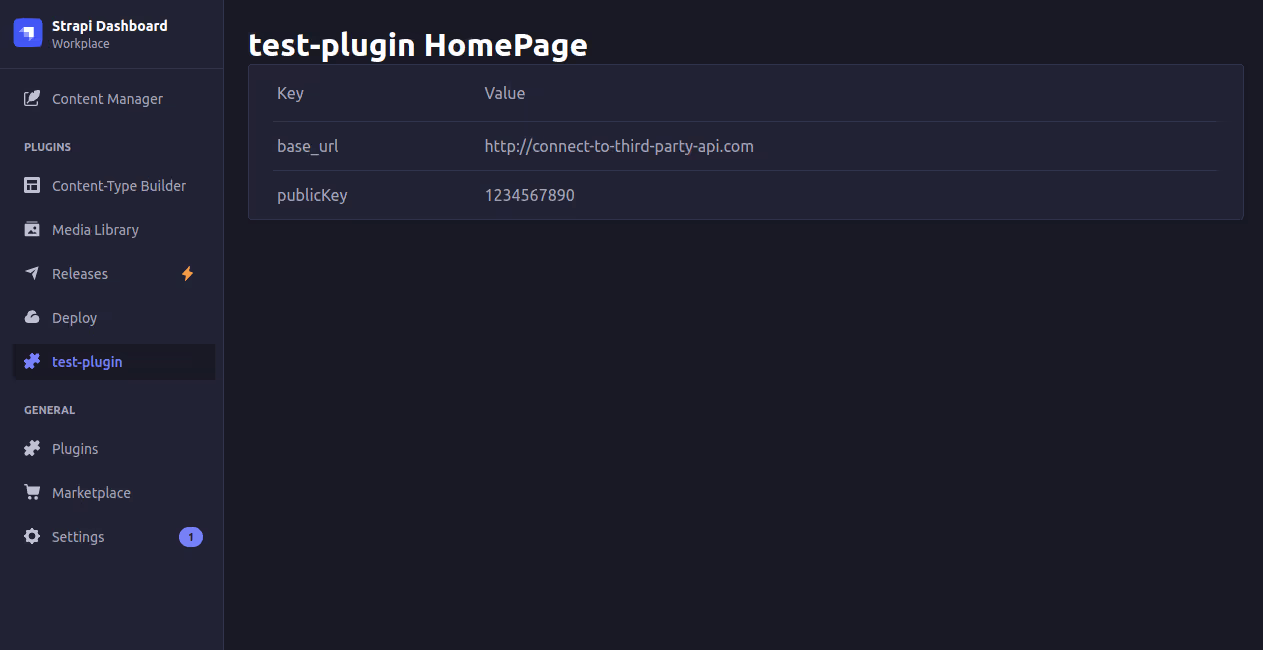
Recap - Plugin request flow in Strapi
To help visualize the plugin flow, the diagram below outlines how a request from the UI is processed in Strapi:
- UI Interaction: A user action in the admin panel or frontend triggers a request.
- Route Matching: The request is sent to the server, where it is routed to the corresponding route handler.
- Controller Invocation: Once the route is matched, the controller associated with it is invoked.
- Service Call: If necessary, the controller can call a service to handle specific logic.
- Response: After processing, the response is sent back to the UI.
This flow demonstrates how requests move from the UI to the backend, invoking routes, controllers, and services within a Strapi plugin.
Conclusion
In this blog post, we've seen how to create a basic plugin in Strapi, add a custom configuration, and display that configuration data in the Strapi admin panel. This is just the start—there's much more you can do by extending your plugin with additional functionality and UI elements!
For more information on Strapi plugins, refer to the official documentation.
Happy coding!