One of the most frustrating Drupal issues I have encountered during testing looked completely correct in the administration interface. The content was published, permissions appeared correct, and the Views preview showed the expected results. Yet when I tested the same feature as an anonymous user, the content was missing because of a configuration issue that was invisible from the backend.
What looked like a permissions problem turned out to be correct configuration behaving differently for anonymous users. Since then, I have found the same pattern behind almost every Drupal defect that survives initial testing, and each issue in this article is another example of that gap between the administrator view and the real user experience.
This article covers the ten Drupal issues I deliberately test during every QA cycle because they consistently expose defects that are easy to miss during initial validation.
What this article covers
After enough Drupal QA cycles, I noticed the same pattern repeating itself. Most defects that survive initial validation are not caused by custom code. They appear when permissions, caching, Views, taxonomy, multilingual configuration, and editorial workflows interact under real user conditions.
The ten issues below are the ones I deliberately test because they consistently expose that gap between what administrators see and what users actually experience.
Role testing matrix
Before validating individual bugs, I test key Drupal functionality across multiple user roles because many issues only appear when content is viewed from the perspective of actual users rather than administrators.
| Issue area | Roles | Compare |
|---|---|---|
| Permissions | Anonymous, Editor, Admin | Access |
| Views | Anonymous, Editor, Admin | Visibility |
| Search | Anonymous, Editor | Results |
| Webforms | Anonymous, Authenticated | Submission |
| Taxonomy | Anonymous, Editor | Filters |
| Multilingual | Anonymous, Editor | Language |
| Caching | Anonymous, Admin | Cached vs Updated |
1. Incorrect User Role Permissions
One of the most common issues I encounter during Drupal testing is permissions behaving differently than expected for specific user roles. The configuration often looks correct in the admin interface. In practice, anonymous users may gain access to restricted content, or editors may be blocked from actions they should be able to perform.
Scenario
One issue I have encountered in Drupal projects is permission inheritance through multiple roles. A user may appear to have limited access based on one role. Permissions inherited from another role can unintentionally grant access to administrative functionality.
For example, I have seen users assigned both Content Editor and Site Manager roles. The Content Editor role was correctly restricted, but the Site Manager role granted permissions that exposed administrative functionality unexpectedly.
Common symptoms
- Anonymous users accessing private pages
- Editors deleting content they should not be able to modify
- Permission denied errors for valid actions
- Users accessing administrative functionality unintentionally
Anonymous Role Permissions
If permissions such as administrative access, content editing, or restricted content viewing are assigned to the Anonymous role, I report it as a permission configuration issue.
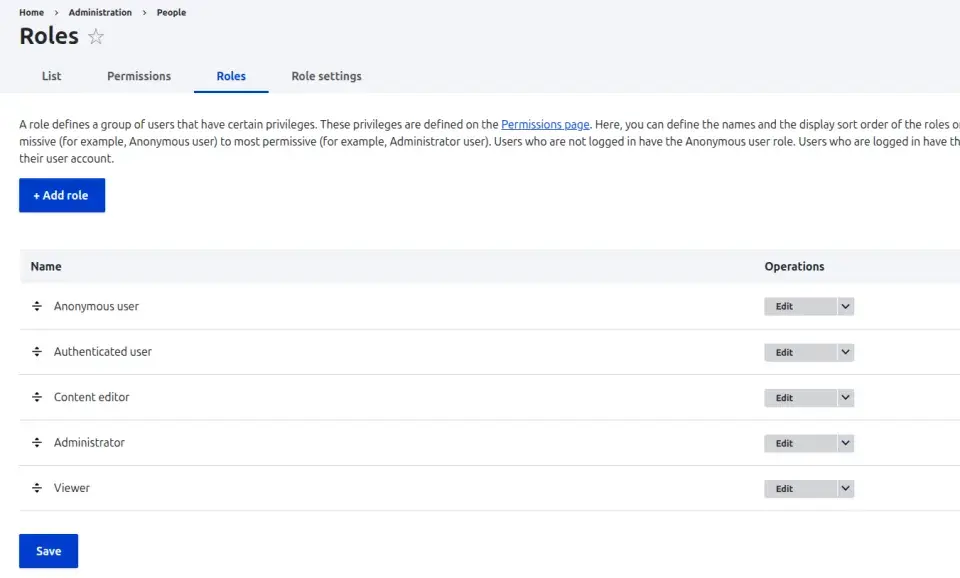
- Click on the Anonymous and Content Editor roles and see their permissions
- Anonymous Role Permissions: If the below permissions are assigned to the anonymous Role, then this is the Bug.
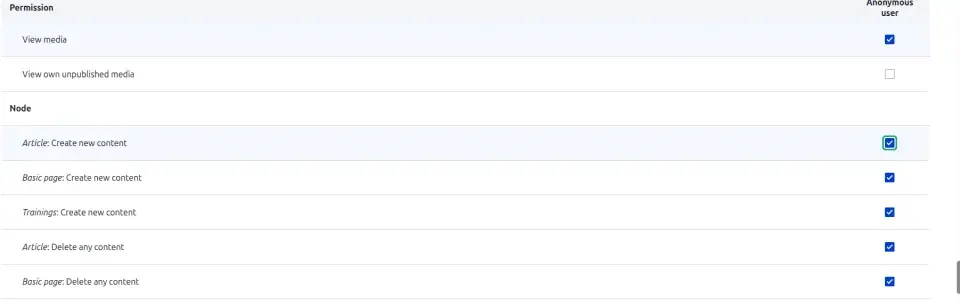
Content Editor Role Permissions
Content Editors should only have permissions required for their workflow. I review any elevated permissions that allow administrative actions, user management, or unintended content access because they can introduce security risks.

How I Test Permissions
- Test the same workflow using Anonymous, Content Editor, and Administrator accounts
- Compare expected behavior against actual behavior for each role
- Verify both allowed and restricted actions
- Test direct URL access to restricted pages instead of relying only on navigation menus
- Use Incognito mode to test anonymous access separately from authenticated session
For larger Drupal websites, manual testing alone is rarely enough. I usually combine manual testing with automated scanning tools to catch issues that a scripted walkthrough misses.
2. Caching showing outdated content
Content is updated correctly in the backend, but users continue seeing older versions on the frontend because one or more caching layers have not been refreshed.
Scenario
Content editors update a page successfully, but the frontend continues displaying older content because one or more caching layers have not been refreshed.
In one project, content editors confirmed their updates were saved correctly, but anonymous users continued seeing an older cached version for several hours because the cache was not invalidated properly.
Examples
- Updated pages not displaying the latest content
- Views showing outdated content
- Deleted content still appearing in listings
- Homepage components displaying old information
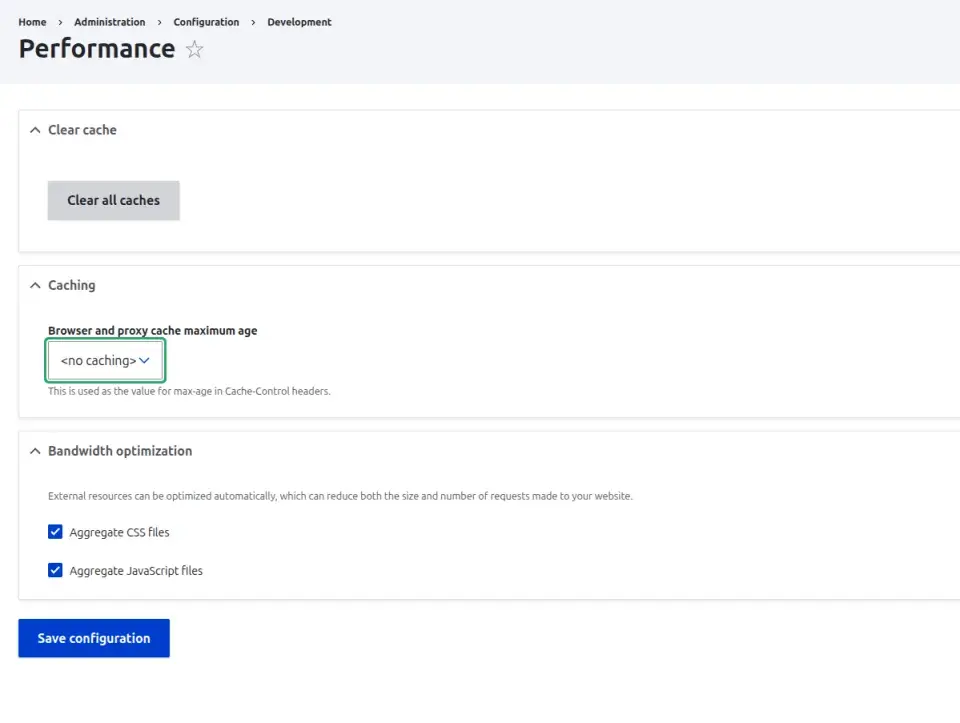
How I Test Cache Behavior
- Update existing content and verify changes on the frontend
- Compare page behavior between Administrator and Anonymous users
- Test listing pages and Views after content updates
- Verify whether deleted content still appears in cached listings
- Check if homepage components reflect the latest published content
How I Reproduce the Issue
- Login as an Administrator.
- Update content such as the title, image, or body field.
- Save the content.
- Open the frontend page and verify whether the update is visible.
- Test the same page as an Anonymous user.
- Compare the results between user roles.
- Verify any related Views or listing pages.
Browser-Level Validation
For deeper troubleshooting, I also use browser tools to determine whether the issue originates from browser caching or Drupal caching.
I usually:
- Test in an Incognito window
- Compare behaviour across multiple browsers
- Disable browser cache and refresh the page
- Compare behaviour before and after clearing Drupal caches
3. Form Validation Issues
Form validation issues are often easy to overlook because the form appears to function correctly at first glance. Users can enter data, click Submit, and receive a successful response, but the system may still accept incomplete or invalid information.
In Drupal projects, I have seen required fields bypassed and validation rules behave inconsistently. Even more frustrating, frontend validation worked correctly while backend validation silently accepted invalid data.
Scenario
Forms sometimes accept incomplete, invalid, or incorrectly formatted data even though validation rules appear to be configured correctly.
Common symptoms
- Required fields accepting empty values
- Invalid email formats being accepted
- Missing validation messages
- Forms accepting unexpected special characters
- Frontend validation working while backend validation fails to enforce the same rules
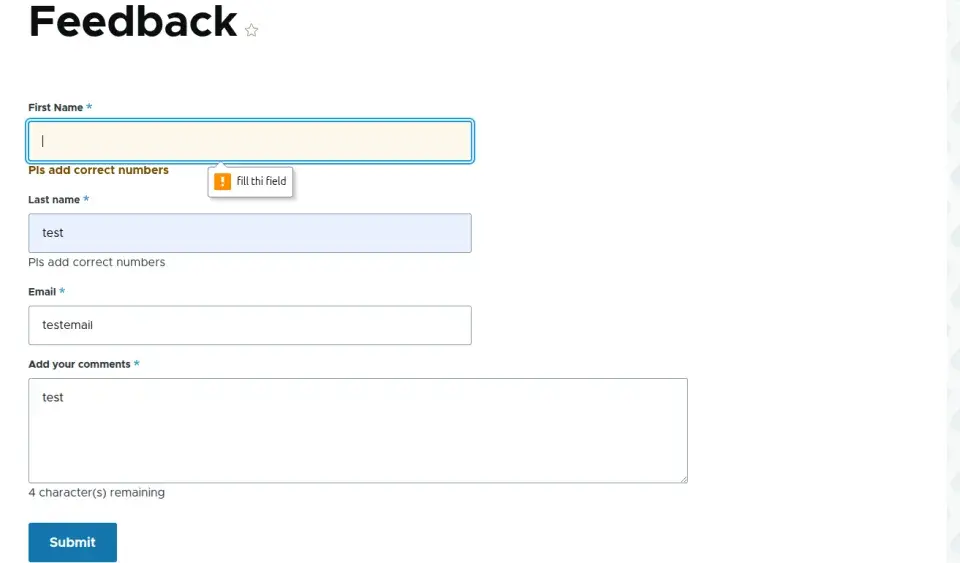
- Verify that required fields display validation messages when left empty and that invalid email formats are rejected before the form can be submitted.
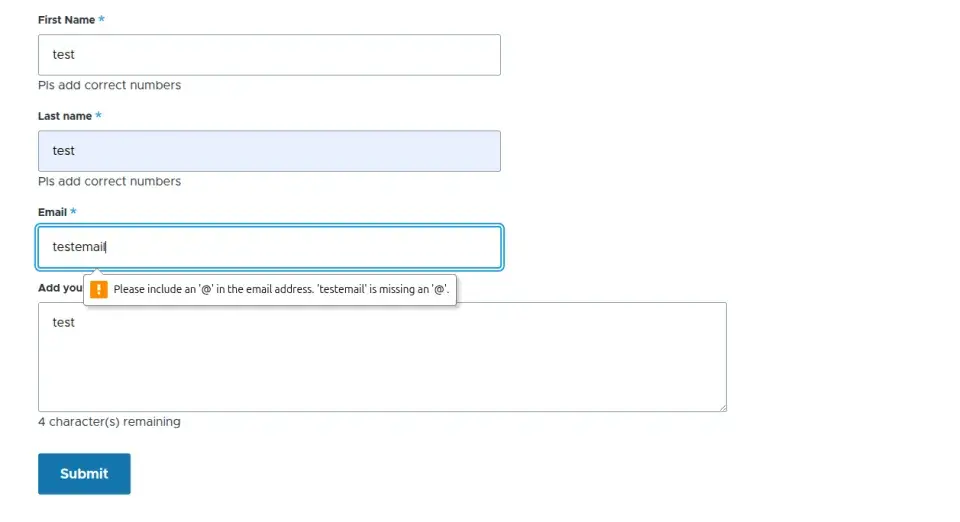
How I Test Form Validation
- Submitting forms with empty required fields
- Testing invalid email formats
- Entering special characters and unexpected values
- Verifying validation messages appear correctly
- Confirming validation works consistently on both frontend and backend
- Testing field length limits and boundary conditions
4. File Upload Problems
File upload functionality often looks straightforward during development but can introduce unexpected issues when tested with real-world content. In Drupal projects, I have encountered cases where upload restrictions were configured incorrectly, allowing unsupported file types to be uploaded or bypassing intended size limitations.
Scenario
Editors are able to upload unsupported file types, exceed configured size limits, or receive unclear validation messages when uploads fail.
One issue I encountered involved SVG files. Upload restrictions appeared correct in the configuration, but SVG uploads were still accepted through a custom workflow. The issue only became visible when testing file types outside the expected content editor journey.
Examples
- Unsupported file types uploaded successfully
- File size restrictions not enforced
- Missing or unclear validation messages
- Upload failures without meaningful error feedback
- Inconsistent behavior across different file formats
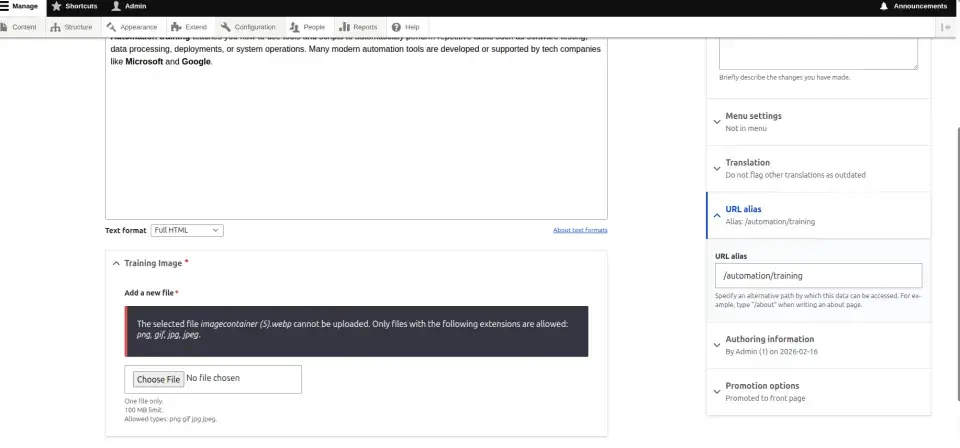
Verify that only approved file extensions can be uploaded and that invalid files are rejected with appropriate validation messages.
How I Test File Uploads
- Uploading supported file formats
- Uploading unsupported file formats
- Testing files that exceed configured size limits
- Verifying validation messages for failed uploads
- Confirming uploaded files can be accessed and downloaded correctly
- Testing uploads across different user roles when permissions are involved
5. Image Style Rendering Issues
Image-related issues are often difficult to identify because the original image exists in Drupal, but one or more generated image styles fail to render correctly on the frontend. The content appears complete in the admin interface while users encounter broken images, missing thumbnails, or incorrectly sized media.
Scenario
Images display correctly in one location but fail in another because a specific image style is not generated or rendered correctly.
Common symptoms
- Thumbnails not generated
- Broken image links
- Incorrect image dimensions
- Missing image derivatives
- Images displaying correctly in the Media Library but failing on the frontend
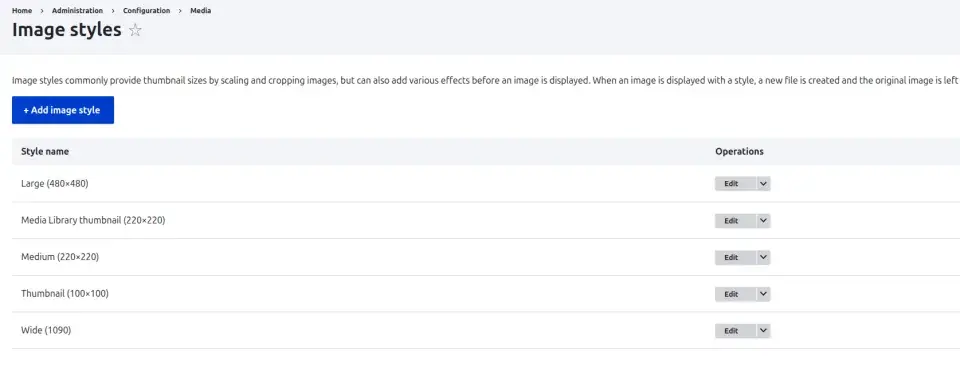
- The image style configuration may appear correct in Drupal, but if the generated image is missing, broken, or displaying unexpected dimensions on the frontend, I report it as an image style rendering issue.

How I Test Image Styles
- Test multiple image styles such as Thumbnail, Medium, and Large
- Check images across listing pages, content pages, and media displays
- Compare rendered images against expected dimensions
- Inspect image URLs to confirm the correct image style
- Verify image behavior after media updates or migrations
6. Views Displaying Incorrect Data
Views are one of the most powerful features in Drupal, but they are also responsible for many of the content display issues I encounter during QA. A View may appear perfectly configured in the administration interface while displaying unexpected results on the frontend. Filtering, relationships, permissions, or caching can all be responsible.
I have spent hours debugging View filters only to discover the View was correct. The cache caused the mismatch the whole time. It created the false impression that the filters were broken.
Scenario
Published content may be missing from a View, displayed in the wrong order, or appear multiple times because of filtering, relationships, permissions, or caching behavior.
Examples
- Missing content in listings
- Incorrect filtering results
- Duplicate content appearing in Views
- Incorrect sorting order
- Unexpected content visible to specific user roles
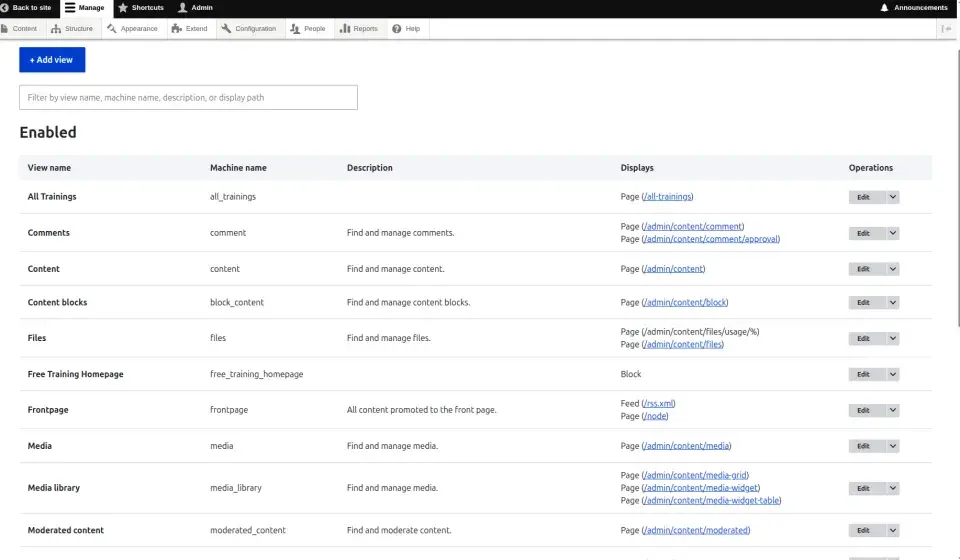
- Review the View configuration and compare the configured filters, sorting criteria, and display settings against the frontend output. If I find a mismatch between expected and actual results, I investigate the View configuration, permissions, and caching behavior.
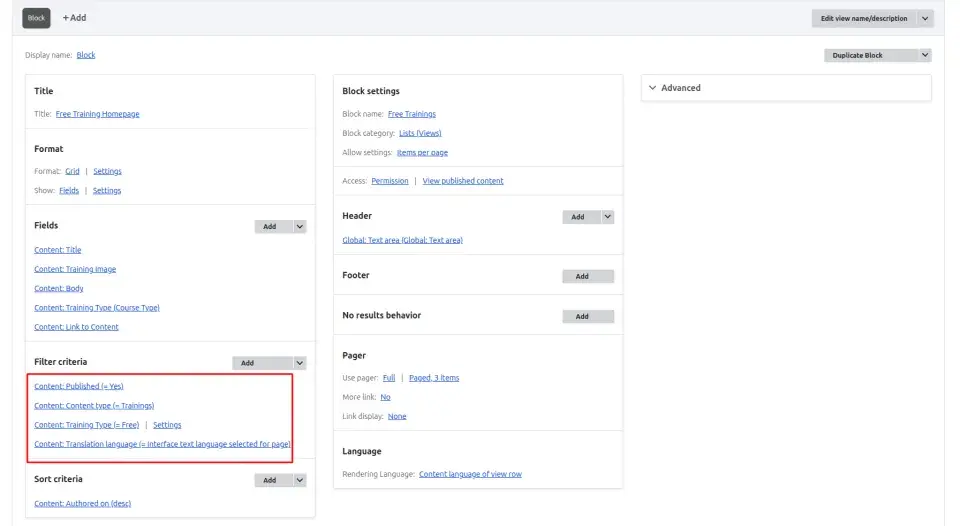
My Views Troubleshooting Workflow
- Test multiple filter combinations
- Verify sorting behavior
- Compare frontend output against View preview results
- Test behavior across different user roles
- Test content visibility after creating, updating, or deleting content
Additional Checks
- Review filter and sorting configurations
- Check contextual filters
- Compare preview results with frontend rendering
- Test Views after content updates
- Check whether caching affects displayed results
The mistake I made was assuming the Views preview was the source of truth. I spent hours reviewing filters before checking the cache headers. Since then, comparing the preview with the frontend has become my fastest way to separate configuration issues from caching problems.
The lesson I carried into every project after that was simple: if the preview and the frontend disagree, investigate caching before changing the View configuration.
That one mistake changed how I troubleshoot every Drupal project. I now compare the frontend with the View preview before changing any configuration because it tells me whether I'm dealing with caching or with the View itself.
7. Search Functionality Issues
One search issue I frequently encounter is newly published content failing to appear in search results even though the content is accessible through direct URLs. The search feature may appear functional, but users struggle to find information because results are incomplete, outdated, or unrelated to their search terms.
Scenario
Published content is accessible on the site but does not appear in search results, or search returns unrelated content.
Examples
- Newly created content missing from search results
- Irrelevant search results displayed
- Published content not searchable
- Search results showing outdated content
- Unexpected content appearing for specific keywords
- If search results are incomplete or irrelevant, I review indexing, permissions, and search configuration.
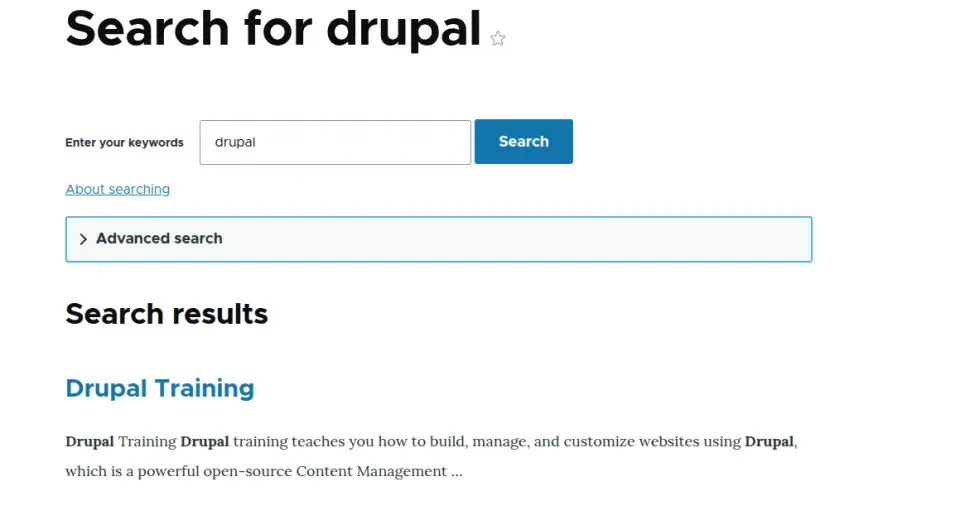
How I Check Search Results
- Test multiple search keywords
- Search for newly published content
- Verify search behavior after content updates
- Compare expected results with actual results
- Test content visibility using different user roles when permissions affect search results
8. Multilingual Content Problems
Multilingual functionality is one of the areas where I frequently encounter issues during Drupal testing. Content may appear translated correctly in the administration interface, but users still see the default language on the frontend, incomplete translations, or inconsistent language switching behavior.
Scenario
Translated content exists in Drupal, but users continue seeing the default language or inconsistent language switching behavior.
One lesson I learned is that translated content often exists correctly in Drupal while language negotiation settings cause users to see the wrong language version. In one project, the URL changed to the selected language, but the content continued displaying in English.
Common symptoms
- Missing translations
- Language switcher not working
- Content displaying in the wrong language
- Translated pages showing default language content
- Inconsistent language behavior across pages
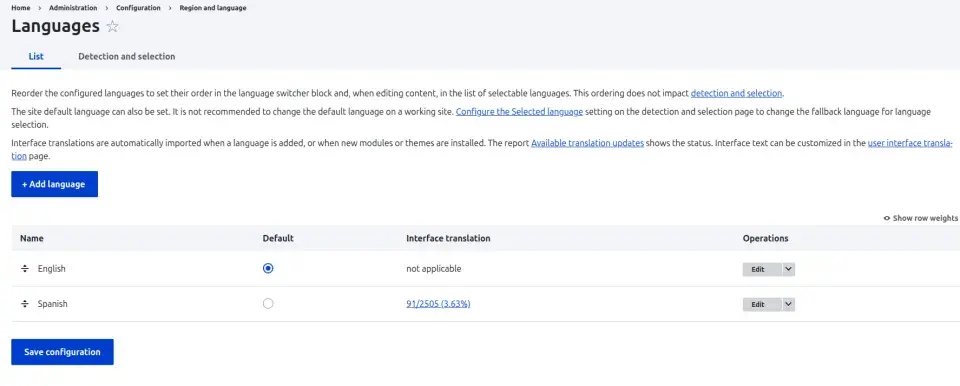
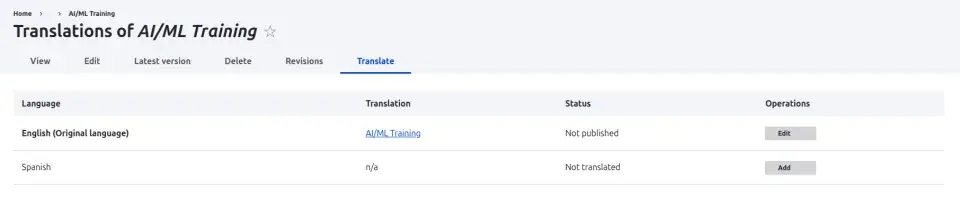
- Verify that all configured languages are available and that translated content displays correctly when users switch between languages.
- When testing translations, ensure that the translated version of the content is displayed instead of the default language version. If the translation exists but users continue seeing the original content, I investigate translation configuration, language negotiation settings, and caching behavior.
- Similarly, verify that the language switcher updates the page correctly and loads the expected translated content.

My Multilingual Testing Approach
- Switch between all supported languages
- Verify translated content on both listing and detail pages
- Test language switching from different entry points
- Check translated menus, labels, and content
- Compare behavior between authenticated and anonymous users
9. Webform Submission Issues
I have encountered Webforms that displayed a success message even though submissions were never stored or notification emails were never sent. These failures often remain unnoticed until someone reports that expected submissions are missing.
Scenario
Forms display a success message, but submissions are not stored correctly or notification emails fail to reach the intended recipients.
Examples
- Submissions not saved
- Email notifications not sent
- Success messages displayed despite processing failures
- Missing confirmation emails
- Incomplete or incorrect submission data
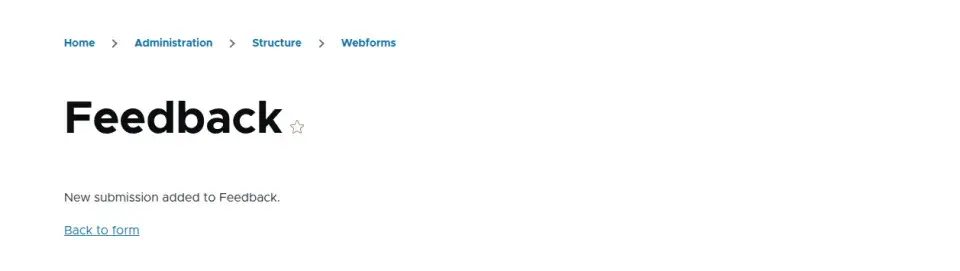
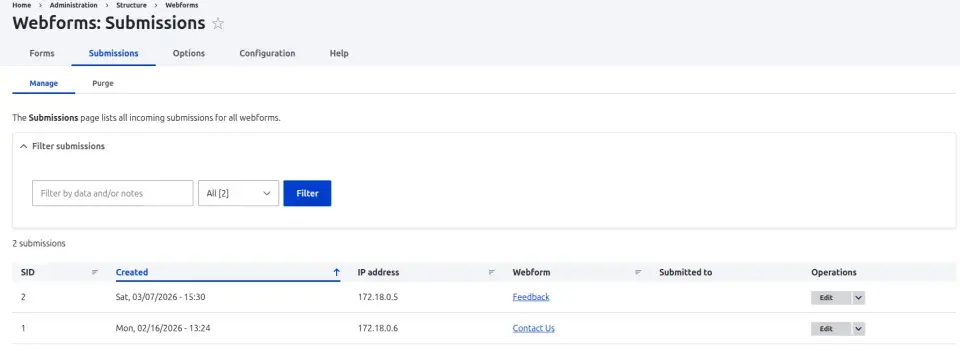
- Verify that the confirmation message appears after form submission and confirm that the submitted data is stored correctly within the Webform submissions area.
How I Check Webform Submissions
- Submit forms using different input combinations
- Verify confirmation messages
- Review stored submission data
- Confirm notification emails are sent
- Test both successful and invalid submission scenarios
10. Taxonomy Filtering Issues
Taxonomy terms drive content listings, search filters, related content, and Views. A single misconfigured vocabulary can affect all of them, making taxonomy issues difficult to trace.
Scenario
Content tagged with the correct taxonomy terms does not appear in filtered results, or filters return incomplete or unexpected content.
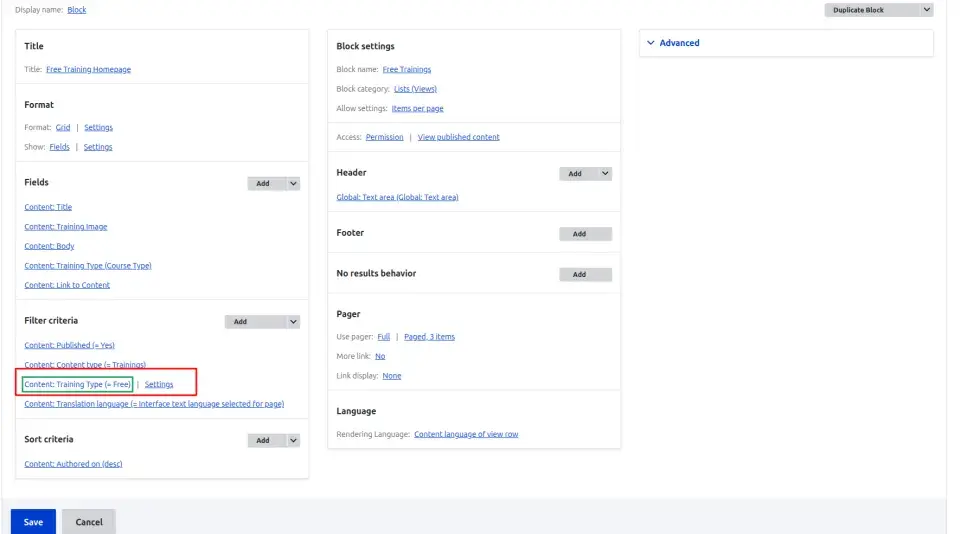
I have seen cases where taxonomy terms were assigned correctly, but a View filter was configured against the wrong vocabulary. The content existed, but users could never find it through filtering.
Examples
- Filters not working in Views
- Tagged content not appearing in filtered results
- Incorrect content displayed under taxonomy terms
- Empty results returned despite matching content existing
- Inconsistent filtering behavior across pages
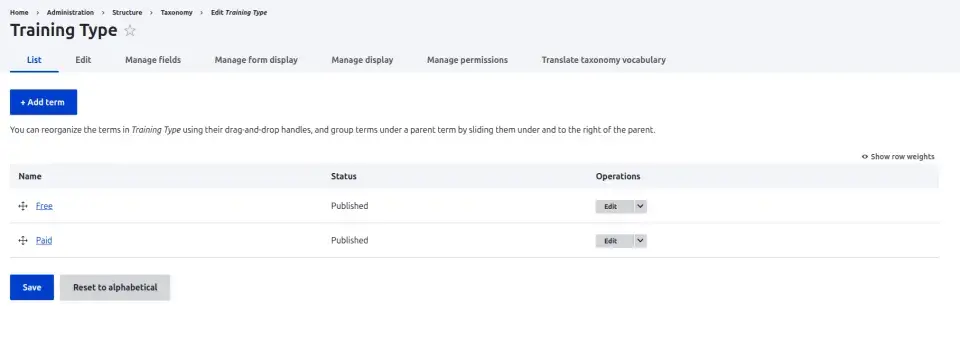
- Review the taxonomy vocabulary, associated terms, and View configuration to confirm that content tagged with a taxonomy term appears correctly when the corresponding filter is applied.
- If content exists but does not appear in filtered results, I review the View configuration, taxonomy terms, and filtering logic to identify the cause.

How I Test Taxonomy Filters
- Test content tagged with multiple taxonomy terms
- Verify filtering behavior across different Views
- Compare expected results against actual results
- Test newly created and updated taxonomy terms
- Test content listings that use taxonomy filters
Drupal QA testing checklist
The issues covered in this article are the areas I consistently check during Drupal testing because they are responsible for a large percentage of content, configuration, and user experience defects that reach staging environments.
Issues Table
body { font-family: Arial, sans-serif; } table { border-collapse: collapse; width: 100%; max-width: 1000px; } th, td { border: 1px solid #000; padding: 8px; text-align: left; vertical-align: top; font-size: 14px; } th { text-align: center; font-weight: bold; }
| Issue | Description | Area | Severity | Detection Method |
|---|---|---|---|---|
| Incorrect user role permissions | Users get unauthorized access or are incorrectly restricted. | Security | High | Role testing, incognito mode |
| Caching showing outdated content | Updated content is not visible immediately. | Cache | High | Hard refresh, headers, incognito |
| Form validation issues | Forms accept invalid or empty inputs. | Functional | High | Invalid input testing |
| Image style rendering issues | Images not displaying properly. | UI | Medium | Image style check |
| Views displaying incorrect data | Missing or wrongly filtered content. | Views | High | Views preview |
| Search functionality issues | Search results incorrect or missing. | Functional | Medium | Keyword testing |
| Multilingual content problems | Translations missing or incorrect. | Content | High | Language switch testing |
| Webform submission issues | Form data not saved or processed. | Functional | High | Submission validation |
| Taxonomy filtering issues | Content filtering is not working. | Filtering | Medium | Taxonomy + Views check |
Frequently asked questions
How do I test Drupal user permissions without creating separate browser sessions for each role?
Use Chrome profiles or Firefox Multi-Account Containers to maintain multiple authenticated sessions simultaneously. This allows you to test Administrator, Content Editor, and Anonymous user experiences side by side without repeatedly logging in and out. Incognito mode is useful for testing Anonymous user access.
How do I test Drupal caching issues when a CDN or reverse proxy is in front of the site?
Start by comparing the page as an Administrator and as an Anonymous user. Then check the response headers, such as X-Drupal-Cache, Age, or CDN-specific cache headers, to identify whether the response is coming from Drupal, a reverse proxy, or the CDN. This helps isolate the caching layer before investigating the application configuration.
Why does the Views preview show correct data while the frontend page shows different results?
Views preview often bypasses frontend caching layers. The frontend may display cached content, role-specific results, or outdated data. If preview and frontend output differ, verify caching, permissions, filters, and View configuration before reporting the issue.
How do I verify that a Drupal webform submission triggered an email notification?
First, confirm that the submission is stored correctly in Drupal. Then verify that notification handlers are configured and test whether emails are delivered to the intended recipients. If submissions are recorded but emails are not received, check the site's SMTP configuration.
What Drupal modules or tools help automate permission and cache testing?
While most permission and caching issues still require manual verification, tools such as Drupal's Devel module, browser developer tools, automated browser testing frameworks like Playwright, and CI pipelines can help identify permission regressions, caching inconsistencies, and frontend rendering issues more efficiently.
What is the fastest way to confirm whether a Drupal Views issue is caused by caching or filter configuration?
Compare the Views Preview with the frontend page. If the preview returns the expected results but the frontend does not, investigate caching, permissions, or user context before changing the View configuration. If both show incorrect results, review the View filters and relationships.
Can I test multilingual Drupal content before every translation is complete?
Yes. I usually verify language negotiation, menu translation, URL aliases, and fallback behaviour even when only part of the content has been translated. This helps identify multilingual configuration issues before all translations are available.
Conclusion
Most of the ten issues in this list have one thing in common: they looked correct from the administration interface. The content was published, permissions were configured, and the View preview returned the expected results. Then I switched to an anonymous user and discovered something important was missing.
That switch from administrator view to actual user view is still the most valuable QA action in Drupal. Every issue in this article is a variation of the same lesson: stop looking only at the configuration screen and start testing what users actually see.
Test as the user who will use it. Everything else follows from that.