
Drupal Canvas has officially launched, and many of you are likely already building impressive projects with it. As you may know, Drupal Canvas ships with several "out-of-the-box" AI features, such as AI-assisted code component generation, title/metatag generation, and full-page content generation.
I previously explained the underlying architecture of AI in Drupal Canvas. In this blog, we are going to focus on the practical side: how to add a brand-new AI feature to Drupal Canvas.
What we are going to build
We will build an AI agent that analyses a news article, evaluates its engagement potential, and provides a score out of 5 along with actionable suggestions for improvement.
Prerequisites
Before we begin, ensure you have the following:
- Drupal Canvas & Canvas AI: Install the Drupal Canvas project and enable the canvas_ai sub-module. Once enabled, you will see the chatbot interface within Canvas.
- AI provider: Should support tool calling (See: https://project.pages.drupalcode.org/ai/1.1.x/providers/matris/ for the available providers and their capabilities)
- SDC components: You’ll need Single Directory Components (SDC) that can display headings and paragraphs. If you don't have any, try creating them as code components using the Canvas AI chatbot first!
As we explored in my previous blog, AI features in Canvas are powered by an orchestration of agents.
When a user sends a message, it goes to the Canvas AI Orchestrator agent. Based on the intent of the request, the Orchestrator delegates the work to "Sub-Agents," such as the Component Agent (for code generation) or the Metadata Agent (for meta description generation).
Therefore, adding a new capability involves three key steps:
- Creating a new AI Agent (or tool) that performs the specific task.
- Attaching that Agent as a tool to the Orchestrator.
- Updating the Orchestrator’s prompt with instructions on when and how to use this new tool.
Step 1: Creating the "Readability Analyser" Agent
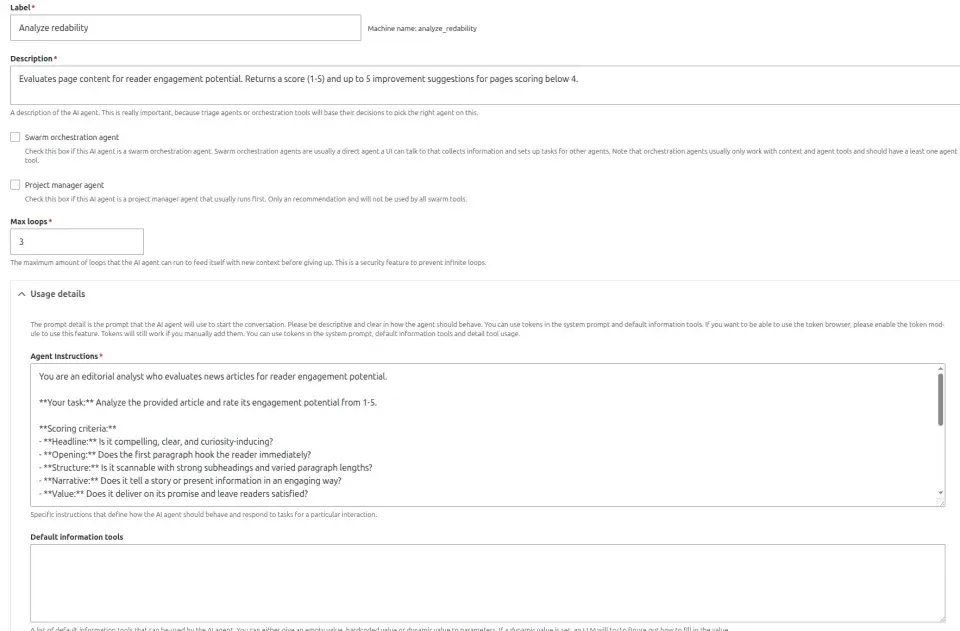
Navigate to Configuration -> AI -> AI Agent and add a new agent.
- Name: Analyse Readability
- Description: Evaluates page content for reader engagement potential. Returns a score (1-5) and up to 5 improvement suggestions for pages scoring below 4.
The Canvas AI module provides a useful token: [canvas_ai:layout]. This token automatically retrieves the content placed in all components on the current page. We will use this token in the agent’s instructions.
Agent instructions:
You are an editorial analyst who evaluates news articles for reader engagement potential.
Your task: Analyse the provided article and rate its engagement potential from 1-5.
Scoring criteria:
- Headline: Is it compelling, clear, and curiosity-inducing?
- Opening: Does the first paragraph hook the reader immediately?
- Structure: Is it scannable with strong subheadings and varied paragraph lengths?
- Narrative: Does it tell a story or present information in an engaging way?
- Value: Does it deliver on its promise and leave readers satisfied?
Output format:
- Score: [1-5]
- Rationale: 1-2 sentences explaining the score.
- Improvements: (Only if score < 4) List up to 5 specific, actionable suggestions.
Article to evaluate:[canvas_ai:layout]
Save the agent.
Step 2: Informing the Orchestrator
Now that our sub-agent exists, we need to tell the Orchestrator about it.
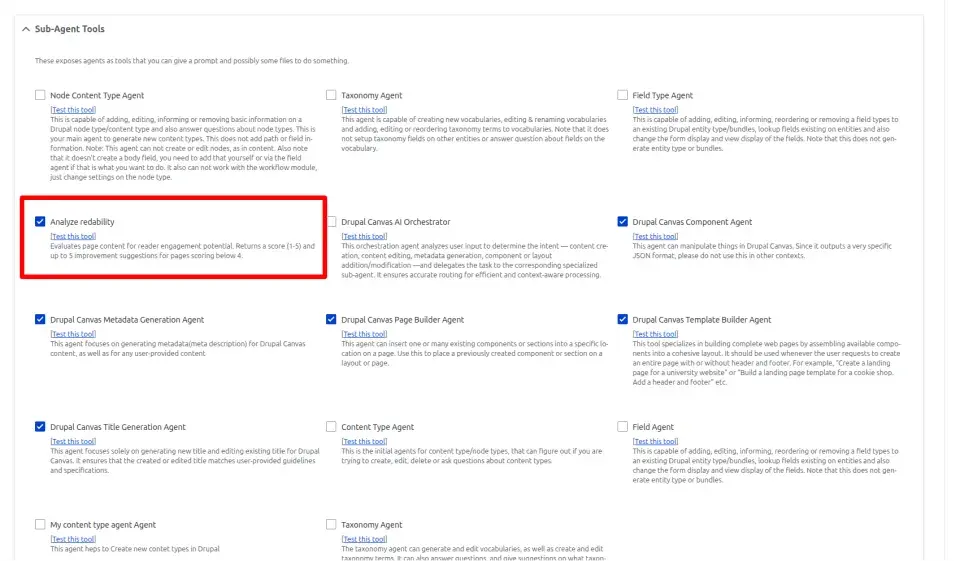
- Edit the orchestrator agent: Go to your AI Agent configuration and edit the Orchestrator agent.
- Assign tool: In the "Tools" section, select your newly created Analyse readability agent.
- Note: If the agent doesn't appear in the list, try clearing the Drupal cache.
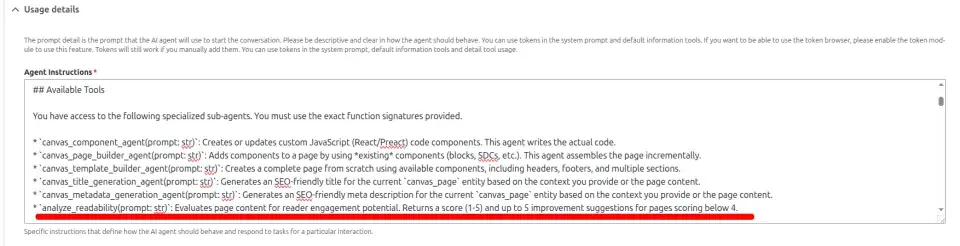
- Update prompt: Find the section in the Orchestrator’s instructions labelled “## Available Tools” and add the details of the new tool:
- analyze_readability(prompt: str): Evaluates page content for reader engagement potential. Returns a score (1-5) and up to 5 improvement suggestions.
Step 3: Testing the feature
Let’s see it in action:
- Create a new Canvas page.
- Add a news article using a heading component and several paragraph components.
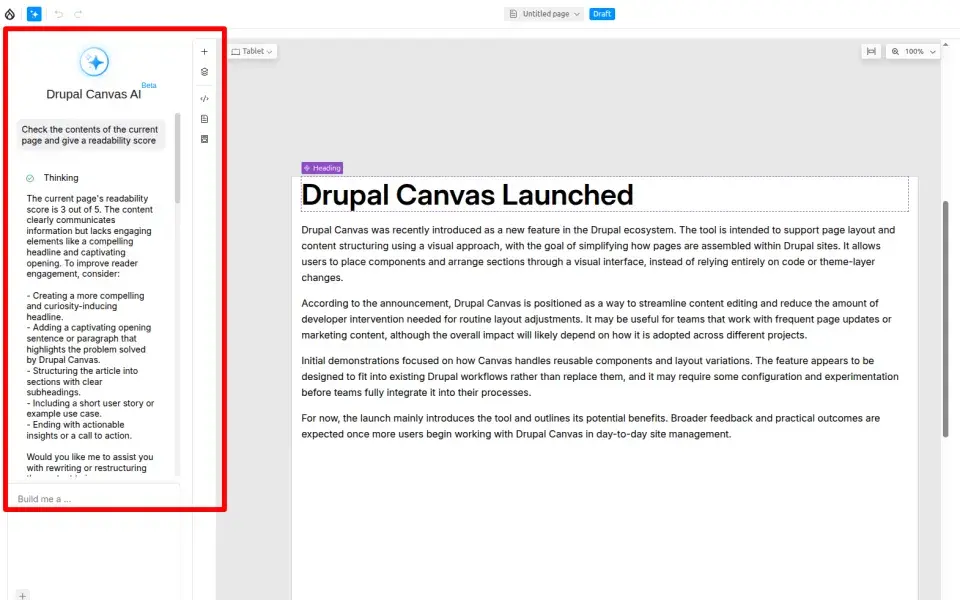
- Open the Canvas AI chatbot and type: "Check the contents of the current page and give me a readability score."
The Orchestrator will recognise the intent, call the Analyse Readability tool, and present the feedback directly in the chat interface.
Troubleshooting tip:
If the Orchestrator fails to call the sub-agent, refine the Orchestrator's prompt with more explicit instructions, such as:
"This tool is capable of looking at the content of the existing page to provide improvement suggestions. The tool does not require user input, as it automatically pulls the layout context via tokens."
Conclusion
This is the real strength of Drupal Canvas AI; it’s not limited to the features it ships with. Agents can be designed to reflect how teams think, review, and improve content.
Check out the video:
AI moves from being a generic assistant to becoming part of the editorial workflow. It reads what is built, understands context, and gives feedback that is tied directly to page structure and components.
Over time, Canvas shifts from a creation tool to a quality system. One where AI helps maintain consistency, clarity, and engagement across every page.
The impact is not just faster content. It is smarter, more reliable publishing.